cd /home/sebas/cmds
tar -cvzf /home/sebas/prova/uno.tgz *
tar -tf uno.tgz
aturar_VMX.sh
crear_backup.log
No se ha guardat el path. Si el volem guardar, hem de fer aixi
Compte que si escollim nomes alguns fitxer amb la extensio, no hi ha recursivitat de subdirectoris :
Si ho volem fer, ho podem fer directe (pocs fitxers) o amb un fitxer intermig :
stackoverflow
tar -cf my_archive `find ./ | grep '.php\|.html'` ; mind (`) and (') ;
find ./ -type f -name "*.php" -o -name "*.html" -exec tar uvf myarchives.tar {} +
find . \( -name "*.php" -o -name "*.html" \) -print > files.txt
tar cfh my.tar -I files.txt ; use -I or -T depending on the version of tar you use
The
bogomips (bogus Meaningless Indicator of Processor Speed)
I have got.
Fes cat /proc/cpuinfo i mira la darrera línia,
o bé dmesg | grep Bogo o lscpu
| IBM 9595 (DX2 25 MHz) | 24,88 |
| IBM 330 (DX2 60 MHz) | 33,28 |
| Pentium 90 MHz | 35,84 |
| TP 760 ED (Pentium 133 MHz) | 52,84 |
| S/390 (9672 R74) | 301,46 |
| T30 + Knoppix, 1,8 MHz CPU | 3.578,26 |
| P4 2.519,184 MHz CPU | 5.020,05 |
| T60, cpu 997 MHz | 3.324,93
|
| Raspberry 3B | 38,40
|
| MINIE Ryzen 9 | 16 x 6587,55
|
Want to know what it is ? Read this
mini-HOWTO
or /usr/doc/HOWTO/mini/BogoMIPS under Red Hat.
find i grep
find
find - find files
find / -name access_log 2>/dev/null discard error messages
find / -size +100000000c show files larger than 100 MB
find / -name odinpic_pi0alby_tar.jpg 2> /dev/null
/home/sebas/eines/backup/odinpic_pi0alby_tar.jpg
/odinpic_pi0alby_tar.jpg
Mostrar fitxers mes grans :
sebas@minie:~$ find . -type f -exec du -h {} + | sort -rh | head -n 10
Ignore "find" errors :
nicolau@mars:/$ find . -name "Irene Vallejo - El infinito en un junco.pdf" 2> /dev/null
./home/nicolau/Desktop/llibres lectura/Irene Vallejo - El infinito en un junco.pdf
./home/nicolau/sebas/llibres/Irene Vallejo - El infinito en un junco.pdf
./home/nicolau/Downloads/Telegram Desktop/Irene Vallejo - El infinito en un junco.pdf
Here's a good intro, and
here is another.
Esborrar tots els fitxers de una certa extensio, recorrent subdirectoris :
nicolau@mars:~$ find . -name "*.ext" -delete
locate
"locate" reads through the mlocate.db database file which contains all file paths in your system.
grep
grep - print lines matching a pattern.
The command takes the form :
$ grep --help
Usage: grep [OPTION]... PATTERN [FILE] ...
Search for PATTERN in each FILE or standard input.
Main flags recognized by grep :
-c print only a count of matching lines.
-i ignore case distinctions in comparisons.
-l print only the name of each input file tha contains a matched line.
-m NUM stop reading a file aftern NUM matching lines
-n print the line number of each matched line.
-r read all files under each directory. *** ***
-v reverse the sense of the matching, so that only unmatched lines are printed : grep some | grep -v grep = remove "own" line
Es a dir, el grep fa búsqueda dins de fitxers.
$ grep -i 'hello.*world' *.c main.h
\\T430\JavaScript\resttest $ grep -r -H -s "userInfoGender" .
./public/javascripts/global.js: $('#userInfoGender').text(thisUserObject.gender);
./views/index.jade: | <span id='userInfoGender'>
To display all lines in the file1 file that match either the abc or xyz string, enter:
grep -E "abc|xyz" file1
To find the text "pandas" in all "*.py" files from here "." and all subdirs bellow :
$ grep -r pandas . --include *.py
De gran utilitat :
buscar "client.py" en tots els fitxers del disc amb extensio ".sh" o ".py" sota el directori "/home/sebas" ?
grep -rnw --include=\*.{py,sh} '/home/sebas' -e 'client.py'
"grep" errors :
Binary file <name> matches
Use "file <name>" ... and save as UTF-8
comanda super practica - find all my HTML headers
Use this syntax :
grep -n "a name" python.htm
buscant caracters especials
Busquem "in<TAB", texte "in" seguit de tabulador :
sebas@minie:~$ cat out_llarg.txt | grep $'in\t'
$ sign or fgrep
grep uses a dollar sign as a special character matching the end of a line.
So if you actually want to search for a dollar sign, you have to precede it by a backslash (and include the whole search string in single quotes).
$ grep '\$' filename
You should avoid using egrep and fgrep because they are deprecated commands.
Using grep -E and grep -F is the way forward - linuxhandbook.com
But fgrep lets you just type in that dollar sign :
$ fgrep $ filename
And you can also use fgrep to match for a dot or a caret without having to precede it with a backslash — which does make things more readable
Si no volem que la shell amb la busqueda surti com a resultat,
posarem "sqare brackets" en alguna lletra del pattern :
... then it matches "portmap", but it does not match "por[t]map",
One from O'Reilly "Essential System Administration".
ps aux | grep "portmap"
bin 288 0.0 0.9 1212 428 ? S 08:24 0:00 portmap
root 891 0.0 1.0 1360 504 tty2 S 10:36 0:00 grep portmap
ps aux | grep "por[t]map"
bin 288 0.0 0.9 1212 428 ? S 08:24 0:00 portmap
Una altra solució :
ps -def | grep amq | grep -v grep | wc -l
Buscar un texte en tots els fitxers :
find ./ -type f -exec grep -l "text to find" {} \;
Buscar el texte "logger" a tots els fitxers a partir del directori actual :
grep -Rils "logger" .
R - recursive
i - ignore case
l - show the file name, not the result itself
s - suppress error messages
Buscar una URL en tots els fitxers :
nicolau@mars:~/sebas$ grep -rnwl . -e 'agricultura.gencat.cat/dadesbancariesbotermic'
./gencat/pagament_bo_social_termic_2020.txt
-r or -R is recursive
-n is line number
-w stands for match the whole word
-l (lower-case L) can be added to just give the file name of matching files
-e is the pattern used during the search
Stack Overflow
chroot jail
A chroot jail is a way to isolate a process and its children from the rest of the system.
timestamp any command
Use the ts tool !
pi@raspberrypi:~$ ping 8.8.8.8 | ts
Mar 11 12:10:24 64 bytes from 8.8.8.8: icmp_seq=91 ttl=114 time=22.8 ms
Install it by
pi@raspberrypi:~$ sudo apt install moreutils
ls - tricks and details
- ls -alt = dir /od
- ls -alrS = dir /os
- ls -lb : print octal escapes for nongraphic characters
- what is "total" in "ls -al" ?
It is the total number of file system blocks, including indirect blocks, used by the listed files.
If you run "ls -s" on the same files and sum the reported numbers you'll get that same number.
- ls -s : print the allocated size of each file, in blocks
- ls -d /* : list only directories
an alternative to ls : stat
stat -c "%y %s %n" *
zip - tricks and details
Si volem guardar tots els fitxers "*.py" farem :
sebas@minie:~/dades$ find . -name *.py > out.txt # conte tots els noms amb el PATH sencer
sebas@minie:~/dades$ zip sortida.zip -@ < out.txt # agafar la entrada d STDIN
Used in "/home/sebas/backups/minie/0_fer_3_zips.sh" called by "/home/sebas/eines/0_salva_2_usb.sh"
zip a list of files
From sebas@minie:~/eines/backup/8_fer_backup.sh :
cnt=0
linies=0
while read -r linia; do # "raw" read, dont manage backslashes
linies=$(($linies+1))
echo "+++ Posem fitxer" $linia &>> $fnLOG
if [ -s "$linia" ]; then
cnt=$(($cnt+1))
echo "+++ ($cnt) +++ $linia exists" >> $fnLOG
tar -P -r -f "$fnOUT" "$linia" >> $fnLOG
szBody="${szBody}\n${cnt}-${linia}"
else
echo "--- $linia does not exist" >> $fnLOG
fi
done < "$fnIN"
echo "(3) --- TAR de fitxers llistats a ($fnIN) cap ($fnOUT)" >> $fnLOG
Es molt mes facil amb 7z :
7z a "$fnOUT" "@$fnIN" &>> "$fnLOG"
Display Manager
Display Managers gráficos mas conocidos :
- GNOME Display Manager (GDM)
- KDE Display Manager (KDM)
- Light Display Manager (LightDM)
- LXDM
makeuseof
Display actual display manager :
sebas@pi0alby:~$ cat /etc/X11/default-display-manager
/usr/sbin/lightdm
nicolau@mars:~$ cat /etc/X11/default-display-manager
/usr/sbin/gdm3
nicolau@mars:~$ sudo systemctl status display-manager
● gdm.service - GNOME Display Manager
Loaded: loaded (/lib/systemd/system/gdm.service; static; vendor preset: enabled)
Active: active (running) since Tue 2021-12-07 10:22:44 CET; 9min ago
Process: 1096 ExecStartPre=/usr/share/gdm/generate-config (code=exited, status=0/SUCCESS)
Main PID: 1101 (gdm3)
Tasks: 3 (limit: 4915)
CGroup: /system.slice/gdm.service
└─1101 /usr/sbin/gdm3
Dec 07 10:22:44 mars systemd[1]: Starting GNOME Display Manager...
Dec 07 10:22:44 mars systemd[1]: Started GNOME Display Manager.
Dec 07 10:22:44 mars gdm-launch-environment][1115]: pam_unix(gdm-launch-environment:session): session opened for user gdm by (uid=0)
Dec 07 10:26:04 mars gdm-password][3835]: pam_unix(gdm-password:session): session opened for user nicolau by (uid=0)
sebas@pi0alby:~$ sudo systemctl restart display-manager
Use inxi command :
nicolau@mars:~$ inxi -Sx
System: Host: mars Kernel: 5.4.0-100-generic x86_64 bits: 64 gcc: 7.5.0
Desktop: Gnome 3.28.4 (Gtk 3.22.30-1ubuntu4) Distro: Ubuntu 18.04.6 LTS
X11 : config, log, errors
X-Windows started out as one man's project in an office on the fifth floor of MIT's Laboratory for Computer Science.
A wizardly hacker, who was familiar with W, a window system written at Stanford University as part of the V project,
decided to write a distributed graphical display server.
The idea was to allow a program, called a client, to run on one computer
and allow it to display on another computer that was running a special program called a window server.
The two computers might be VAXes or Suns, or one of each, as long as the computers were networked together and each implemented the X protocol.
X has switched the meaning of client and server.
In all other client/server relationships,
the server is the remote machine that runs the application (i.e., the server provides services, such as database service or computational service).
For some perverse reason that's better left to the imagination,
X insists on calling the program running on the remote machine "the client".
This program displays its windows on the "window server."
We're going to follow X terminology when discussing graphical client/servers.
So when you see "client" think "the remote machine where the application is running,"
and when you see "server" think "the local machine that displays output and accepts user input."
unix haters
stackexchange :
- “X11” is, strictly speaking, a communication protocol
- X11 is also a OSI level 7 protocol ie the format of the datastream over the network and its semantics
- some concepts:
- X Windows System
Windowsing system - make it possible for moving windows on display device and interacting with mouse and keyboard
- X.Org Server
An open-source implementation of X Windows System by X.Org Foundation.
- xterm - terminal emulator for X Windows System
- X Client: an application runs on an X server
Configuration file : there is none. Use "X -configure" to display detected values
sebas@pi0alby:/var/log $ X -configure
(EE)
Fatal server error:
(EE) Server is already active for display 0
If this server is no longer running, remove /tmp/.X0-lock
and start again.
(EE)
You can create it ! xorg.conf documentation
Display actual screen size :
nicolau@mars:~$ xrandr
Screen 0: minimum 320 x 200, current 1024 x 768, maximum 16384 x 16384
DisplayPort-0 disconnected (normal left inverted right x axis y axis)
HDMI-0 disconnected (normal left inverted right x axis y axis)
DVI-0 connected primary 1024x768+0+0 (normal left inverted right x axis y axis) 0mm x 0mm
1024x768 60.00*
800x600 60.32 56.25
848x480 60.00
640x480 59.94
DVI-1 disconnected (normal left inverted right x axis y axis)
nicolau@mars:~$ xrandr {running this command fixed my Ubuntu problems - screen changed auto-magically}
Screen 0: minimum 320 x 200, current 1024 x 768, maximum 16384 x 16384
DisplayPort-0 disconnected (normal left inverted right x axis y axis)
HDMI-0 disconnected (normal left inverted right x axis y axis)
DVI-0 connected primary 1024x768+0+0 (normal left inverted right x axis y axis) 340mm x 270mm
1280x1024 75.02 + 60.02
1440x900 74.98 70.00 59.89
1024x768 75.03 70.07 60.00*
800x600 72.19 75.00 60.32
640x480 75.00 72.81 59.94
720x400 70.08
DVI-1 disconnected (normal left inverted right x axis y axis)
Another way : (xdpyinfo - display information utility for X)
nicolau@mars:~$ xdpyinfo | grep resolution
resolution: 96x96 dots per inch
More complete :
nicolau@mars:~$ xdpyinfo {utility for displaying information about an X server}
name of display: :0
version number: 11.0
vendor string: The X.Org Foundation
vendor release number: 12008000
X.Org version: 1.20.8
maximum request size: 16777212 bytes
motion buffer size: 256
bitmap unit, bit order, padding: 32, LSBFirst, 32
image byte order: LSBFirst
screen #0:
dimensions: 1024x768 pixels (271x203 millimeters)
resolution: 96x96 dots per inch
nicolau@mars:~/sebas/_local_tinet_files$ xdpyinfo
name of display: :0
version number: 11.0
vendor string: The X.Org Foundation
vendor release number: 12008000
X.Org version: 1.20.8
maximum request size: 16777212 bytes
motion buffer size: 256
bitmap unit, bit order, padding: 32, LSBFirst, 32
image byte order: LSBFirst
screen #0:
dimensions: 1440x900 pixels (381x238 millimeters)
resolution: 96x96 dots per inch
Verify using a browser : de.piliapp.com !
How to set a custom screen resolution in Ubuntu desktop :
1) run xrandr to get display name, aca "eDP-1"
2) run cvt 1600 900 to get 'Modeline', as 'Modeline "1600x900_60.00" 118.25 1600 1696 1856 2112 900 903 908 934 -hsync +vsync'
3) set new resolution by sudo xrandr --newmode "1600x900_60.00" 118.25 1600 1696 1856 2112 900 903 908 934 -hsync +vsync - all copied from above
4) add the new created mode for your display device by sudo xrandr --addmode eDP-1 "1600x900_60.00"
5) new value comes up in the Display settings - use it
6) set (3) and (4) in .profile file so Ubuntu remembers the new screen resolution
Try to restart X11 server by "Control" + "Alt" + "Backspace" - much better is sudo startx
Running process :
sebas@pi0alby:~$ ps -ef | grep Xorg
root 532 496 0 14:10 tty7 00:00:02 /usr/lib/xorg/Xorg :0 -seat seat0 -auth /var/run/lightdm/root/:0 -nolisten tcp vt7 -novtswitch
Log : by defalut X11 log is /var/log/Xorg.n.log, where n is the display number of the Xorg server
sebas@pi0alby:~$ ls -al /var/log/Xorg*
12 -rw-r--r-- 1 root root 9991 Oct 15 13:17 Xorg.0.log
Nice error on R0 :
sebas@pi0alby:~$ cat /var/log/Xorg.0.log
[ 6341.737] (II) config/udev: Adding input device Lenovo ThinkPad Compact USB Keyboard with TrackPoint (/dev/input/event0)
[ 6341.738] (**) Lenovo ThinkPad Compact USB Keyboard with TrackPoint: Applying InputClass "libinput keyboard catchall"
[ 6341.738] (II) LoadModule: "libinput"
[ 6341.739] (II) Loading /usr/lib/xorg/modules/input/libinput_drv.so
[ 6341.807] (II) Module libinput: vendor="X.Org Foundation"
[ 6341.807] compiled for 1.20.3, module version = 0.28.2
[ 6341.807] Module class: X.Org XInput Driver
[ 6341.807] ABI class: X.Org XInput driver, version 24.1
[ 6341.807] (II) Using input driver 'libinput' for 'Lenovo ThinkPad Compact USB Keyboard with TrackPoint'
[ 6341.808] (**) Lenovo ThinkPad Compact USB Keyboard with TrackPoint: always reports core events
[ 6341.808] (**) Option "Device" "/dev/input/event0"
[ 6341.808] (**) Option "_source" "server/udev"
[ 6341.810] (EE)
[ 6341.811] (EE) Backtrace:
[ 6341.811] (EE)
[ 6341.812] (EE) Illegal instruction at address 0xb0b9d058
[ 6341.812] (EE)
Fatal server error:
[ 6341.812] (EE) Caught signal 4 (Illegal instruction). Server aborting
Reconfigure Xorg.conf :
sebas@pi0alby:/var/log $ Xorg -configure
(EE)
Fatal server error:
(EE) Server is already active for display 0
If this server is no longer running, remove /tmp/.X0-lock
and start again.
(EE)
sebas@pi0alby:/var/log $ sudo rm /tmp/.X0-lock
sebas@pi0alby:/var/log $ Xorg -configure
X.Org X Server 1.20.4
X Protocol Version 11, Revision 0
Build Operating System: Linux 4.15.0-99-generic armv8l Raspbian
Current Operating System: Linux pi0alby 5.4.51+ #1333 Mon Aug 10 16:38:02 BST 2020 armv6l
Kernel command line: coherent_pool=1M 8250.nr_uarts=0 snd_bcm2835.enable_compat_alsa=0
snd_bcm2835.enable_hdmi=1 snd_bcm2835.enable_headphones=1 bcm2708_fb.fbwidth=1824
bcm2708_fb.fbheight=984 bcm2708_fb.fbswap=1 smsc95xx.macaddr=B8:27:EB:CD:29:CE
vc_mem.mem_base=0x1ec00000 vc_mem.mem_size=0x20000000 dwc_otg.lpm_enable=0
console=ttyS0,115200 console=tty1 root=/dev/mmcblk0p7 rootfstype=ext4 elevator=deadline
fsck.mode=force fsck.repair=yes rootwait quiet splash plymouth.ignore-serial-consoles
Build Date: 27 August 2020 08:51:48AM
xorg-server 2:1.20.4-1+rpt2+deb10u1 (https://www.debian.org/support)
Current version of pixman: 0.36.0
Before reporting problems, check http://wiki.x.org
to make sure that you have the latest version.
Markers: (--) probed, (**) from config file, (==) default setting,
(++) from command line, (!!) notice, (II) informational,
(WW) warning, (EE) error, (NI) not implemented, (??) unknown.
(==) Log file: "/home/sebas/.local/share/xorg/Xorg.0.log", Time: Thu Oct 15 13:27:26 2020
List of video drivers:
fbturbo
modesetting
fbdev
No devices to configure. Configuration failed.
(EE) Server terminated with error (2). Closing log file.
Linux video
Few interesting commands
find what card / driver are we using
$ hwinfo --gfxcard
Model: "nVidia C73 [Geforce 7050/ nForce 610i]"
Driver: "nouveau"
Driver status: nvidiafb is not active
Driver activation command: "modprobe nvidiafb"
Driver status: nouveau is not active
Driver activation command: "modprobe nouveau"
$ sudo lshw -c video
$ lspci -v
Kernel modules: nvidiafb, nouveau
How to find video driver in use
linux video drivers URLs
linux editors
vi editor
vi - Linux editor. See man vi for syntax highlighting.
See "vi --version"
vi is in one of two modes : text (input) or command.
You can enter command mode by hitting ESC.
|
Moving within a Line
h = left
j = down
k = up
l = right
0 = ir al inicio de la linea
$ = ir al final de la linea
Moving by Line Position
H = move the cursor to the top line on the screen.
L = move the cursor to the last line on the screen
M = move the cursor to the middle line on the screen
Moving by Redrawing the Screen
z = redraws the screen with the current line at the top of the screen
z- = redraws the screen with the current line at the bottom of the screen
z. = redraws the screen with the current line at the center of the screen
Diverse
/<string> go forward to next line containing "string" - can we use wildcards ?
n do the last command again, repeat previous search
A ("a" upper) add text at the end of the line
D ("d" upper) delete to end of line
dd delete a line and put it in the buffer ("4dd" deletes 4 lines)
r <return> split line (replace Blank by RET)
J ("j" upper) join current line and following line
u undo last change
x delete a character
y yank : copy the highlighted text into a register.
yy yank a line - put it in the buffer ("4yy" yanks 4 lines)
p add the buffer past the cursor position.
P ("p" upper) add the buffer before the current location.
ZZ (2 upper "z") save and quit, equivalent to ":wq"
+<number> move "number" lines forward.
-<number> move "number" lines backward.
r [file] insert [file] after cursor
1 go to first line of file (:1<intro>)
$ go to last line of file (:$<intro>)
: go to the command prompt
:s/up search for "up" ; use "n" to go to next occurrence
:s/up/right/ substitute "up" for "right"
:%s/up/right/ substitute every "up" for "right", indicated by "%"
:w write the file to disk
:q! quit editing, discard changes
:wq! write to disk and quit editing
:noh remove highlight search
:set list display HIDDEN chars (":set nolist" to hide them)
:s/lemon/orange/ replace once
:%s/lemon/orange/ replace all
:%s/^V^M//g search and replace "Control-M" by "nothing" globally
|
| Show hidden chars
:set list
:set nolist
|
| Show line number
:set number
:set nonumber
|
| Syntax highlighting
:syntax on // turn ON color sytax highlighting
:syntax off // turn it back off
|
| Display settings
:set all // list all current settings
:set // see all you have set
|
| Make setting permanent
$ vi ~/.vimrc // make it permanent ...
syntax on // ... by adding this line
set nolist // ... or this line
set number // ... or this line
|
Here's Top Ten
Tips,
some
more
and
all
Edit /etc/vimrc :
" enable syntax highlighting
so ${VIMRUNTIME}/syntax/syntax.vim
Edit bt : xterm -bg black -fg white -geometry 120x60 -e vi $1 &
chmod 777 bt
bt filename
some nice tricks
How do you search for special characters in vi?
Certain special characters ( / & ! . ^ * $ \ ? ) have special significance to the search process and must be “escaped” when they are used in a search.
To escape a special character, precede it with a backslash ( \ ).
Refining the Search - You can make searches more precise by tagging the string with indicators for the following characteristics:
- beginning of line - start the search string with a caret (^)
- end of line - end the search string with a dollar sign ($)
- beginning of word - type "\<" at the beginning of the string
- end of word - type "\>"" at the end of the string
- complete word - /\<myword\>
- wildcard characters - to match any character, type a period (.) in the string at the location to be matched
docs.oracle
other editors
- CoolEdit - Linux editor.
Download at SourceForge
or
Home.
- Hex editors :
- od -h hda_mbr.img (*** warning : swaps bytes ***)
- khexdit hda_mbr.img (*** best, GUI ***)
- emacs hda_mbr.img (not yet in hex)
- hexdump hda_mbr.img (*** best, command line ***)
Linux startup
Read wikipedia startup
and init
and Systemd
Can be
The "rc.local" file on Debian is mostly for compatibility with non-init style systems.
forget rc.local
"man init" o "man systemd"
systemd services
systemd is a Linux bootstrapping system used to start and manage system processes.
In systemd, the target of most actions are “units”, which are resources that systemd knows how to manage.
Units are categorized by the type of resource they represent and they are defined with files known as unit files.
The type of each unit can be inferred from the suffix on the end of the file.
For service management tasks, the target unit will be service units, which have unit files with a suffix of .service.
Units are representations of resources that systemd knows about.
To verify which "system manager" are you using, do :
pi@R4:~ $ pstree | head -n 5
systemd-+-alsactl
|-avahi-daemon---avahi-daemon
|-bluealsa---2*[{bluealsa}]
|-bluetoothd
|-colord---2*[{colord}]
nicolau@mars:~$ pstree | head -n 5
systemd-+-NetworkManager-+-dhclient
| `-2*[{NetworkManager}]
|-accounts-daemon---2*[{accounts-daemon}]
|-acpid
|-avahi-daemon---avahi-daemon
How to list (user) services
systemd URLs
systemd service sections
systemd [Install] section
uTube
systemd service types
Type=simple
; simple - a long-running process that does not background itself and stays attached to the shell.
; systemd considers the service to be started up immediately. The process must not fork.
; forking - a typical daemon that forks itself detaching it from the process that ran it, effectively backgrounding itself.
; systemd considers the service started up once the process forks and the parent has exited.
; oneshot - a short-lived process that is expected to exit.
; useful for scripts that do a single job and then exit.
(6) service types
Sometimes we need to ask a "oneshot" service to "Stay" (RemainAfterExit=yes, as leer_cada_5_segundos.py at R4)
or we want to run a service at shutdown ...
trstringer
systemd commands
systemctl enable application.service * create symbolic link
systemctl disable application.service * erase symbolic link
systemctl start application.service *
systemctl stop application.service *
systemctl status * IMPRESSIONANT !!!
systemctl status {--user} application.service *
systemctl restart application.service *
systemctl reload application.service *
systemctl reload-or-restart application.service *
systemctl is-active application.service *
systemctl is-enabled application.service *
systemctl is-failed application.service *
systemctl --user * nice list of all active services
systemctl list-units * list all of the active units that systemd knows about
systemctl list-units --all * all units that systemd has loaded (or attempted to load),
* regardless of whether they are currently active
systemctl list-units --all --state=inactive *
systemctl list-units --type=service * see only active service units
systemctl list-units --type=service --state=running * all running services (i.e all loaded and actively running)
systemctl list-unit-files * see every available unit file within the systemd paths,
* including those that systemd has not attempted to load
systemctl --user list-units --type=target * list the targets for the user systemd
systemctl cat atd.service * display the unit file that systemd has loaded into its system
systemctl list-dependencies sshd.service * see a unit’s dependency tree
systemctl show sshd.service * see the low-level properties of a unit
systemctl mask nginx.service * mark a unit as completely unstartable, automatically or manually
sebas@r4:~/python $ systemctl --version * display flags
systemd 241 (241)
+PAM +AUDIT +SELINUX +IMA +APPARMOR +SMACK +SYSVINIT +UTMP +LIBCRYPTSETUP +GCRYPT +GNUTLS
+ACL +XZ +LZ4 +SECCOMP +BLKID +ELFUTILS +KMOD -IDN2 +IDN -PCRE2 default-hierarchy=hybrid
how to use systemctl
nicolau@mars:~$ systemctl status
mars
State: degraded
Jobs: 0 queued
Failed: 2 units *** run "systemctl" to display them
"user" services versus "system" services
systemd offers users the ability to manage services under the user's control with a per-user systemd instance,
enabling users to start, stop, enable, and disable their own units.
This is convenient for daemons and other services that are commonly run for a single user,
such as mpd, or to perform automated tasks like fetching mail.
The systemd user instance is started after the first login of a user and killed after the last session of the user is closed.
All the user services will be placed in ~/.config/systemd/user/
All the system services are located at /etc/systemd/system
If you want to run services on first login, execute systemctl --user enable service_name
for any service you want to be autostarted, as "mars_start.service"
If you want a user service to be run at system boot, use "loginctl enable-linger USERNAME"
*** wiki systemd user services ***
writing unit files
If you specify the user/group in the unit file then you should start the service as a system service.
If you want to start the service as a user service then the User/Group is not needed and can be removed from the unit config.
You simply start the service when logged in as the current user passing the --user flag to systemctl.
nicolau@nicolau-desktop:~$ systemctl --user cat mars_start.service
# /home/nicolau/.config/systemd/user/mars_start.service
[Unit]
Description=Servei de engegada del Mars (v 1.a)
[Service]
Type=simple
ExecStart=/home/nicolau/eines/mars_start.sh
[Install]
WantedBy=default.target
The complete list of options can be read by
sebas@pi0alby:~$ man systemd.exec
By example, the details about "StandardOutput="
Controls where file descriptor 1 (STDOUT) of the executed processes is connected to.
Takes one of inherit, null, tty, journal, syslog, kmsg, journal+console, syslog+console, kmsg+console,
file:path, append:path, socket or fd:name.
inherit duplicates the file descriptor of standard input for standard output.
null connects standard output to /dev/null, i.e. everything written to it will be lost.
If we want to redirect output, the
proper way is like this :
ExecStart=/bin/bash -c 'exec /usr/local/bin/service &>> /var/log/service.log'
Another way to catch all the "echo" lines is by
StandardOutput=append:/home/sebas/logs/my_wd2.log
If we define the StdOutput in the service unit like this :
sebas@pi0alby:/etc/systemd/system $ cat my_wd.service
[Unit]
Description=My Watch Dog service - /etc/systemd/system/my_wd.service - (v1.d)
[Service]
StandardOutput=journal
StandardError=inherit
Then we can read it like this :
$ sudo journalctl -f {-u my_wd} # continous output !
$ tail -f /var/log/syslog | grep my_wd
$ journalctl --user -u r4_bot.service
Hint: You are currently not seeing messages from the system.
Users in the 'systemd-journal' group can see all messages.
$ sudo usermod -a -G systemd-journal $MYUSER
I enable MARS start service and verify its status after reboot :
nicolau@nicolau-desktop:~$ systemctl --user enable mars_start.service
Created symlink /home/nicolau/.config/systemd/user/default.target.wants/mars_start.service → /home/nicolau/.config/systemd/user/mars_start.service.
nicolau@nicolau-desktop:~$ systemctl is-enabled --user mars_start.service
enabled
nicolau@nicolau-desktop:~$ systemctl status --user mars_start.service
● mars_start.service - Servei de engegada del Mars
Loaded: loaded (/home/nicolau/.config/systemd/user/mars_start.service; enabled; vendor preset: enabled)
Active: inactive (dead) since Thu 2020-06-18 13:46:00 CEST; 3min 25s ago
Process: 1821 ExecStart=/home/nicolau/eines/mars_start.sh (code=exited, status=0/SUCCESS)
Main PID: 1821 (code=exited, status=0/SUCCESS)
Jun 18 13:46:00 nicolau-desktop systemd[1809]: Started Servei de engegada del Mars.
If we are not logged as service "owner", we get "Failed to connect to bus" message
sebas@raspberrypi:~$ systemctl --user cat r4_start.service
Failed to connect to bus: No such file or directory ---> login as "sebas"
A more complete service could be
[Unit]
Description=service description and versioning (v 1.a)
; 1.a - 20201004 - start
; 1-b - 20201004 - set Envir
After=network.target
[Service]
Type=simple
WorkingDirectory=/home/sebas/eines
ExecStart=/home/nicolau/eines/myservice_start.sh
Restart=always
RestartSec=
60
StandardOutput=journal
StandardError=inherit
SyslogIdentifier=my_service_id
; monitor by "sudo journalctl -f {-u my_service}"
; monitor by "journalctl -f SYSLOG_IDENTIFIER=my_service_id"
User=sebas
Group=users
Environment=My_IP=192.168.1.2
Environment=SYSTEMD_LOG_LEVEL=debug #
diagnosing a service
[Install]
WantedBy=multi-user.target # WantedBy=default.target better - see "systemctl --user list-units --type=target"
If we want a "silent" service, this is the way :
nicolau@mars:~/.config/systemd/user$ cat ping_fronius.service
[Unit]
Description=Servei que fa PING al Fronius
Wants=network-online.target
After=network-online.target
[Service]
Type=simple
ExecStart=/bin/ping fronius
Restart=always
RestartSec=60
StandardOutput=null
StandardError=journal
[Install]
WantedBy=default.target
"system" services versus "user" services
Gemini :
quina diferencia hi ha entre serveis en aquestos dos directoris:
1) /etc/systemd/system (R0 host)
2) /home/pi/.config/systemd/user (R4 host)
La diferència principal entre aquests dos directoris rau en l'àmbit d'execució (system-wide vs. user-session) i en els permisos necessaris per gestionar-los.
(1) S'inicien automàticament durant l'arrencada del sistema (boot) abans que cap usuari faci login, o quan s'activa un target concret (com multi-user.target).
(2) S'inicien quan l'usuari pi fa login (per exemple, via SSH o a l'escriptori) i s'aturen quan tanca la sessió.
Perquè els serveis d'usuari s'executin fins i tot quan l'usuari no té una sessió interactiva oberta, sol ser necessari habilitar el "linger" per a l'usuari amb la comanda:
sudo loginctl enable-linger pi
Amb sudo loginctl enable-linger pi activat, els serveis d'usuari de l'usuari pi s'inicien automàticament en engegar el sistema (en fer el boot), sense necessitat que ningú faci login manualment.
A continuació et detallo com funciona exactament:
- Moment de l'arrencada:
Tan aviat com el sistema arriba al nivell on systemd inicia els gestors d'usuari (poc després de carregar el sistema base), systemd arrencarà automàticament la instància del gestor per a l'usuari pi gràcies al linger.
- Serveis amb WantedBy=default.target:
Tots els serveis d'usuari ubicats a /home/pi/.config/systemd/user que tinguin configurat WantedBy=default.target a la seva secció [Install] s'engegaran en aquest moment exacte.
- Persistència:
A més a més, gràcies al linger, aquests serveis es mantindran executant-se en segon pla fins i tot si l'usuari pi tanca totes les seves sessions SSH o es desconnecta completament.
I si el servei cau o falla, systemd pot reiniciar-lo segons la política que hagis definit (Restart=always, etc.).
Conclusio : els serveis de usuari han de tenir :
- [Service] Restart=always {algun timeout ?}
- [Install] WantedBy=default.target
"user" services best practices
- dont use "nohup"
The parent is PID 1; it survives as long as the system is booted; there is no end that needs to be survived.
- dont use "&"
Similarly, you should stay in the foreground; do not try to daemonize.
- do not wrap your script in another script.
Doing either of these first two things stops systemd from detecting when your program crashed
and restarting it, and the third complicates signal handling.
- dont use filename extensions
.sh is bad practice,
IRC channel
- dont use "one" "big" startup service to start few "small" startup services
- "oneshot" is exactly the wrong thing for anything you want to run forever -> use "simple"
- DO use Restart=always.
- DO create an Install section, and configure your service to be a dependency of a target that is started on boot.
- other "process supervisors" : runit
(collection of run scripts) or
s6
- compte amb el "environment" !!!
Charles Duffy
start a user service when network is working
First we try to use "network-online.target" in the .service file:
"After=network-online.target"
"Wants=network-online.target"
To list we use :
pi@R4:~ $ systemctl list-dependencies network-online.target
network-online.target
● └─networking.service
An intermediate solution is (github)
[Service]
ExecStartPre=/bin/sh -c 'until ping -c1 google.com; do sleep 1; done;'
ExecStart=
A definitive solution is to use (stackexchange)
sudo raspi-config
1 System options
S6 Network at Boot Select wait for network connection on boot
the environment of a service
Environment variables for a service can be set explicit or in a file
Environment=My_IP=192.168.1.2
EnvironmentFile=/home/sebas/python/telegram/telepot/my_bot.conf # in a file
Lets display a list of all runlevels and services used by them:
bcnlab029:~ # chkconfig --list
Makefile 0:off 1:off 2:off 3:off 4:off 5:off 6:off
SuSEfirewall2_init 0:off 1:off 2:off 3:off 4:off 5:off 6:off
SuSEfirewall2_setup 0:off 1:off 2:off 3:off 4:off 5:off 6:off
aaeventd 0:off 1:off 2:off 3:off 4:off 5:off 6:off
autofs 0:off 1:off 2:off 3:off 4:off 5:off 6:off
autoyast 0:off 1:off 2:off 3:off 4:off 5:off 6:off
boot.apparmor 0:off 1:off 2:on 3:on 4:off 5:on 6:off B:on
cron 0:off 1:off 2:on 3:on 4:off 5:on 6:off
cups 0:off 1:off 2:on 3:on 4:off 5:on 6:off
gpm 0:off 1:off 2:off 3:off 4:off 5:off 6:off
gssd 0:off 1:off 2:off 3:off 4:off 5:off 6:off
haldaemon 0:off 1:off 2:off 3:on 4:off 5:on 6:off
idmapd 0:off 1:off 2:off 3:off 4:off 5:off 6:off
ipmi 0:off 1:off 2:off 3:off 4:off 5:off 6:off
kbd 0:off 1:on 2:on 3:on 4:off 5:on 6:off S:on
lm_sensors 0:off 1:off 2:off 3:off 4:off 5:off 6:off
mdadmd 0:off 1:off 2:off 3:off 4:off 5:off 6:off
microcode 0:off 1:on 2:on 3:on 4:off 5:on 6:off S:on
multipathd 0:off 1:off 2:off 3:off 4:off 5:off 6:off
network 0:off 1:off 2:on 3:on 4:off 5:on 6:off
xinetd 0:off 1:off 2:off 3:off 4:off 5:off 6:off
ypbind 0:off 1:off 2:off 3:off 4:off 5:off 6:off
xinetd based services:
chargen: off
chargen-udp: off
cups-lpd: off
daytime: off
daytime-udp: off
echo: off
echo-udp: off
fam: off
netstat: off
rsync: off
servers: off
services: off
swat: off
systat: off
time: off
time-udp: off
vnc: off
systemd - "rita_bot_server" service on MARS
nicolau@mars:~/.config/systemd/user$ cat ritabot_server.service
[Unit]
Description=Servidor de rita_bot (v 1.b)
; 1.a - 20201004 - start
; 1-b - 20201004 - remove "user"
Wants=network-online.target
After=network-online.target
[Service]
Type=simple
; simple - a long-running process that does not background itself and stays attached to the shell
WorkingDirectory=/home/nicolau/sebas/python/bot
ExecStart=/home/nicolau/sebas/python/bot/1_bot_pihole_2.py
Restart=always
RestartSec=60
StandardOutput=journal
StandardError=inherit
SyslogIdentifier=rita_bot_server
; monitor by "journalctl -f SYSLOG_IDENTIFIER=rita_bot_server"
; or by "tail -f /var/log/syslog | grep rita_bot"
; User=nicolau
Environment=NODE_ENV=production
[Install]
WantedBy=default.target
We do "enable" it by
nicolau@mars:~/.config/systemd/user$ systemctl --user enable ritabot_server.service
Created symlink /home/nicolau/.config/systemd/user/default.target.wants/ritabot_server.service → /home/nicolau/.config/systemd/user/ritabot_server.service.
We can see its contents by
nicolau@mars:~/.config/systemd/user$ systemctl --user cat ritabot_server.service
And finally we start it :
nicolau@mars:~/.config/systemd/user$ systemctl --user start ritabot_server.service
nicolau@mars:~/.config/systemd/user$ systemctl --user status ritabot_server.service
● ritabot_server.service - Servidor de rita_bot (v 1.b)
Loaded: loaded (/home/nicolau/.config/systemd/user/ritabot_server.service; enabled; vendor preset: enabled)
Active: activating (auto-restart) (Result: exit-code) since Sun 2020-10-04 21:04:27 CEST; 2s ago
Process: 12210 ExecStart=/home/nicolau/sebas/python/bot/1_bot_pihole_2.py (code=exited, status=217/USER)
Main PID: 12210 (code=exited, status=217/USER)
Process: 12455 ExecStart=/home/nicolau/sebas/python/bot/1_bot_pihole_2.py (code=exited, status=216/GROUP)
Main PID: 12455 (code=exited, status=216/GROUP)
nicolau@mars:~/.config/systemd/user$ systemctl --user daemon-reload
"user" and "group" are not needed if it is a "--user" service -
url
systemd - running the service before login
If you want the service to be started before the user login, don't forget to run:
$ loginctl enable-linger $USERNAME
Docu loginctl
systemd bibliography
systemd startup scripts at /etc/init.d
LinuxJournal,
How-To,
Definim la feina a fer a /etc/init.d - "the scripts for controlling the system are placed in /etc/init.d/":
lab029:/etc/init.d # cat sebasCmd.sh
#!/bin/bash
fn=/home/sebas/logs/sebasCmd.log
date_name=`date +"%y/%m/%d"`
time_name=`date +"%H:%M"`
echo "("$time_name") +++ SEBAScmd - today is ("$date_name")." >> $fn
echo "("$time_name") +++ SEBAScmd - we are at level ..." >> $fn
runlevel >> $fn
ps -ef | grep AppS >> $fn
logger -p user.info "("$time_name") +++ SAG : /etc/init.d/sebasCmd.sh - today is {"$date_name"} - log in file (" $fn ")."
I la activem:
lab029:/etc/rc.d/rc5.d # ln -s /etc/init.d/sebasCmd.sh S88sebas
Que llença "S88sebas" ?
/sbin/init -> /etc/inittab "si::nom:/etc/init.d" -> /etc/rc.d/rc
init script human descriptions
How to run a job at Linux startup using rc.local
Place it in /etc/rc.d/rc.local, as:
rhv6-64b:sebas > cat /etc/rc.local
#!/bin/sh
#
# This script will be executed *after* all the other init scripts.
# You can put your own initialization stuff in here if you don't want to do the full Sys V style init stuff.
touch /var/lock/subsys/local
# start ETH0
ifup eth0
# start Apache 4 Pere
apachectl start
# start FTP server
/etc/init.d/vsftpd start
# start SSH server
/etc/init.d/sshd start
# timestamp system start
date >> /home/sebas/cmds/engegades.txt
exit 0
When executing a script at startup, make sure that the script ends with "exit 0".
On System V based OS’s the /etc/rc.local file is executed by the init process at the end of the systems boot process.
Forget about rc.local
Read UbuntuBootupHowto,
include "Writing Services"
Starting Your Software Automatically on Boot
using /etc/init.d
Using crontab at boot time
If we want to run a command when Ubuntu starts, we edit crontab "crontab -e" and enter this line :
# m h dom mon dow command
@reboot /usr/local/bin/my_restart.sh &
Better dont use @reboot
@reboot at crontab at MARS Ubuntu
$ cat /usr/local/bin/mars_restart.sh
#!/bin/bash
myLog="/home/nicolau/logs/engegades.log"
date_name=`date +"Y%y/M%m/D%d"`
time_name=`date +"h%H:m%M"`
szTs="[$HOSTNAME] $date_name - $time_name"
szId="+++ +++ +++ ($szTs) ($0) from /etc/rc.local"
# timestamp system start at own log file
echo "$szId" >> $myLog
# trace in /var/log/syslog
logger -i -p user.info $szId
exit 0
How to run a job at shutdown or reboot
To execute a script at shutdown or reboot:
- save your script in /etc/rc6.d
- make it executable: sudo chmod +x K99_script
Notes:
- the script in rc6.d must be with no .sh extension
- the name of your script must begin with K99 to run at the right time.
- the scripts in this directory are executed in alphabetical order.
where does it print
Si a /etc/rc.local tenim un print .... on surt ?
# Print the IP address
_IP=$(hostname -I) || true
if [ "$_IP" ]; then
printf "My IP address is (%s).\n" "$_IP"
fi
rc.local tricks
- if your command runs an infinite loop, you must be sure to fork the process by adding an ampersand to the end of the command,
and prefixing it by "nohup"
- be sure to reference absolute filenames
How to run an APP as a service
Few URLs :
systemd versus sysVinit
Les diferències entre Systemd i SysVinit (també conegut com System V Init) són bastant importants,
especialment en la manera com gestionen el procés d’arrencada i els serveis en sistemes Linux. Aquí tens un resum :
- 🧱 1. Arquitectura i disseny
SysVinit:
És seqüencial: executa scripts d’arrencada un darrere l’altre.
Utilitza scripts sh (shell scripts) situats a /etc/init.d/.
Basat en runlevels (nivells d'execució del sistema).
Systemd:
És paral·lel i basat en dependències: pot iniciar diversos serveis alhora, segons les seves dependències.
Utilitza unitats (*.service, *.target, etc.) situades a /etc/systemd/, /lib/systemd/, etc.
Basat en targets, que són més flexibles que els runlevels.
- ⚙️ 2. Gestió de serveis
SysVinit:
Per iniciar/aturar serveis: service nom_servei start/stop.
No té control avançat del servei un cop llançat.
Systemd:
Usa systemctl per controlar serveis (systemctl start nom.service, systemctl status, etc.).
Pot monitorar serveis, reiniciar-los automàticament si cauen, i més.
- ⏱️ 3. Rendiment
SysVinit:
És més lent en arrencar, perquè fa servir una execució seqüencial.
Systemd:
Més ràpid, gràcies a l'execució paral·lela i a la gestió més intel·ligent de dependències.
- 🛠️ 4. Diagnòstic i registres
SysVinit:
Fa servir syslog o altres sistemes de registre externs.
Systemd:
Té el seu propi sistema de registre: journald (journalctl per veure els logs).
Molt útil per veure què ha passat amb un servei (journalctl -u nom.service).
- 📦 5. Adopció i compatibilitat
SysVinit:
És més antic i encara es troba en sistemes més lleugers o minimalistes (com Alpine Linux).
Systemd:
És el predeterminat en la majoria de distribucions modernes: Ubuntu, Fedora, Debian, Arch, etc.
/var/log/syslog
Ubuntu header
When Ubuntu restarts, the very first line in syslog is :
Aug 12 09:03:58 mars kernel: [ 0.000000]
Linux version 5.4.0-100-generic (buildd@lcy02-amd64-060)
(gcc version 7.5.0 (Ubuntu 7.5.0-3ubuntu1~18.04))
#113~18.04.1-Ubuntu SMP Mon Feb 7 15:02:59 UTC 2022 (Ubuntu 5.4.0-100.113~18.04.1-generic 5.4.166)
Command line: BOOT_IMAGE=/boot/vmlinuz-5.4.0-100-generic
root=UUID=be8ac560-e73a-4c8c-845b-5208deca5f60
ro quiet splash vt.handoff=1
we have problems
MARS audio renderer error
En el Chrome, en veure videos de YouTube ...
2021 - binary
Algu ens espatlla el fitxer :
nicolau@mars:~$ cat /var/log/syslog | grep stremio
Binary file (standard input) matches
nicolau@mars:/var/log$ file syslog
syslog: data
The file starts with non-text data, hence grep is treating the file as binary.
This is confirmed by the "file" filename output
2022 - LPS sctx query timeout
Aug 11 12:41:07 mars kernel: [ 7694.621460] RTW: WARN LPS sctx query timeout, operation abort!!
Aug 11 12:43:10 mars kernel: [ 7817.596479] RTW: WARN LPS sctx query timeout, operation abort!!
Aug 11 12:43:59 mars kernel: [ 7865.980108] RTW: WARN LPS sctx query timeout, operation abort!!
Aug 11 12:45:23 mars kernel: [ 7950.651471] RTW: WARN LPS sctx query timeout, operation abort!!
Linux journal
systemd-journald is a system service that collects and stores logging data.
It creates and maintains structured, indexed journals based on logging information that is received from a variety of sources:
- kernel log messages, via kmsg
- simple system log messages, via the libc syslog(3) call
- structured system log messages via the native Journal API, see sd_journal_print(3) and Native Journal Protocol
- standard output and standard error of service units.
- audit records, originating from the kernel audit subsystem
free desktop
journalctl
Query the systemd journal
$ journalctl --list-boots display list of previous boots
-1 cf757327fb0e47afb3454e7f8100022d Thu 2022-08-11 10:32:53 CEST—Thu 2022-08-11 12:52:01 CEST
0 f10693484d0e4ee5b38e28a1c40e7abb Thu 2022-08-11 12:52:31 CEST—Thu 2022-08-11
$ journalctl -b-1 display last boot log
Aug 11 10:32:53 mars kernel: Linux version 5.4.0-100-generic (buildd@lcy02-amd64-060) (gcc version 7.5.0 (Ubuntu 7.5.0-3ubuntu1~18.04))
Aug 11 10:32:53 mars kernel: Command line: BOOT_IMAGE=/boot/vmlinuz-5.4.0-100-generic root=UUID=be8ac560-e73a-4c8c-845b-5208deca5f60 ro
Aug 11 10:32:53 mars kernel: KERNEL supported cpus:
$ journalctl -b-2 display before-last boot log
Nice filter :
$ journalctl -k | grep -Ei "ALSA|HDA|sof[-]|HDMI|snd[_-]|sound|hda.codec|hda.intel"
I una sortida impressionant - show only kernel messages :
$ journalctl -k
reduce journal size
20230520 MARS has 4,1 G journal
- display used disk -
nicolau@mars:~$ journalctl --disk-usage
Archived and active journals take up 80.0M in the file system.
- change configuration
- edit "/etc/systemd/journald.conf" to
- set "SystemMaxUse=100M" and
- activate new configuration by "service systemd-journald restart"
- remove old data (from man journalctl)
- sudo journalctl --vacuum-size=100M retain the most recent 100M of data
- sudo journalctl --vacuum-time=10d delete everything but the last 10 days
- verify, modify & fix errors :
nicolau@mars:~$ journalctl --verify
nicolau@mars:~$ systemctl status systemd-journald
Warning: Journal has been rotated since unit was started. Log output is incomplete or unavailable.
nicolau@mars:~$ sudo systemctl restart systemd-journald
- If systemd-journald.service is restarted using systemctl restart or equivalent operation
instead of a pair of separate systemctl stop and systemctl start commands (or equivalent operations),
these stream connections are not terminated and survive the restart.
It is thus safe to restart systemd-journald.service
free desktop
ask ubuntu
See its foss - 7 Simple Ways to Free Up Space
Linux kernel
- How to know if the kernel is 32-bit or 64 bit ? Per veure-ho es pot fer uname -m
- if "i386" or "i686" then 32 bit
- if "x86_64" then 64 bit
- if "ppc64" then 64 bit - wiki.
- How to know the kernel version you are running. Per veure-ho es pot fer uname -a
- cat /proc/version
- cat /etc/issue {the best, IMHO}
- ls -al /boot
- ls -al /lib/modules
- kernel versions related to distribution versions
| Caldera 2.2 | 2.2.5 (Apr 99) |
|
| Caldera 2.3 | 2.2.10 (Sep 99) |
|
| Caldera 2.4 | 2.2.14 |
|
| Caldera 3.1 | 2.4.2-11 (Jul 01) |
|
| Caldera 3.1.1 | 2.4.13-9 |
|
|
|
| Debian 1.1 Buzz | |
|
| Debian 1.2 Rex | 2.0.27 |
|
| Debian 1.3 Bo | |
|
| Debian 2.0 Hamm | |
|
| Debian 2.1 Slink | 2.0.36 |
|
| Debian 2.2 Potato | 2.2.19 (Aug 00) |
|
| Debian 3.0 Woody | 2.n.nn (Jul 02) |
|
|
|
| Knoppix 3.3 | 2.4.22 (24092003) |
|
| Knoppix 3.7 | 2.4.27 & 2.6.9 (08122004) |
|
|
|
| Mandrake 6.1 Helios | 2.2.13 (Sep 99) |
|
| Mandrake 7.0 Air | 2.2.14 (Jan 00) |
|
| Mandrake 7.1 Helium | (Jun 00) |
|
| Mandrake 7.2 Odyssey | 2.2.17-21.mnk (Oct 00) |
|
| Mandrake 8.0 Traktopel | 2.4.3-20mdk (May 01) |
|
| Mandrake 8.1 Vitamin | 2.4.8 (Sep 01) |
|
| Mandrake 8.2 Cooker | 2.4.18 (Mar 02) | mini system (65 MB)
|
| Mandrake 9.0 | |
|
| Mandrake 10.0 | 2.6.3 (Jun 04) |
|
|
Mandrake 9.1
| 2.4.21 (Mar 03)
| KDE 1.3, Gnome 2.2, Apache 2, Mozilla 1.3, OpenOffice 1.0.2
|
|
|
| Mandriva Linux 2007 Spring
| |
KDE 3.5.6, GNOME 2.18, Firefox and Thunderbird 2.0
Metisse, the most innovative accelerated 3D desktop technology;
open source telephony with WengoPhone;
Google desktop applications including Picasa and Earth;
|
|
|
| Red Hat 1.0 Mothers-Day | 1.2.11 |
|
| Red Hat 1.1 Mothers-Day | 1.2.11 |
|
| Red Hat 2.0 | 1.2.13 (Fall 95) |
|
| Red Hat 2.1 | 1.2.13-1 |
|
| Red Hat 3.0.3 | 1.2.13-2 |
|
| Red Hat 3.0.4 Rembrandt | 2.0.10 (Aug 96) |
|
| Red Hat 4.0 Colgate | 2.0.18-5 |
|
| Red Hat 4.1 Vanderbilt | 2.0.27 (Jan 97) |
|
| Red Hat 4.2 Biltmore | 2.0.30-2 |
|
| Red Hat 5.0 Hurricane | 2.0.32-2 |
|
| Red Hat 5.1 Manhattan | 2.0.34-0.6 |
|
| Red Hat 5.2 Apollo | 2.0.36-0.7 |
|
| Red Hat 6.0 Hedwig | 2.2.5-14 |
|
| Red Hat 6.0 Lorax (beta) | 2.2.12 (Jun 99) |
|
| Red Hat 6.1 Cartman | 2.2.12-20 |
|
| Red Hat 6.1.92 Piglet (beta) | 2.2.16-17 (Feb 00) |
|
| Red Hat 6.2 Zoot | 2.2.14-5 |
|
| Red Hat 6.9.5 Pinstripe (beta) | 2.2.15-2.5.0 (Jul 00) |
|
| Red Hat 7.0 Guiness | 2.2.16-22 (Sep 00) |
|
| Red Hat 7.0.90 Fisher (beta) | 2.4.0 (Jan 01) |
|
| Red Hat 7.0.91 Wolverine (beta) | 2.4.1 (Feb 01) |
|
| Red Hat 7.1 Seawolf | 2.4.2-2 |
|
| Red Hat 7.1.93 Roswell (beta) | 2.4.6-3 (Jun 01) |
|
| Red Hat 7.2 Enigma | 2.4.7-6 / 2.4.7-10 / 2.4.9-13 |
|
| Red Hat 7.3 Valhalla | |
|
| Red Hat 8.0 Psyche |
2.4.18
| gcc 3.2, glibc 2.2.90, GNOME 2.0, KDE 3.0.3, XFree86 4.2.0
|
|
|
| Slackware 3.0 | 1.2.13 / 1.3.18 |
|
| Slackware 3.1 Slackware96 | 2.0.27 |
|
| Slackware 3.9 | 2.0.37 (May 99) |
|
| Slackware 4.0 | 2.2.6 (May 99) |
|
| Slackware 7.0 | 2.2.13 (Oct 99) |
|
| Slackware 7.1 | 2.2.16 (Jun 00) |
|
| Slackware 8.0 | 2.2.19 / 2.4.5 |
|
|
|
| SuSE 4.2 | 1.3.97 |
|
| SuSE 5.0 | 2.0.30 |
|
| SuSE 5.1 | 2.0.32 |
|
| SuSE 5.2 | |
|
| SuSE 5.3 | 2.0.35 |
|
| SuSE 6.0 | 2.0.36 |
|
| SuSE 6.1 | 2.2.5 (Apr 99) |
|
| SuSE 6.2 | 2.2.10 (Aug 99) |
|
| SuSE 6.3 | 2.2.13 (Dec 99) |
|
| SuSE 6.4 | 2.2.14 (Apr 00) |
|
| SuSE 7.0 | 2.2.16 / 2.4.0_test1 |
|
| SuSE 7.0 s/390 | 2.2.16 |
|
| SuSE 7.1 | 2.2.18 / 2.4.0 |
|
| SuSE 7.2 | 2.4.4-17 |
|
| SuSE 7.3 | 2.4.10 |
|
| SuSE 8.0 | 2.4.18 (Apr 02) | KDE 3.0, Apache 1.3.23, Samba 2.2.3
|
| SuSE 8.1 | 2.4.19 (Oct 02) | gcc 3.2, KDE 3.0.3, GNOME 2.0, Apache 2.0.40, Samba 2.2.5, ext3, USB 2.0, WEP
|
| SuSE 8.2 | 2.4.20 (Mar 03) |
|
| SuSE 9.0 | 2.4.21 (Sep 03) |
|
| SLES 9 | 2.6 | SUSE Linux Enterprise Server
|
| SuSE n.n | 2.6.nn (mes 0n) | BlueZ (Bluetooth protocol stack)
|
Linux HQ
kernel
The current Linux kernel versions are
here (helsinki), and also
kernel version numbering scheme.
The also hold Linux FAQs and LDP !
Remember :
Versions r.x.y, where x is an even number, are stable versions,
and only bug fixes will be applied as y is incremented.
So from version 2.0.2 to 2.0.3, there were only bug fixes, and no new features.
Versions r.x.y, where x is an odd number,
are beta-quality releases for developers only,
and may be unstable and may crash,
and are having new features added to them all the time.
For Red Hat names, look
here.
And old releases
here.
Few distributions have their kernels are listed
here.
- URL últimas versiones :
Kernel /
intranet
- Links distribucions :
- Caldera
- Debian
-
Knoppix - Linux Live CD. Usar "knx-hdinstall" desde consola root
- Linex
- Mandarke
-
Red Hat
- TurboLinux
-
Ubuntu - Debian based -
(Hoary Hedgehog, Breezy Badger, Dapper Drake) -
funded by the South African internet multimillionaire
and occasional cosmonaut Mark Shuttleworth.
Article
Sites :
What happened to Live CD ?
While Ubuntu 5.10 (Breezy Badger) had a Live CD
(an Ubuntu CD that runs directly off your Memory and the Disc,
without installing anything to hard-disk)
and an Install CD,
Ubuntu 6.06 'Dapper Drake' and later versions
have a "Desktop" and an "Alternate" CD.
The Desktop CD contains a Live session with an installer, once started up;
it does not have the classical text installer.
The Alternate CD has the old text-installer, with no Live session available.
Un lloc que mesura les distribucions, etc : DistroWatch.
bash tricks I like
delete files recursively but not directories
find . -name *.mp4 -print -delete
bash command prompt
[sebas@rhv6-64b ~]$ vi .bash_profile
PS1="[\u@\h \w]\\$ " // user name + host name + curreny working directory, full path
export PS1
PS1='\e[7m\w\e[0m\n\h:\u >'
export PS1
In the PS1 environment variable, you can directly execute any Linux command, by specifying in the format $(linux_command) :
[sebas@rhv6-64b ~]$ export PS1="\u@\h [\$(date +%k:%M:%S)]{\t}> "
url,
"bask cookbook" by Carl Albing, JP Vossen and Cameron Newham ;
pdf
remove blank lines
server fault,
stack overflow
nicolau@mars:~$ sed -i '/^$/d' a.txt ; remove empty lines
nicolau@mars:~$ sed -i '/^ *$/d' a.txt ; remove also lines including only blanks
FTP and Telnet configuration
Instalem FTP server al Mars
{20211210} no puc fer SCP de R3 a Mars ni al inreves.
sudo apt-get update ; diu que hi ha paquets actualitzables
sudo apt-get dist-upgrade ; els actualitzem ; diu que hi ha paquets que sobren
sudo apt autoremove ; els treiem
sudo apt-get update ; diu que esta tot perfecte
sudo apt install vsftpd ; instalem FTP
sudo systemctl status vsftpd ; mirem si el servidor esta engegat
Configurem :
vi /etc/vsftpd.conf
# Uncomment this to enable any form of FTP write command.
write_enable=YES
... and restart FTP server :
sudo service vsftpd restart
Disable root telnet login
Use SSH !
Manual / automatic startup at boot time
FTP server (wu-ftpd) is no longer available with xinetd.
It has been replaced with vsftp and can be started from /etc/init.d/vsftpd as in the following:
# /etc/init.d/vsftpd start
Starting vsftpd for vsftpd: [ OK ]
If you want the vsftpd service to start and stop when recycling (rebooting) the machine, you can create the following symbolic links:
# ln -s /etc/init.d/vsftpd /etc/rc3.d/S56vsftpd
# ln -s /etc/init.d/vsftpd /etc/rc4.d/S56vsftpd
# ln -s /etc/init.d/vsftpd /etc/rc5.d/S56vsftpd
FTP and Telnet problems
If FTP into your machine fails after a large timeout
(client sees connected, but not FTP server ready),
you have a problem with /etc/resolv.conf.
Thanks again, Albert.
If /var/log/secure contains
localhost in.ftpd : cannot execute /usr/sbin/in.ftpd
then install FTP Server : wu-ftp ( "rpm -q wu-ftpd" )
localhost in.telnet : cannot execute /usr/sbin/in.telnetd
then install Telnet Server : telnet-sever ( "rpm -q telnet-server" )
FTP service is controlled from the /etc/inetd.conf file.
The line looks like
ftp stream tcp nowait root /usr/sbin/tcpd in.ftpd -l -a
... and is automatically invoked whenever someone connects to the FTP port.
Ports are logical associations from a network connection to a specific service.
See the /etc/services file for the complete list.
FTP uses port 21.
When a connection is detected, the FTP daemon /usr/sbin/in.ftpd
is invoked and the session begins.
Before you are asked for a user, ftpd is started.
The ftpdaemons (a wu) are initiated as root
(try opening an ftp connection from command prompt)
before you log-in, the process will be running as root, but as soon as you log-in as a user, the ftpd will be suexeced to your username.
You can easily monitor the process with ps aux | grep ftp[d]
and see how it happens.
/etc/ftphosts file which lists hosts that *are not* allowed to use ftp.
/etc/ftpusers file which lists users that *are not* allowed to use ftp.
All ftpd files come from wu-ftpd package (RH 6.2).
SELinux
SELinux (Security Enhanced Linux) is a mandatory access control security mechanism implemented in the 2.6 kernel,
and has two major components on your system.
There's the kernel mechanism which is enforcing a bunch of access rules which apply to processes and files.
And secondly, there's file labels.
Every file on your system has extra labels attached to it which tie-in with those access rules.
Run ls -Z and you'll see what I mean.
To disable SELinux, edit /etc/selinux/config and change the SELINUX line to SELINUX=disabled
disable selinux
Red Hat
Usual install tool is yast, but yum is very interesting too !
[root@rhv6-64b ~]# yum groupinstall "Development Tools"
# yum localinstall $PackageName
Services : chkconfig
Package installation using yum
See configuration in /etc/yum.conf and directory /etc/yum.repos.d/ (rh-64b)
To display the current values of global yum options,
that is, the options specified in the [main] section of the /etc/yum.conf file, run
[root@rhv6-64b etc]# yum-config-manager | more
Yum repositories commonly provide their own .repo file.
To add such a repository to your system and enable it, run the following command as root:
[root@rhv6-64b etc]# yum-config-manager --add-repo repository_url
For MQTT :
[root@rhv6-64b etc]# yum-config-manager --add-repo http://download.opensuse.org/repositories/home:/oojah:/mqtt/RedHat_RHEL-6/home:oojah:mqtt.repo
Loaded plugins: product-id, refresh-packagekit
adding repo from: http://download.opensuse.org/repositories/home:/oojah:/mqtt/RedHat_RHEL-6/home:oojah:mqtt.repo
grabbing file http://download.opensuse.org/repositories/home:/oojah:/mqtt/RedHat_RHEL-6/home:oojah:mqtt.repo to /etc/yum.repos.d/home:oojah:mqtt.repo
home:oojah:mqtt.repo | 265 B 00:00
repo saved to /etc/yum.repos.d/home:oojah:mqtt.repo
[root@rhv6-64b yum.repos.d]# cat home\:oojah\:mqtt.repo
[home_oojah_mqtt]
name=mqtt (RedHat_RHEL-6)
type=rpm-md
baseurl=http://download.opensuse.org/repositories/home:/oojah:/mqtt/RedHat_RHEL-6/
gpgcheck=1
gpgkey=http://download.opensuse.org/repositories/home:/oojah:/mqtt/RedHat_RHEL-6/repodata/repomd.xml.key
enabled=1
[root@rhv6-64b yum.repos.d]#
For
mongo-db :
Create /etc/yum.repos.d/10gen.repo containing
[10gen]
name=10gen Repository
baseurl=http://downloads-distro.mongodb.org/repo/redhat/os/x86_64
gpgcheck=0
enabled=1
Repos we have:
[root@rhv6-64b ~]# yum repolist
Loaded plugins: product-id, refresh-packagekit, rhnplugin, subscription-manager
Updating Red Hat repositories.
repo id repo name status
10gen 10gen Repository 223
home_oojah_mqtt mqtt (RedHat_RHEL-6) 17
rhel-source-beta Red Hat Enterprise Linux 6Server Beta - x86_64 - Source 0
rhel-x86_64-server-6 Red Hat Enterprise Linux Server (v. 6 for 64-bit x86_64) 12,732
repolist: 12,972
[root@rhv6-64b ~]#
Before next command, run as root
- yum clean all
- yum install mongo-10gen mongo-10gen-server
url
An interesting sequence:
yum shell
> install matahari
> remove matahari-service
> remove matahari-lib
> remove matahari-host
> remove matahari-agent
> remove matahari-net
> run
> exit
Using your DVD as a yum repository on a RPM based Linux
URL
- define dvd
cat /etc/fstab
/dev/dvd /media udf,iso9660 noauto,user,ro 0 0
- mount dvd
mount /media
- setup repository - to get yum use the DVD as a repository,
add a file rhel-dvd.repo in /etc/yum.repos.d with the following content:
[dvd]
name=Red Hat Enterprise Linux Installation DVD
baseurl=file:///media/Server
enabled=0
gpgcheck=0 // dont verify signatures
- use new repos
# yum install --enablerepo=dvd packagename
Sample
# yum provides --enablerepo=dvd */uuencode
Loaded plugins: product-id, security, subscription-manager
Updating Red Hat repositories.
sharutils-4.6.1-2.x86_64 : The GNU shar utilities for packaging and unpackaging shell archives.
Repo : dvd
Matched from:
Filename : /usr/bin/uuencode
This shows the package sharutils contains a file /usr/bin/uuencode
15 yum commands
$DISPLAY & related apps
The magic word in the X window system is DISPLAY. A display consists (simplified) of:
- a keyboard
- a mouse
- and a screen
A display is managed by a server program, known as an X server.
The server serves displaying capabilities to other programs that connect to it.
The remote server knows where it have to redirect the X network traffic
via the definition of the DISPLAY environment variable
which generally points to an X Display server located on your local computer.
The value of the display environment variable is "hostname:D.S", where:
- hostname is the name of the computer where the X server runs. An omitted hostname means the localhost.
- D is a sequence number (usually 0). It can be varied if there are multiple displays connected to one computer.
- S is the screen number. A display can actually have multiple screens.
Usually there's only one screen though where 0 is the default.
Clients
Configuració : system-config-packages - requires $DISPLAY !
[sebas@lab cmds]$ export 'DISPLAY=99.145.102.166:0.0' ; Xming's IP !
[sebas@lab cmds]$ echo $DISPLAY
99.145.102.166:0.0
[sebas@lab cmds]$ xterm &
[1] 7499
[sebas@lab cmds]$ Xlib: connection to "99.145.102.166:0.0" refused by server
Xlib: No protocol specified
xterm Xt error: Can't open display: 99.145.102.166:0.0
[1]+ Exit 1 xterm
[sebas@lab cmds]$
Edit X0.hosts to include RH client's IP :
c:\Program Files\Xming> type X0.hosts
localhost
99.137.164.154
[sebas@lab cmds]$ xterm &
[1] 7550
[sebas@lab cmds]$ Warning: Cannot convert string "nil2" to type FontStruct
xterm: unable to open font "-misc-fixed-medium-r-semicondensed--13-120-75-75-c-60-iso10646-1", trying "fixed"....
També podem fer servir
gedit & o
gvim &
New User : useradd + passwd. See /home/<user>/ directory is created.
Auto Config for X
"xterm -x" or (putty) Connection -> SSH -> X11 : "Enable X11 forwarding"
List of installed software for reinstallation
RPM based distributions (RHEL, Fedora Core, Cent OS, Suse Linux etc) -
use rpm command to get list of all installed software:
$ rpm -qa > ./installed-software.log
To install all software:
# yum -y install $(cat ./installed-software.log)
url
logrotate
documentacio
/var/lib/logrotate.status Default state file.
/etc/logrotate.conf Configuration options.
/var/log/messages {
rotate 5
weekly
postrotate
/sbin/killall -HUP syslogd
endscript
}
To run it daily:
sag@p7029:/etc/cron.daily> cat logrotate
#!/bin/sh
TMPF=`mktemp /tmp/logrotate.XXXXXXXXXX`
/usr/sbin/logrotate /etc/logrotate.conf 2>&1 | tee $TMPF
EXITVALUE=${PIPESTATUS[0]}
if [ $EXITVALUE != 0 ]; then
# wait a sec, we might just have restarted syslog
sleep 1
# tell what went wrong
/bin/logger -t logrotate "ALERT exited abnormally with [$EXITVALUE]"
/bin/logger -t logrotate -f $TMPF
fi
rm -f $TMPF
exit 0
Or :
cat /etc/cron.daily/logrotate
#! /bin/sh
/usr/sbin/logrotate /etc/logrotate.conf
To read config file :
p7029:/var/log # logrotate -f /etc/logrotate.conf
Shutting down slpd done
Starting slpd done
Reload syslog service done
Reload syslog service done
force logrotate now
/etc/logrotate.conf default configuration file
$ logrotate -vdf /etc/logrotate.conf check what will happen when logrotate is forced (no changes will be made)
$ logrotate -vf /etc/logrotate.conf manually force logrotate
Mail
The default MDA on Red Hat Linux systems is procmail.
Postfix Installation on RH, and how to remove "sendmail" :
rpm -e sendmail sendmail-cf sendmail-doc --nodeps
+ kill PID (ps -ef | grep 'sendmail')
RH Firewall
If you have local access (as wget) but not remote, then stop firewall using:
- chkconfig --list | grep iptables
- service iptables stop
- chkconfig iptables off
Aux commands:
- service iptables status
- chkconfig iptables
- chkconfig iptables on
- service iptables start
- systemctl status iptables.service
- journalctl -xn
- netstat -lnp | grep service name
ISOs
mkdir <mountpoint>
mount -o loop -t iso9660 <isofilename>.iso <mountpoint>
TCP/IP RH
Hostname & Default Gateway: edit /etc/sysconfig/network file to set HOSTNAME=thename and GATEWAY=<ip>.
[root@linux5 /etc/sysconfig]# cat network
NETWORKING=yes
HOSTNAME="mybox.mydomain.com"
DHCP_HOSTNAME="mybox.mydomain.com"
GATEWAY=1.2.3.4
DNS and Domain: edit /etc/resolv.conf file to set NAMESERVER=thename and DOMAIN=thename.
The most important option in resolv.conf is nameserver,
which gives the IP-address of a name server to use.
If you specify several name servers by giving the nameserver option several times,
they are tried in the order given.
Two other options, domain and search deal with default domains that are tacked onto a hostname
if BIND fails to resolve it with the first query.
The search option specifies a list of domain names to be tried, separated by spaces or tabs.
If no search option is given, a default search list is constructed
from the local domain name by using the domain name itself, plus all parent domains up to the root.
The local domain name may be given using the domain statement.
[root@lab2 etc]# cat resolv.conf
; generated by /sbin/dhclient-script
search bar.es.hal.com ; use all listed domains
domain bar.es.hal.com ; use all substrings as subdomains
nameserver 9.64.163.21
nameserver 9.64.162.21
IP por DHCP :
[root@linux5 /etc/sysconfig/network-scripts]# cat ifcfg-eth0
DEVICE=eth0
BOOTPROTO=dhcp
ONBOOT=yes
HWADDR=00:0D:60:7A:42:FA
TYPE=Ethernet
USERCTL=no
IPV6INIT=no
PEERDNS=yes
DHCP_HOSTNAME="labss8.bar.es.com"
check_link_down() {
return 1;
}
IP fixe o estàtica :
[root@radivp /etc/sysconfig/network-scripts]# cat ifcfg-eth0
DEVICE=eth0
BOOTPROTO=static
ONBOOT=yes
IPADDR=192.168.78.91
NETMASK=255.255.255.0
Amb Network Manager (manage using nmcli) :
rhv6-64b:sebas > cat ifcfg-eth0
DEVICE="eth0"
HWADDR="00:0C:29:56:35:23"
NM_CONTROLLED="yes"
ONBOOT="no"
No controlem el nom que fa servir:
rhv6-64b:sebas > cat /var/log/messages
Jul 30 11:54:08 rhv6-64b dhclient[1672]: DHCPREQUEST on eth0 to 255.255.255.255 port 67 (xid=0x43208f39)
Jul 30 11:54:08 rhv6-64b dhclient[1672]: DHCPACK from 99.137.164.3 (xid=0x43208f39)
Jul 30 11:54:08 rhv6-64b NetworkManager[1079]: (eth0): DHCPv4 state changed preinit -> reboot
Jul 30 11:54:08 rhv6-64b NetworkManager[1079]: Activation (eth0) Stage 4 of 5 (IP4 Configure Get) scheduled...
Jul 30 11:54:08 rhv6-64b NetworkManager[1079]: Activation (eth0) Stage 4 of 5 (IP4 Configure Get) started...
Jul 30 11:54:08 rhv6-64b NetworkManager[1079]: address 99.137.164.153
Jul 30 11:54:08 rhv6-64b NetworkManager[1079]: prefix 24 (255.255.255.0)
Jul 30 11:54:08 rhv6-64b NetworkManager[1079]: gateway 99.137.164.1
Jul 30 11:54:08 rhv6-64b NetworkManager[1079]: hostname 'dhcp-99-137-164-153' <,- - - de on ho treu aixo ?
Jul 30 11:54:08 rhv6-64b NetworkManager[1079]: nameserver '99.0.136.50'
Jul 30 11:54:08 rhv6-64b NetworkManager[1079]: nameserver '99.0.138.50'
Jul 30 11:54:08 rhv6-64b NetworkManager[1079]: domain name 'bar.es.hal.com'
Jul 30 11:54:08 rhv6-64b NetworkManager[1079]: Activation (eth0) Stage 5 of 5 (IP Configure Commit) scheduled...
Jul 30 11:54:08 rhv6-64b NetworkManager[1079]: Activation (eth0) Stage 4 of 5 (IP4 Configure Get) complete.
Jul 30 11:54:08 rhv6-64b NetworkManager[1079]: Activation (eth0) Stage 5 of 5 (IP Configure Commit) started...
Network Manager -
rh docu.
Disable it :
service NetworkManager stop
chkconfig NetworkManager off
DHCP
client:
rhv6-64b:sebas >cat /etc/sysconfig/network
NETWORKING=yes
HOSTNAME=rhv6-64b
DHCP_HOSTNAME=rhv6 // sense "domini" que agafa de resolv.conf
Visualitzem el default Gateway amb:
[root@labss1 dhcp]# route -n
Kernel IP routing table
Destination Gateway Genmask Flags Metric Ref Use Iface
9.137.164.0 0.0.0.0 255.255.255.0 U 0 0 0 eth0
169.254.0.0 0.0.0.0 255.255.0.0 U 0 0 0 eth0
0.0.0.0 9.137.164.1 0.0.0.0 UG 0 0 0 eth0 *** default (if no "-n")
I les dades del DHCP amb:
$ cat /var/lib/dhcp/dhclient-eth0.leases
lease {
interface "eth0";
fixed-address 9.137.164.154;
option subnet-mask 255.255.255.0;
option dhcp-lease-time 43200;
option routers 9.137.164.1;
option dhcp-message-type 5;
option domain-name-servers 9.64.163.21,9.64.162.21;
option dhcp-server-identifier 9.64.163.10;
option domain-name "bar.es.hal.com";
renew 4 2011/4/28 19:42:05;
rebind 5 2011/4/29 00:48:45;
expire 5 2011/4/29 02:18:45;
}
IP estàtica:
[root@linux5 /etc/sysconfig/network-scripts]# cat ifcfg-eth0
DEVICE=eth0
BOOTPROTO=none
ONBOOT=no
IPADDR=192.168.78.83
NETMASK=255.255.255.0
GATEWAY=192.168.78.1
Display all IP data {with a parse pending...} :
lab2 $ #!/bin/bash
if [ `id -u` -ne 0 ]
then
echo "Must be running as root"
exit 1
fi
echo "La MAC es :"
ifconfig eth0 | grep HWaddr
echo "La IP es :"
ifconfig eth0 | grep "inet addr:"
echo "El Default Gateway es :"
route -n | grep "UG"
echo "Els DNS son :"
cat /etc/resolv.conf | grep "nameserver"
echo "El domini es :"
cat /etc/resolv.conf | grep ".com"
Display own IP:
/sbin/ifconfig eth0 | grep "inet addr" | cut -d "B" -f 1 | cut -d ":" -f 2 | sed 's/^ *//;s/ *$//'
Use conky + "${addr eth0}"
Network restart :
[root@lab2 etc]# /etc/init.d/network restart
Shutting down interface eth0: [ OK ]
Shutting down loopback interface: [ OK ]
Setting network parameters: [ OK ]
Bringing up loopback interface: [ OK ]
Bringing up interface eth0: [ OK ]
xInetd :
[root@lab2 ~]# /etc/init.d/xinetd restart
Stopping xinetd: [ OK ]
Starting xinetd: [ OK ]
ifdown/up :
[root@lab2 ~]# ifdown eth0
[root@lab2 ~]# ifup eth0
[root@lab2 ~]# ifconfig eth0
NetworkManager
url
# chkconfig NetworkManager off
# chkconfig network on
# service NetworkManager stop
Samba
yum install samba & vi /etc/samba/smb.conf
Creer le share public
[public]
comment = Public Stuff
path = /public
public = yes
writable = yes
printable = no
Alors
/etc/init.d/smb start
smbpasswd -a
Et voila!
Users
adduser u1 -p pu1 -n ; dont create "u1" group, but use "users" group instead.
passwd u1 ; set (short) pwd for user u1
Remote Desktop
Use Remote VNC at Windows, and configure access at RH via System -> Preferences -> Remote desktop (remove "Ask for your confirmation").
Descripcio.
Read
RedHat.
Download.
RH v6.1 64-bit
Hi tenim el DVD per instalar RPMs :
# mount -t iso9660 /home/sebas/software/RHEL6.1-20110510.1-Server-x86_64-DVD1.iso /mnt/dvd -o loop,ro
[root@rhv6-64b /mnt/dvd/Packages]# rpm -qa | grep glibc
glibc-2.12-1.25.el6.x86_64
glibc-devel-2.12-1.25.el6.x86_64
glibc-headers-2.12-1.25.el6.x86_64
glibc-common-2.12-1.25.el6.x86_64
[root@rhv6-64b /mnt/dvd/Packages]# ls -al glibc* | grep x86_64
-r--r--r--. 73 root root 3953864 Apr 21 2011 glibc-2.12-1.25.el6.x86_64.rpm
-r--r--r--. 73 root root 14825272 Apr 21 2011 glibc-common-2.12-1.25.el6.x86_64.rpm
-r--r--r--. 73 root root 986064 Apr 21 2011 glibc-devel-2.12-1.25.el6.x86_64.rpm
-r--r--r--. 73 root root 607780 Apr 21 2011 glibc-headers-2.12-1.25.el6.x86_64.rpm
-r--r--r--. 73 root root 160276 Apr 21 2011 glibc-utils-2.12-1.25.el6.x86_64.rpm
rpmfind
Verificar si ja hi es instalat:
$ rpm -q vsftpd
El instalem :
[root@rhv6-64b /home/sebas/software/ftp]# rpm -Uvh vsftpd-2.2.2-6.el6_0.1.x86_64.rpm
// update, verbose and progress bar
warning: vsftpd-2.2.2-6.el6_0.1.x86_64.rpm: Header V3 RSA/SHA256 Signature, key ID fd431d51: NOKEY
Preparing... ########################################### [100%]
1:vsftpd ########################################### [100%]
[root@rhv6-64b ftp]# rpm -q vsftpd // display if module is available
vsftpd-2.2.2-6.el6_0.1.x86_64
In Red Hat Enterprise Linux, vsftpd only allows anonymous users to log in by default.
To allow authenticated users to log in, edit /etc/vsftpd/vsftpd.conf as the root user.
Make sure the local_enable=YES option is uncommented:
# Uncomment this to allow local users to log in.
local_enable=YES
Run "service vsftpd start" as the root user to start vsftpd.
If the service was running before editing vsftpd.conf,
run "service vsftpd restart" as the root user to apply the configuration changes:
service vsftpd start
Starting vsftpd for vsftpd: [ OK ]
Comandes relacionades amb serveis
uDev & IP's & MAC's:
start_udev // read MAC change
service network restart // restart TCP
SLES 11 firewall :
chkconfig display all services status
chkconfig SuSEfirewall2_setup off disable the service at next startup
rcSuSEfirewall2 stop stop the service right now if running
Fem
chkconfig iptables off
service iptables stop
Comandes service & chkconfig :
url
Redhat 9 comes with the ftp server vsftpd. This is installed by default, but does not run at boot up.
To run vsftpd type:
/etc/init.d/vsftpd start
Restart:
/etc/init.d/xinetd restart
To run vsftpd at bootup type, edit /etc/rc.local to insert a line like :
/etc/init.d/vsftpd start
Verification - run "ftp localhost" as the user you are currently logged in with.
When prompted for your name, make sure your username is displayed.
If the correct username is displayed, press Enter, otherwise, enter the correct username
$ ftp localhost
Connected to localhost (127.0.0.1).
220 (vsFTPd 2.1.0)
Name (localhost:username):
331 Please specify the password.
Password: Enter your password
500 OOPS: cannot change directory:/home/username
Login failed.
ftp>
An SELinux denial similar to the following is logged:
setroubleshoot: SELinux is preventing the ftp daemon from reading users home directories (username).
For complete SELinux messages. run sealert -l c366e889-2553-4c16-b73f-92f36a1730ce
Access to home directories has been denied by SELinux.
This can be fixed by activating the ftp_home_dir Boolean.
Enable this ftp_home_dir Boolean by running the following command as the root user:
# setsebool -P ftp_home_dir=1
En el nostre cas
C:\> ftp 99.137.164.153
Connected to 99.137.164.153.
220 (vsFTPd 2.2.2)
User (99.137.164.153:(none)): sebas
331 Please specify the password.
Password:
500 OOPS: cannot change directory:/home/sebas
500 OOPS: priv_sock_get_cmd
Connection closed by remote host.
[root@rhv6-64b xinetd.d]# setsebool -P ftp_home_dir=1
C:\> ftp 99.137.164.153
Connected to 99.137.164.153.
220 (vsFTPd 2.2.2)
User (99.137.164.153:(none)): sebas
331 Please specify the password.
Password:
230 Login successful.
new RHN satellite
Read
test wiki {internal}
See your system
https://surprise.raleigh.ibm.com/rhn/
- configure RHEL : # wget -qO- --no-check-certificate https://surprise.raleigh.hal.com/pub/bootstrap/bootstrap.sh | /bin/bash
- register to the new RHN satellite : # rhnreg_ks --force --username=user@<country-code>.hal.com --password=your_ftp3_passwd
- system update : yum update {large !}
- package install : yum install gcc apr httpd
- package removal : yum remove pidgin
- find your system on RHN :
https://surprise.raleigh.ibm.com/rhn/Login.do; + FTP3 credentials
vesoares@linux.hal.com
SLES 10 (p7029 & p9111)
Configure (command line) using yast from root.
SLES 10 Install & Admin
doc.
Interesting files for troubleshooting :
/proc/cpuinfo
/proc/dma
/proc/interrupts
/proc/iomem
/proc/ioports
/proc/meminfo
/proc/modules
/proc/mounts
/proc/partitions
/proc/version
/var/log/boot.msg
/var/log/messages
/var/log/faillog
/var/log/warn
/var/log/YaST2/y2log
An interesting file executed at end /etc/init.d/halt.local :
sebas@p7029-6E3:~/cmds> cat tanquem.sh
#!/bin/sh
#
# Feina que volem fer quan es tanqui la maquina : enviar una linia a /var/log/messages
#
tDate=`date +%F`
tTime=`date +"%H:%M"`
fLog="/home/sebas/cmds/txt/txtEnd.txt"
rm -f $fLog
lHead="SAG End01 v1.1 - soc (`hostname`) i son les "$tTime" del "$tDate"." ;
echo "+++ ============================================" > $fLog
echo $lHead >> $fLog
df -h >> $fLog
w >> $fLog
echo "--- ============================================" >> $fLog
logger -p user.info -f $fLog
Admin Guide.
Forum Novell.
/etc/init.d/before.local = user defined resource control script which should be executed _before_ runlevel is entered.
/etc/init.d/after.local = user defined resource control script which should be executed _after_ runlevel is entered.
Download (FTP3) : /suse/release_cds/sles-10-ppc - Power PC.
X11, SaX, xMing
To have a graphical envir into P9111, do :
- on T400, edit X0.hosts to include p9111's IP.
- on T400, start Xming (a small icon appears in tray area).
- on p9111, do export DISPLAY="<T400.IP>:0"
- on p9111 now you launch the command "xeyes &" and "xterm &" and SaX2 & (under root) ... but the window shall open on T400 desktop !
SuSE (11)
Nowell
documentation.
Configurador / instalador / updater (!) : "yast".
GUI Control Center : "yast2".
Instalador :
zypper
Servicios : chkconfig
SuSEconfig - configure system from variables set in /etc/sysconfig/ files
SuSE (auto) Yast : /root/autoinst.xml
"hwinfo --netcard"
/root/autoyast.xml
/var/adm/autoinstall/cache
Cloned SUSE 11 virtual machine does not have
network connectivity after reboot.
zypper
zypper manual,
another by SuSE
List repositories:
S11TP400:/media # zypper repos -d
# | Alias | Name | Enabled | Refresh | Priority | Type | URI | Service
--+--------------------------------------+--------------------------------------+---------+---------+----------+-------+-------------------------+--------
1 | SUSE-Linux-Enterprise-Server-11 11-0 | SUSE-Linux-Enterprise-Server-11 11-0 | Yes | No | 99 | yast2 | cd:///?devices=/dev/sr0 |
Global configuration file : /etc/zypp/zypp.conf
Directory containing repository definition : /etc/zypp/repos.d
S11TP400:/etc/zypp/repos.d # cat SUSE-Linux-Enterprise-Server-11\ 11-0.repo
[SUSE-Linux-Enterprise-Server-11 11-0]
name=SUSE-Linux-Enterprise-Server-11 11-0
enabled=1
autorefresh=0
baseurl=cd:///?devices=/dev/sr0
path=/
type=yast2
keeppackages=0
Search for packages/repositories
replace CD/DVD for zypper repository
. . . pending . . .
DHCP & DNS server(s)
Quin port fan servir ?
By default BIND listen DNS queries on port 53
Required packages :
- DHCP : dhcp-server
- DNS : bind
SolutionBase:
Configuring a DHCP server
with SuSE's YaST ;
Configuring a DNS server
with SuSE's YaST ;
DNS & SLES.
disable "netconfig" utility
In file /etc/sysconfig/network/config, set
NETCONFIG_DNS_POLICY=''
TCP/IP SuSE
Hostname : edit /etc/HOSTNAME (mind UpperCase) file to set the_name.
Static IP : edit /etc/sysconfig/network/ifcfg-eth<id> to set IPADDR='1.2.3.4' and BOOTPROTO=static
p9111-520:/etc/sysconfig/network # cat ifcfg-eth0
BOOTPROTO='static'
BROADCAST=''
ETHTOOL_OPTIONS=''
IPADDR='9.137.166.102'
MTU=''
NAME='IBM 82546EB Gigabit Ethernet Controller (Copper)'
NETMASK='255.255.255.128'
NETWORK=''
REMOTE_IPADDR=''
STARTMODE='auto' or 'onboot'
UNIQUE='0R2q.iOeGlAIwnbF'
USERCONTROL='no'
_nm_name='bus-pci-0000:d0:01.0'
Dynamic IP :
p9111-520:/etc/sysconfig/network # cat ifcfg-eth0
BOOTPROTO=’dhcp’
NETMASK=’255.255.255.0’
NETWORK=’’
STARTMODE=’auto’
USERCONTROL=’no’
IPADDR=’’
Default Gateway :
p9111-520:/etc # cat /etc/sysconfig/network/routes
default 111.112.113.114 - -
To display it, use:
p9111-520:/etc # /etc/route -nv
To restart communications (the ones that have "ONBOOT=yes" in ifcfg-ethx), use
linux5:/etc/sysconfig/network # /etc/init.d/network restart or service network restart
DNS & domain :
p9111-520:/etc # cat /etc/resolv.conf
nameserver 9.64.163.21
nameserver 9.64.162.21
domain bar.es.hal.com ; use all substrings as subdomains
search bar.es.hal.com ; use all listed domains
DNS cfg : /etc/named.conf + 1 text file by zone
options {
# The directory statement defines the name server's working directory (see .log file)
directory "/var/lib/named";
# Write dump and statistics file to the log subdirectory. The pathnames are relative to the chroot jail.
dump-file "/var/log/named_dump.db";
statistics-file "/var/log/named.stats";
# The forwarders record contains a list of servers (up to 3) to which queries should be forwarded.
forwarders { 192.168.78.10; 192.168.78.2; };
# Enable the next entry to prefer usage of the name server declared in the forwarders section.
forward first;
DHCP cfg :(port 67)
/etc/dhcp3/dhcpd.conf
/var/lib/dhcp3/dhcpd.leases
network:/etc # more dhcpd.conf
option domain-name "visc.es";
option domain-name-servers 192.168.78.7, 192.168.78.10;
option routers 192.168.78.1;
ddns-update-style none;
default-lease-time 14400;
subnet 192.168.78.0 netmask 255.255.255.0 {
range 192.168.78.100 192.168.78.254;
default-lease-time 14400;
max-lease-time 172800;
}
SLES TCP/IP files list
/etc/hostname - own hostname
/etc/hosts - name to ip maping
/etc/networks - netname-to-address mappings
/etc/resolv.conf - DNS + domain details. used by "dig"
/etc/nsswitch.conf - Name Service Switch config file
/etc/sysconfig/network/routes - default gateway
/etc/udev/rules.d/70-persistent-net.rules - MAC to adapter name maping
/etc/sysconfig/network/ifcfg-eth0 and /etc/sysconfig/network/ifcfg-eth1 - fixed/dynamic IP configuration
/etc/sysconfig/network/config - general network configuration
USB disc
To use a USB disc on SuSE, do :
- connect the USB disc to SuSE system
- tail -f /var/log/messages for device, as sdb: sdb1
- mkdir /tmp/USB
- mount /dev/sdb1 /tmp/USB
SSHD server @ SLES 11
Edit "/etc/ssh/sshd_config".
Scroll down until you find "PermitRootLogin" and change it to PermitRootLogin no.
Reload the SSH server config using /etc/init.d/sshd reload
FTP server @ SLES 10
VSFTPD
url,
doc.
p9111-520:/home/sag/soft/ftp # wget https://security.appspot.com/downloads/vsftpd-2.3.4.tar.gz
p9111-520:/home/sag/soft/ftp # tar -xvzf vsftpd-2.3.4.tar.gz
p9111-520:/home/sag/soft/ftp # cd vsftpd-2.3.4/
p9111-520:/home/sag/soft/ftp # make
p9111-520:/home/sebas/soft/ftp/vsftpd-2.3.4 # ls -l vsftpd
-rwxr-xr-x 1 root root 125584 Oct 25 19:11 vsftpd
p9111-520:/home/sebas/soft/ftp/vsftpd-2.3.4 # cp vsftpd /usr/local/sbin/vsftpd
p9111-520:/home/sebas/soft/ftp/vsftpd-2.3.4 # cp vsftpd.conf.5 /usr/local/man/man5
p9111-520:/home/sebas/soft/ftp/vsftpd-2.3.4 # cp vsftpd.8 /usr/local/man/man8
p9111-520:/home/sebas/soft/ftp/vsftpd-2.3.4 # cp vsftpd.conf /etc
p9111-520:/home/sebas/soft/ftp/vsftpd-2.3.4 # mkdir /usr/share/empty/
p9111-520:/home/sebas/soft/ftp/vsftpd-2.3.4 # cp RedHat/vsftpd.pam /etc/pam.d/ftp // allow non-anonymous login
Standalone : edit /etc/vsftpd.conf, and verify:
anonymous_enable=NO
local_enable=YES
write_enable=YES
listen=YES
Start FTP daemon manually:
[root@localhost root]# /usr/local/sbin/vsftpd &
[1] 2104
If we want to run FTP daemon from
xinetd,
then
a) remove "LISTEN=YES from /etc/vsftpd.conf :
# --- listen=YES
b) then, verify /etc/xinetd.conf :
defaults
{
log_type = FILE /var/log/xinetd.log
log_on_success = HOST EXIT DURATION
log_on_failure = HOST ATTEMPT
# only_from = localhost
instances = 30
cps = 50 10
}
includedir /etc/xinetd.d
c) create ftp in /etc/xinetd.d and observe /var/log/xinetd.log:
# vsftpd is the secure FTP server.
service ftp
{
disable = no
socket_type = stream
wait = no
user = root
server = /usr/local/sbin/vsftpd
per_source = 5
instances = 200
no_access = 192.168.1.3
banner_fail = /etc/vsftpd.busy_banner
log_on_success += PID HOST DURATION
log_on_failure += HOST
}
Restart xinetd using /etc/init.d/xinetd restart and try ftp localhost.
FTP server @ SLES 11
De nou, la magnifica
url
# zypper install -y vsftpd
# vi /etc/vsftpd.conf
# vi /etc/vsftpd.chroot_list
# /etc/init.d/vsftpd start
# chconfig vsftpd on
SSH server @ SLES 11
Configure
vi /etc/ssh/sshd_config
AllowUsers sebas
rcsshd restart restart sshd daemon
Verify remote access:
C:\> ssh -v sebas@s11tp400
OpenSSH_3.8.1p1, OpenSSL 0.9.7d 17 Mar 2004
debug1: Reading configuration data /etc/ssh_config
Filezilla
Per instalar Filezilla a SuSE 10, fem :
- anar a
SuSE Search + select "SuSE SLE 10" + posar "Filezilla" -> baixar FileZilla-3.1.0.1-4.1.i586.rpm
- rpm -ivh FileZilla-3.1.0.1-4.1.i586
- Filezilla available at "Computer" + "Favorite Applications / More Applications"
MySQL
Based on
www.server-world.info :
Install :
S11TP400:/etc/init.d # zypper install -y mysql
Loading repository data...
Reading installed packages...
Resolving package dependencies...
The following NEW packages are going to be installed:
libmysqlclient15 mysql mysql-client
. . .
- Failed to mount cd:///?devices=/dev/sr0 on /var/adm/mount/AP_0x00000001: No medium found
(mount: No medium found on /dev/sr0)
How to install MySQL through
YaST
See here to know how to fix it. Then :
S11TP400:~ # zypper install -y mysql
Loading repository data...
Reading installed packages...
Resolving package dependencies...
The following NEW packages are going to be installed:
libmysqlclient15 mysql mysql-client
The following packages are not supported by their vendor:
libmysqlclient15 mysql mysql-client
Overall download size: 8.8 M. After the operation, additional 23.3 M will be used.
Continue? [YES/no]: yes
Retrieving package libmysqlclient15-5.0.67-13.15.i586 (1/3), 472.0 K (1.3 M unpacked)
Installing: libmysqlclient15-5.0.67-13.15 [done]
Retrieving package mysql-client-5.0.67-13.15.i586 (2/3), 139.0 K (314.0 K unpacked)
Installing: mysql-client-5.0.67-13.15 [done]
Retrieving package mysql-5.0.67-13.15.i586 (3/3), 8.2 M (21.7 M unpacked)
Installing: mysql-5.0.67-13.15 [done]
Additional rpm output:
Updating etc/sysconfig/mysql...
Details on usual operations can be found here
Detailed apache mysql page
Dubtes SLES
- how to reset lost root password on SLES
Ubuntu
Wiki
Community
Ubuntu Guide
Ubuntu Geek
Instalació VMWare Server,
8.04
Ubuntus I have
- Ubuntu 9.04 @ RAP
- Ubuntu 12.04 LTS @ 6Q
- Ubuntu 14.04 LTS @ T60 {20160111}
- Ubuntu 16.04 LTS @ T60 {20181007}
- 20180907 says 18.04 available - requirements :
- 2 GHz dual core processor : T1300 1,66 Ghz {sudo lshw | grep -i cpu} {cat /proc/cpuinfo} {lscpu}
- 2 GB system memory : 3,018 GB {cat /proc/meminfo}
- 25 GB of free hard drive space
20190204 - I install
Bionic Beaver on T60
- 2020 : 18.04 on MARS
ESP's Ubuntu
Tenim un portatil vell HP Pavilio ZD7000, harman/kardon (F10 to enter BIOS)
Hi volem posar un Ubuntu i fem :
- on PC, we get
LTS 16.04.5 Server (32-bit) : 874.512.384 ubuntu-16.04.5-server-i386.iso
- we get an old 8 GB pen drive
- on PC, we install win32 disk imager
- on PC, we write Image File to Device
- al portatil, revisem la BIOS per admetre botar des USB
- al portatil botem Ubuntu Server des el USB i l'instalem al disc dur si ens agrada
Tambe tinc un USB amb Lubuntu 18.04 LTS 32-bit !
749.731.840 lubuntu-18.04-alternate-i386.iso
No sap botar de USB -> comprem Raspberry !
Environment variables
Ubuntu doc :
system-wide values are set in
/etc/environment :
export MY_TOKEN="1234567890987654321"
Logging out and back in would apply the changes ...
Can set some in /etc/profile,
as url indicates :
export http_proxy=http://username:password@proxyhost:port/
export https_proxy=$http_proxy
Nice commands
- whoopsie & how to remove it
- gio (part of glib2) -
gio
is a utility that makes many of the GIO features available from the commandline
sebas@minie:~$ gio version
2.72.4
sebas@minie:~$ gio help trash
Usage:
gio trash [OPTION…] [LOCATION…]
Move/Restore files or directories to the trash.
Options:
-f, --force Ignore nonexistent files, never prompt
--empty Empty the trash
--list List files in the trash with their original locations
--restore Restore a file from trash to its original location (possibly recreating the directory)
- xdg-mime - command line tool for querying information about file type handling and adding descriptions for new file types
nicolau@mars:~$ xdg-mime query default x-scheme-handler/magnet
smartcode-stremio.desktop
nicolau@nicolau-desktop:~$ gio mime x-scheme-handler/magnet
Default application for “x-scheme-handler/magnet”: smartcode-stremio.desktop
how to change from "stremio" to "transmission" ?
- download "any" torrent file, as "nobody.torrent"
- go to the file (probably nom/Downloads/torrents)
- right-click on the file
- select "open with another application"
If we are using Opera :
- make sure you are NOT running the snap version of Opera,
because snap apps do not have access to the system's associations for protocols like magnet://, mailto://, tel:// and so on.
If so, uninstall it and install the deb version of it.
- top-right, open "Easy Setup"
- activate "Show Sidebar"
- on sidebar on the left, click on "Settings"
forums opera
xdg-mime default transmission-gtk.desktop x-scheme-handler/magnet --- set Transmission
xdg-mime default deluge.desktop x-scheme-handler/magnet --- set Deluge
xdg-mime default qBittorrent.desktop x-scheme-handler/magnet --- set qBittorrent
ask ubuntu
Done on MARS
nicolau@mars:~$ xdg-mime default transmission-gtk.desktop x-scheme-handler/magnet
nicolau@mars:~$ xdg-mime query default x-scheme-handler/magnet
transmission-gtk.desktop
nicolau@mars:~$ gio mime x-scheme-handler/magnet
Default application for “x-scheme-handler/magnet”: transmission-gtk.desktop
Test your magnet association : *** magnet test ***
- System Monitor :
- gnome-system-monitor GUI Task Manager
- htop { "htop -u sebas" to display only my processes - or press 'u' key to select a user }
- "Print Screen" goes to "Pictures" directory with a timestamp ...
Screenshot locations (not in 18.04)
nicolau@mars:~/.config$ cat user-dirs.dirs
# This file is written by xdg-user-dirs-update
# If you want to change or add directories, just edit the line you're
# interested in. All local changes will be retained on the next run.
# Format is XDG_xxx_DIR="$HOME/yyy", where yyy is a shell-escaped
# homedir-relative path, or XDG_xxx_DIR="/yyy", where /yyy is an
# absolute path. No other format is supported.
#
XDG_DESKTOP_DIR="$HOME/Desktop"
XDG_DOWNLOAD_DIR="$HOME/Downloads"
XDG_TEMPLATES_DIR="$HOME/Templates"
XDG_PUBLICSHARE_DIR="$HOME/Public"
XDG_DOCUMENTS_DIR="$HOME/Documents"
XDG_MUSIC_DIR="$HOME/Music"
XDG_PICTURES_DIR="$HOME/" -> add Pictures or "scsh"
XDG_VIDEOS_DIR="$HOME/Videos"
Test function is available using "gnome-screenshot"
url
Then assign "Save screenshot to SCSH directory" to a key using "Settings" + "Devices" + "Keyboard"
stremio dark icon
Edit the line in /usr/share/applications/smartcode-stremio.desktop
from Icon=/home/USERNAME/.icons/smartcode-stremio
to Icon=/home/USERNAME/.icons/smartcode-stremio.png
reddit
Reboot computer {MARS 20211030}
MARS :
nicolau@mars:~$ sudo find / -name smartcode-stremio.desktop
/opt/stremio/smartcode-stremio.desktop
/usr/share/applications/smartcode-stremio.desktop
Enabling AutoLogin from command line (Ubuntu 14.04)
- sudo mkdir /etc/lightdm/lightdm.conf.d
- sudo nano /etc/lightdm/lightdm.conf.d/50-myconfig.conf
[SeatDefaults]
autologin-user=USERNAME
Search your computer
Push the "Super" key, also "Windows" key
Ubuntu System Updater
Has a nice log in /var/log/apt/history.log and terminal output with any warning messages in term.log -
askubuntu
Ubuntu initramfs
What is initramfs ?
Dangerous command : update-initramfs
nicolau@mars:~$ ls -al /boot/initrd*
42276 -rw-r--r-- 1 root root 43289606 Dec 8 16:30 /boot/initrd.img-5.4.0-91-generic
42280 -rw-r--r-- 1 root root 43293799 Jan 8 11:32 /boot/initrd.img-5.4.0-92-generic
Ubuntu System Monitor
Select "Resources" for a nice graph
BASH startup files
The shell program /bin/bash uses a collection of startup files to help create an environment.
interactive login shell
An interactive login shell is started after a successful login, using /bin/login, by reading the /etc/passwd file.
This shell invocation normally reads /etc/profile and its private equivalent ~/.bash_profile upon startup.
The file ~/.bash_logout is read and executed when a user exits from an interactive login shell.
url [*****]
interactive non-login shell
An interactive non-login shell is normally started at the command-line
using a shell program (e.g., [prompt]$/bin/bash)
or by the /bin/su command.
An interactive non-login shell is also started with a terminal program such as xterm or konsole
from within a graphical environment.
This type of shell invocation normally copies the parent environment
and then reads the user's ~/.bashrc file for additional startup configuration instructions.
non-interactive shell
A non-interactive shell is usually present when a shell script is running.
It is non-interactive because it is processing a script and not waiting for user input between commands.
For these shell invocations, only the environment inherited from the parent shell is used.
Ubuntu startup files
# ~/.bashrc: executed by bash(1) for non-login shells.
# see /usr/share/doc/bash/examples/startup-files (in the package bash-doc) for examples
- login shells execute ~/.profile, which executes ~/.bashrc (unless you remove the linking from .profile yourself)
- non-login shells will only execute ~/.bashrc
Every shell where you type your user name & password to log in is a login shell.
Install GUI at server
sudo apt-get update
sudo apt-get install xubuntu-desktop
url
How to remove it ?
loop devices
On MARS I find
$ sudo fdisk -l
Disk /dev/loop23: 2.2 MiB, 2273280 bytes, 4440 sectors
Units: sectors of 1 * 512 = 512 bytes
Sector size (logical/physical): 512 bytes / 512 bytes
I/O size (minimum/optimal): 512 bytes / 512 bytes
Disk /dev/sda: 232.9 GiB, 250059350016 bytes, 488397168 sectors
Units: sectors of 1 * 512 = 512 bytes
Sector size (logical/physical): 512 bytes / 512 bytes
I/O size (minimum/optimal): 512 bytes / 512 bytes
Disklabel type: dos
Disk identifier: 0xadcb7efc
Device Boot Start End Sectors Size Id Type
/dev/sda1 * 2048 488396799 488394752 232.9G 83 Linux
I la comanda
sorprenent és
nicolau@mars:~$ losetup
NAME SIZELIMIT OFFSET AUTOCLEAR RO BACK-FILE DIO LOG-SEC
/dev/loop1 0 0 1 1 /var/lib/snapd/snaps/gnome-characters_539.snap 0 512
/dev/loop19 0 0 1 1 /var/lib/snapd/snaps/core_9436.snap 0 512
/dev/loop17 0 0 1 1 /var/lib/snapd/snaps/gnome-3-34-1804_36.snap 0 512
/dev/loop8 0 0 1 1 /var/lib/snapd/snaps/core18_1754.snap 0 512
/dev/loop15 0 0 1 1 /var/lib/snapd/snaps/gnome-system-monitor_145.snap 0 512
/dev/loop6 0 0 1 1 /var/lib/snapd/snaps/gnome-characters_550.snap 0 512
/dev/loop23 0 0 1 1 /var/lib/snapd/snaps/gnome-system-monitor_148.snap 0 512
Tampoc esta malament eixa :
nicolau@mars:~$ snap list
Name Version Rev Tracking Publisher Notes
core 16-2.45.1 9436 latest/stable canonical✓ core
core18 20200427 1754 latest/stable canonical✓ base
core20 20 634 latest/stable canonical✓ base
filezilla 3.41.2+pkg-d9eb 17 latest/beta brlin -
gnome-3-28-1804 3.28.0-17-gde3d74c.de3d74c 128 latest/stable/… canonical✓ -
gnome-3-34-1804 0+git.3009fc7 36 latest/stable canonical✓ -
gnome-calculator 3.36.0+git9.96b95fd2 748 latest/stable/… canonical✓ -
gnome-characters v3.34.0+git8.a46106b 550 latest/stable/… canonical✓ -
gnome-logs 3.34.0 100 latest/stable/… canonical✓ -
gnome-system-monitor 3.36.0-12-g35f88a56d7 148 latest/stable/… canonical✓ -
gtk-common-themes 0.1-36-gc75f853 1506 latest/stable/… canonical✓ -
htop 2.2.0 1207 latest/stable maxiberta -
kde-frameworks-5-core18 5.61.0 32 latest/stable kde✓ -
telegram-desktop 2.1.12-2-g0b939e72c 1708 latest/stable telegram.desktop -
Eixa es la eina :
nicolau@mars:~$ snap version
snap 2.60.4
snapd 2.60.4
series 16
ubuntu 18.04
kernel 5.4.0-135-generic
It means you got more software installed from containers. Each loop device is a snap install.
Snap is a software deployment and package management system.
/dev/loop* are loop devices making plain files accessible as block devices.
Loop Device files are used to make a block device to access regular files.
Bottom-line: by using Snaps for having up-to-date software,
we end up paying for it with higher network traffic, more disk usage and slower boot time.
If you do not want to use Snaps at all, then remove them with sudo apt-get purge snapd,
or better disable it !
snap
Available commands :
nicolau@mars:~$ snap
The snap command lets you install, configure, refresh and remove snaps.
Snaps are packages that work across many different Linux distributions,
enabling secure delivery and operation of the latest apps and utilities.
Usage: snap <command> [<options>...]
Commonly used commands can be classified as follows:
Basics: find, info, install, remove, list
...more: refresh, revert, switch, disable, enable, create-cohort
History: changes, tasks, abort, watch
Daemons: services, start, stop, restart, logs
Permissions: connections, interface, connect, disconnect
Configuration: get, set, unset, wait
App Aliases: alias, aliases, unalias, prefer
Account: login, logout, whoami
Snapshots: saved, save, check-snapshot, restore, forget
Device: model, reboot, recovery
... Other: warnings, okay, known, ack, version
Development: download, pack, run, try
For more information about a command, run 'snap help <command>'.
For a short summary of all commands, run 'snap help --all'.
Display version :
nicolau@mars:~$ snap version
snap 2.51.4
snapd 2.51.4
series 16
ubuntu 18.04
kernel 5.4.0-81-generic
Nice snap use page
systemd-analyze - analyze and debug system manager
systemd-analyze [OPTIONS...] [time]
systemd-analyze [OPTIONS...] blame
systemd-analyze [OPTIONS...] critical-chain [UNIT...]
systemd-analyze [OPTIONS...] plot [> file.svg]
systemd-analyze [OPTIONS...] dot [PATTERN...] [> file.dot]
systemd-analyze [OPTIONS...] dump
systemd-analyze [OPTIONS...] log-level [LEVEL]
systemd-analyze [OPTIONS...] log-target [TARGET]
systemd-analyze [OPTIONS...] syscall-filter [SET...]
systemd-analyze [OPTIONS...] verify [FILES...]
systemd-analyze [OPTIONS...] calendar SPECS...
systemd-analyze [OPTIONS...] service-watchdogs [BOOL]
Trash icon gone
On MARS, trash icon is gone as 20201019
First, locate all the Trash folders :
$ sudo find / -type d -iname Trash
our trash on ext3 partitions should be in ~/.local/share/Trash/Files
Open Gnome configuration editor (Alt+F2, "gconf-editor"),
go to the section /apps/nautilus/desktop and enable the "Trash_icon_visible" checkbox - I dont have "Nautilius"
Launch Tweaks, go to "Desktop" and select what icons you want on the desktop - I set "trash" to "on" but it does not come up.
Launch "sudo dconf-editor", go to "/org/gnome/nautilus/desktop" and set "trash-icon-visible = ON" - the same
Using "gsettings"
nicolau@mars:~$ gsettings list-schemas
nicolau@mars:~$ gsettings list-keys org.gnome.nautilus.desktop
nicolau@mars:~$ gsettings list-recursively org.gnome.nautilus.desktop
org.gnome.nautilus.desktop trash-icon-name 'Trash'
org.gnome.nautilus.desktop text-ellipsis-limit 3
org.gnome.nautilus.desktop background-fade true
org.gnome.nautilus.desktop home-icon-visible false
org.gnome.nautilus.desktop trash-icon-visible true
org.gnome.nautilus.desktop network-icon-visible false
org.gnome.nautilus.desktop font ''
org.gnome.nautilus.desktop network-icon-name 'Network Servers'
org.gnome.nautilus.desktop home-icon-name 'Home'
org.gnome.nautilus.desktop volumes-visible true
Actualització del sistema : apt-get details
GUI : "System -> Administration -> Update Manager"
Command line (see "apt-get help") or
apt-get howto,
apt's diferencies,
(en)
apt-get update : update the package index - lista los paquetes de los repositorios * fes-ho sovint - mostra "upgradable" *
apt-get upgrade : upgrade our system with all apps - instala las actualizaciones * fes ho ben poques vegades *
apt-get dist-upgrade : * very agressive - it may remove packages to resolve complex dependency situations *
sudo do-release-upgrade : *** responsible for upgrading from one release to another ***
: requires the Ubuntu update tool : sudo apt install update-manager-core
: set "Prompt=normal" in "/etc/update-manager/release-upgrades" to install a non-LTS
apt list --upgradable : treu una llista de packages (*) actualitzables {despres podem fer "apt-get dist-upgrade" o "sudo apt upgrade"}
apt full-upgrade -y : actualiza las aplicaciones, herramientas y utilidades e instala el nuevo núcleo {compte}
apt-get check : do an update of the package lists and check for broken dependencies
apt-get -f install : fix previously reported broken dependencies
sudo apt-get -s install
pkg : simulate an install - (*) use on all packages from "list --upgradable"
apt-get --dry-run install
pkg : see what "apt" would install without actually doing it -
url
apt-get install
pkg : install a package
apt-get --with-new-pkgs upgrade :
apt-get install --reinstall
pkg :
apt-get install --only-upgrade <packagename> : install upgrades for already installed packages only and ignore requests to install new packages
apt-get --fix-missing : putse millor "apt-get update", oi ?
apt-get --fix-broken install : ?
apt-get clean : clean the apt cache
apt-get autoclean :
apt remove --simulate [package_name] : simukated removal
sudo apt remove [package_name] : uninstall the package's binary files but will leave behind its configuration files
apt --simulate purge [package_name] : display packages to be removed
sudo apt purge [package_name] : remove a package and its configuration files
apt-cache : search packages :
linuxhint
apt-cdrom
apt-config
apt-extracttemplates
apt-ftparchive
apt-key : deprecated APT key management utility
apt-mark
apt-sortpkgs
aptitude search X
o
apt-cache search
Typical :
sudo apt update
sudo apt-get -y dist-upgrade
sudo apt-get -y autoremove
sudo apt-get -y clean
reboot
Un error curios :
pi@pi0:~ $ sudo apt-get update
E: Repository 'http://raspbian.raspberrypi.org/raspbian buster InRelease' changed its 'Suite' value from 'stable' to 'oldstable'
N: This must be accepted explicitly before updates for this repository can be applied. See apt-secure(8) manpage for details.
Solució
(url)
pi@pi0:~ $ sudo apt-get update --allow-releaseinfo-change
Una mica de detall :
url
- sudo apt-get update
apt-get upgrade actually installs newer versions of the packages you have.
After updating the lists, the package manager knows about available updates for the software you have installed. This is why you first want to update.
- sudo apt-get dist-upgrade
apt-get dist-upgrade, in addition to performing the function of apt-get upgrade,
also intelligently handles changing dependencies with new versions of packages
and will attempt to upgrade the most important packages at the expense of less important ones if necessary.
Thus, the apt-get dist-upgrade command may actually remove some packages in rare but necessary instances.
Actions of the apt-get command are logged in the /var/log/dpkg.log log file.
An interesting message :
The following packages were automatically installed and are no longer required:
apturl apturl-common
Use 'sudo apt autoremove' to remove them.
If dpkg is interrupted, you need to run
$ sudo dpkg --configure -a
Download Ubuntu.
Installing VMware
Player or
Server [***]
on Ubuntu
Has patch + shell !
Activate Telnet.
Install
SSH.
Doc (gracias, Bruno !)
$ sudo apt-get install openssh-server
$ sudo systemctl enable ssh.service
$ sudo reboot
Verify it works :
$ ps -aef | grep sshd
$ sudo netstat -peanut | grep 22
$ systemctl status ssh.service
$ systemctl cat ssh.service
Install sendemail (in debian lenny) :
# apt-get install sendemail
Strange error
Using askubuntu :
nicolau@mars:~$ sudo dpkg --configure -a
nicolau@mars:~$ sudo apt-get update
Traceback (most recent call last):
File "/usr/lib/cnf-update-db", line 8, in <module>
from CommandNotFound.db.creator import DbCreator
File "/usr/lib/python3/dist-packages/CommandNotFound/db/creator.py", line 11, in <module>
import apt_pkg
ModuleNotFoundError: No module named 'apt_pkg'
E: Problem executing scripts APT::Update::Post-Invoke-Success
'if /usr/bin/test -w /var/lib/command-not-found/ -a -e /usr/lib/cnf-update-db; then /usr/lib/cnf-update-db > /dev/null; fi'
We do
nicolau@mars:~$ sudo apt-get install python-apt
python 3.7 apparently broke "sudo apt-get update" -
superuser
nicolau@mars:~$ cd /usr/lib/python3/dist-packages/
nicolau@mars:/usr/lib/python3/dist-packages$ ls -la /usr/lib/python3/dist-packages/apt_*
52 -rw-r--r-- 1 root root 51576 Sep 3 20:40 /usr/lib/python3/dist-packages/apt_inst.cpython-36m-x86_64-linux-gnu.so
4 -rw-r--r-- 1 root root 227 Sep 3 20:40 /usr/lib/python3/dist-packages/apt_inst.pyi
340 -rw-r--r-- 1 root root 346784 Sep 3 20:40 /usr/lib/python3/dist-packages/apt_pkg.cpython-36m-x86_64-linux-gnu.so
12 -rw-r--r-- 1 root root 8900 Sep 3 20:40 /usr/lib/python3/dist-packages/apt_pkg.pyi
nicolau@mars:/usr/lib/python3/dist-packages$ sudo cp apt_pkg.cpython-36m-x86_64-linux-gnu.so apt_pkg.so
nicolau@mars:~$ sudo apt-get update -->> perfecte
How to remove a package
The commands are :
sudo apt-get remove <package-name>
sudo apt-get purge <package-name>
remove is identical to install except that packages are removed instead of installed.
Note that removing a package leaves its configuration files on the system.
purge is identical to remove except that packages are removed and purged (any configuration files are deleted too).
diferencies
How to remove a key
sebas@minie:~$ sudo apt-get update
Hit:8 https://download.sublimetext.com apt/stable/ InRelease
Reading package lists... Done
W: https://download.sublimetext.com/apt/stable/InRelease:
Key is stored in legacy trusted.gpg keyring (/etc/apt/trusted.gpg),
see the DEPRECATION section in apt-key(8) for details.
sebas@minie:~$ sudo apt-key list
/etc/apt/trusted.gpg
--------------------
pub rsa4096 2017-05-08 [SCEA]
1EDD E2CD FC02 5D17 F6DA 9EC0 ADAE 6AD2 8A8F 901A
uid [ unknown] Sublime HQ Pty Ltd <support@sublimetext.com>
sub rsa4096 2017-05-08 [S]
sebas@minie:~$ sudo apt-key export 8A8F901A | sudo gpg --dearmour -o /etc/apt/trusted.gpg.d/sublime-keyring.gpg
Warning: apt-key is deprecated. Manage keyring files in trusted.gpg.d instead (see apt-key(8)).
sebas@minie:~$ ls -al /etc/apt/trusted.gpg.d/
4 -rw-r--r-- 1 root root 2228 Jun 21 2022 linuxmint-keyring.gpg
sebas@minie:~$ sudo apt-key del 8A8F901A
Warning: apt-key is deprecated. Manage keyring files in trusted.gpg.d instead (see apt-key(8)).
OK
sebas@minie:~$ gpg --refresh-keys
gpg: directory '/home/sebas/.gnupg' created
gpg: keybox '/home/sebas/.gnupg/pubring.kbx' created
desktop environment
- check which desktop environment you are using
nicolau@mars:~$ echo $XDG_CURRENT_DESKTOP
ubuntu:GNOME
- remove MATE :
I got a problem : cant open a desktop folder :
nicolau@mars:/usr/share/dbus-1/services$ slog
Jun 5 19:26:11 mars nautilus-deskto[4775]: cannot open folder on desktop, freedesktop bus not ready
Remove service from dbus :
sudo rm -f /usr/share/dbus-1/services/org.mate.freedesktop.FileManager1.service
Remove package :
sudo apt-get remove mate-desktop
sudo apt-get remove --auto-remove mate-desktop
sudo apt-get purge mate-desktop
sudo apt-get purge --auto-remove mate-desktop
Firefox icon sticks to cursor
$ sudo apt-get update
$ sudo apt-get install --reinstall ubuntu-desktop
$ sudo apt-get install unity
$ sudo shutdown -r now
url
Terminal
I want it to start "full screen" (as F11)
gnome-terminal --window --full-screen -
askubuntu
gnome-terminal --window --maximize -
askubuntu
What's the difference between full screen and maximized ?
Ubuntu repositories
Ubuntu uses apt for package management.
APT stores a list of repositories or software channels in the file
/etc/apt/sources.list
... and in any file with the suffix .list under the directory
/etc/apt/sources.list.d/
In the "sources.list.d" we have all
PPA , Personal Package Archive
Use
- hit "Windows" key - it opens "Unity Dash"
- search for "Software Sources"
Display Ubuntu release current version you have :
$ lsb_relase -sc
bionic (or xenial)
Remember to retrieve updated package lists
by issuing a sudo apt-get update when you're done editing sources.list.
help ubuntu repositories
Missatge de error "i386 not supported" :
$ sudo vi /etc/apt/sources.list.d/virtualbox.list
deb [arch=amd64] http://download.virtualbox.org/virtualbox/debian bionic contrib
TCP/IP
Networking configuration
using command line :
-
/etc/network/interfaces [***] -
good doc, with commands as "sudo lshw -class network" and "sudo ethtool eth0",
and "/etc/udev/rules.d/70-persistent-net.rules" description
- loopback interface - by default,
there should be two lines in /etc/network/interfaces responsible for automatically configuring your loopback interface.
It is recommended that you keep the default setting.
auto lo
iface lo inet loopback
- DHCP :
auto eth0
iface eth0 inet dhcp
- static IP :
sebas@T60ubuntu:/etc/network$ cat interfaces
auto eth0
iface eth0 inet static
address 192.168.1.60
netmask 255.255.255.0
gateway 192.168.1.1
dns-nameservers 8.8.8.8 8.8.4.4
Another
auto eth0
iface eth0 inet static
address 10.0.0.100
netmask 255.255.255.0
gateway 10.0.0.1
network 10.0.0.0
broadcast 10.0.0.255
- second IP :
auto eth0:1
iface eth0:1 inet static
address 192.168.1.60
netmask 255.255.255.0
- default gateway :
To set it :
mate@punt-omnia:~$ cat /etc/network/interfaces
# This file describes the network interfaces available on your system
# and how to activate them. For more information, see interfaces(5).
source /etc/network/interfaces.d/*
# The loopback network interface
auto lo
iface lo inet loopback
# LAN Interface (and Gateway)
auto enp4s0
iface enp4s0 inet static
address 192.168.1.254
netmask 255.255.255.0
broadcast 192.168.1.255
network 192.168.1.0
gateway 192.168.1.1
dns-nameservers 8.8.8.8 8.8.4.4
post-up iptables-restore < /etc/iptables.up.rules
display default gateway :
guifi@torrelles:~$ route -n {from 10.139.130.34}
Tabla de rutas IP del núcleo
Destino Pasarela Genmask Indic Métric Ref Uso Interfaz
0.0.0.0 10.139.130.33 0.0.0.0 UG 0 0 0 eth0
10.139.130.32 0.0.0.0 255.255.255.224 U 0 0 0 eth0
Again, more explicit :
guifi@torrelles:~$ route
Tabla de rutas IP del núcleo
Destino Pasarela Genmask Indic Métric Ref Uso Interfaz
default 10.139.130.33 0.0.0.0 UG 0 0 0 eth0
10.139.130.32 * 255.255.255.224 U 0 0 0 eth0
Another command :
guifi@torrelles:~$ ip route show
default via 10.139.130.33 dev eth0
10.139.130.32/27 dev eth0 proto kernel scope link src 10.139.130.34
- restart networking : sudo /etc/init.d/networking restart
Or "sudo ifdown -a" + "sudo ifup -a"
- set hostname : sudo vi /etc/hostname
- DNS : edit /etc/hosts for static lookups
- DNS : edit /etc/resolv.conf to provide server
- proxy - to set it system-wide, edit /etc/environment to include
http_proxy=http://192.168.43.100:3128/
https_proxy=https://192.168.43.100:3128/
help ubuntu tcpip
Comanda per agafar IP del DHCP : sudo dhclient
Comanda per ficar IP fixe : sudo ifconfig eth0 192.168.3.4 netmask 255.255.255.0 up {NO sobreviu a restart}
Ubuntu & Default GW :
sudo ip route add default via 192.168.1.254
To register to DNS : in /etc/dhcp3/dhclient.conf set send host-name "<my_hostname>"; :
the hostname needs to be updated in DNS (to use nslookup)
Display local open ports :
$ sudo nmap localhost -PN
$ sudo netstat -peanut | grep 22
SSHD
Install server by :
# sudo apt-get install openssh-server install
# sudo systemctl enable ssh enable the ssh service
SSH daemon problems
$ sudo systemctl status sshd
$ journalctl -u ssh.service -b
SSH welcome message
- create /etc/ssh/my_banner.txt with desired text
- modify /etc/ssh/sshd_config to contain "Banner /etc/ssh/my_banner.txt"
- restart sshd service by "sudo service sshd restart"
- test "ssh user@ip" to see welcome message before entering the password, but after the user
SSH debug
Run the ssh command in "triple verbose" mode:
$ ssh -vvv sebas@r0
This will show you diagnostic messages from the ssh command.
You can also tail /var/log/messages and /var/log/secure on the r0 server as you are trying the ssh command.
manage wifi from command line (not recommended)
- ifconfig -a
- iwconfig wlan0 essid name key password
Software updater
Got "failed to download package files" message
- press "Alt+F2" and type software-properties-gtk
- change the download location to Main Server
- run sudo apt-get update again
fix
The main directory is /var/lib/apt/lists/ (including "partial" sub-dir)
Very interesting
Package Manager troubleshooting procedure :
nicolau@mars:~$ ubuntu-support-status || ubuntu-security-status
Support status summary of 'mars':
You have 1754 packages (75.6%) supported until April 2023 (Canonical - 5y)
You have 5 packages (0.2%) that can not/no-longer be downloaded
You have 560 packages (24.1%) that are unsupported
Your Hardware Enablement Stack (HWE) is supported until April 2023.
Run with --show-unsupported, --show-supported or --show-all to see more details
Network Manager
Ubuntu 18.04 uses
netplan instead of /etc/network/interfaces.
netplan gives a central location to describe simple to complex networking configurations
Network Manager netplan
We do (url)
- Install :
- sudo apt remove ifupdown
- sudo apt-get update -y
- sudo apt-get install -y netplan.io
- echo "ENABLED=1" | sudo tee /etc/default/netplan
- configuration file : .yaml under /etc/netplan, as /etc/netplan/config.yaml
- see network interface cards :
$ ip a
- configure local network :
$ cat /etc/netplan/10_local_net.yaml
# sebas 20200521
network:
version: 2
renderer: NetworkManager
ethernets:
eth0:
addresses: [192.168.1.60/24]
gateway4: 192.168.1.1
nameservers:
addresses: [8.8.8.8,8.8.4.4]
dhcp4: no
wlan0:
addresses: [192.168.1.121/24]
- sudo netplan generate = validate the configuration, as for invalid IP range
- sudo netplan try = revert in 120 seconds
- sudo netplan apply
- verify we have correct gateway :
$ route -n
- verify the DNS is correct :
$ systemd-resolve --status eth0
- bring interfaces up or down - dont use "ifconfig" or "ifup" nor "ifdown"
$ ip link set eth0 up
$ ip link set wlan0 down
- deconfigure an interface : remove from the .yaml file and run "sudo netplan apply"
netplan FAQs,
reference
Network status - question mark
If network status displays a "question mark" even it is working,
it means the internal connectivity test fails.
nicolau@mars:/etc/NetworkManager$ sudo vi NetworkManager.conf
[ifupdown]
managed=true ; enable connectivity checking
nicolau@mars:/etc/NetworkManager$ sudo service network-manager restart
This new feature works by pinging the
http://connectivity-check.ubuntu.com URL, time to time, in order to detect a captive portal.
It is managed by "Settings" + "Privacy" : "Connectivity Checking" on/off
Have a look at
nicolau@mars:~$ cat /var/log/syslog | grep NetworkManager
While trying to access Wifi facility at coffee shops, airports, business centers, hotel lobbies, etc,
we find ourselves landing on a webpage that asks for authentication, payment, and/or acceptance of terms of the agreement.
Only when we provide the required information are we able to access the Wifi facility.
The Login page of this sort is called a Captive Portal.
Before Ubuntu 17.10, the Ubuntu server was not too good with connecting to these Captive portals so a Connectivity Checking feature was introduced
- url
Network Manager from command line
nmcli -
nmtui - Text User Interface for controlling NetworkManager
nmcli commands I use are :
- to see list of saved connections, use (<SavedWiFiConn>) : nmcli c
- to see list of interfaces (<WifiInterface>) : ifconfig -a
Domain search list
Example of a typical configuration of /etc/resolv.conf for a server on the domain "example.com"
and using two public DNS servers.
search example.com
nameserver 8.8.8.8
nameserver 8.8.4.4
The search option can also be used with multiple domain names
so that DNS queries will be appended in the order in which they are entered.
If you have multiple domains you wish to search, your configuration might look like the following.
search example.com sales.example.com dev.example.com
nameserver 8.8.8.8
nameserver 8.8.4.4
If you try to ping a host with the name of server1,
your system will automatically query DNS for its Fully Qualified Domain Name (FQDN) in the following order:
server1.example.com
server1.sales.example.com
server1.dev.example.com
If no matches are found, the DNS server will provide a result of notfound and the DNS query will fail.
url
Nautilus
To add a link to the left pane, go to the desired directory and hit "CTRL" + "D"
webcam under Ubuntu
Tinc un parell de webcam de la marca "Logitech", una vermella i una grisa, "QuickCam Messenger", model UBC40
Bon tutorial
Logitech webcam URLs
- Find PN i MN : support.logi.com - etiqueta al final del fil, vora USB
- Find software : support.logi.com
- Logitech webcam support in Ubuntu :
USB id : 046d:08da ; driver : spca5xx ;
Gutsy: works out of the box with amsn.
Edgy: requires updated spca5xx driver, easy to get with module-assistant.
Only works with amsn or luvcview not ekiga or camorama or gqcam
- skype :
driver : gspca ; Works but without internal microphone.
Switch to an external microphone.
syslog when webcam is plugged in
We have to have :
nicolau@mars:~$ tail -f /var/log/syslog
Apr 16 09:17:24 mars kernel: [ 161.419214] usb 3-3: new full-speed USB device number 2 using ohci-pci
Apr 16 09:17:24 mars kernel: [ 161.608221] usb 3-3: New USB device found, idVendor=046d, idProduct=08da, bcdDevice= 1.00
Apr 16 09:17:24 mars kernel: [ 161.608227] usb 3-3: New USB device strings: Mfr=0, Product=0, SerialNumber=0
Apr 16 09:17:24 mars mtp-probe: checking bus 3, device 2: "/sys/devices/pci0000:00/0000:00:12.0/usb3/3-3"
Apr 16 09:17:24 mars mtp-probe: bus: 3, device: 2 was not an MTP device
Apr 16 09:17:24 mars kernel: [ 161.665896] mc: Linux media interface: v0.10
Apr 16 09:17:24 mars kernel: [ 161.682692] videodev: Linux video capture interface: v2.00
Apr 16 09:17:24 mars kernel: [ 161.697969] gspca_main: v2.14.0 registered
Apr 16 09:17:24 mars kernel: [ 161.702259] gspca_main: gspca_zc3xx-2.14.0 probing 046d:08da
Apr 16 09:17:25 mars kernel: [ 163.056294] input: gspca_zc3xx as /devices/pci0000:00/0000:00:12.0/usb3/3-3/input/input13
Apr 16 09:17:25 mars kernel: [ 163.056603] usbcore: registered new interface driver gspca_zc3xx
Apr 16 09:17:25 mars kernel: [ 163.118678] usbcore: registered new interface driver snd-usb-audio
Apr 16 09:17:25 mars upowerd[1240]: unhandled action 'bind' on /sys/devices/pci0000:00/0000:00:12.0/usb3/3-3
Apr 16 09:17:25 mars upowerd[1240]: unhandled action 'bind' on /sys/devices/pci0000:00/0000:00:12.0/usb3/3-3/3-3:1.2
Apr 16 09:17:25 mars upowerd[1240]: unhandled action 'bind' on /sys/devices/pci0000:00/0000:00:12.0/usb3/3-3/3-3:1.0
Apr 16 09:17:25 mars upowerd[1240]: unhandled action 'bind' on /sys/devices/pci0000:00/0000:00:12.0/usb3/3-3/3-3:1.1
Apr 16 09:17:25 mars /usr/lib/gdm3/gdm-x-session[3484]: (II) config/udev: Adding input device gspca_zc3xx (/dev/input/event13)
Apr 16 09:17:25 mars /usr/lib/gdm3/gdm-x-session[3484]: (**) gspca_zc3xx: Applying InputClass "libinput keyboard catchall"
Apr 16 09:17:25 mars /usr/lib/gdm3/gdm-x-session[3484]: (II) Using input driver 'libinput' for 'gspca_zc3xx'
Apr 16 09:17:26 mars /usr/lib/gdm3/gdm-x-session[3484]: (II) systemd-logind: got fd for /dev/input/event13 13:77 fd 56 paused 0
Apr 16 09:17:26 mars /usr/lib/gdm3/gdm-x-session[3484]: (**) gspca_zc3xx: always reports core events
Apr 16 09:17:26 mars /usr/lib/gdm3/gdm-x-session[3484]: (**) Option "Device" "/dev/input/event13"
Apr 16 09:17:26 mars /usr/lib/gdm3/gdm-x-session[3484]: (**) Option "_source" "server/udev"
Apr 16 09:17:26 mars /usr/lib/gdm3/gdm-x-session[3484]: (II) event13 - gspca_zc3xx: is tagged by udev as: Keyboard
Apr 16 09:17:26 mars /usr/lib/gdm3/gdm-x-session[3484]: (II) event13 - gspca_zc3xx: device is a keyboard
Apr 16 09:17:26 mars /usr/lib/gdm3/gdm-x-session[3484]: (II) event13 - gspca_zc3xx: device removed
Apr 16 09:17:26 mars /usr/lib/gdm3/gdm-x-session[3484]: (**) Option "config_info" "udev:/sys/devices/pci0000:00/0000:00:12.0/usb3/3-3/input/input13/event13"
Apr 16 09:17:26 mars /usr/lib/gdm3/gdm-x-session[3484]: (II) XINPUT: Adding extended input device "gspca_zc3xx" (type: KEYBOARD, id 10)
Apr 16 09:17:26 mars /usr/lib/gdm3/gdm-x-session[3484]: (**) Option "xkb_model" "pc105"
Apr 16 09:17:26 mars /usr/lib/gdm3/gdm-x-session[3484]: (**) Option "xkb_layout" "es"
Apr 16 09:17:26 mars /usr/lib/gdm3/gdm-x-session[3484]: (**) Option "xkb_variant" "cat"
Apr 16 09:17:26 mars /usr/lib/gdm3/gdm-x-session[3484]: (WW) Option "xkb_options" requires a string value
Apr 16 09:17:26 mars /usr/lib/gdm3/gdm-x-session[3484]: (II) event13 - gspca_zc3xx: is tagged by udev as: Keyboard
Apr 16 09:17:26 mars /usr/lib/gdm3/gdm-x-session[3484]: (II) event13 - gspca_zc3xx: device is a keyboard
nicolau@mars:~$ lsusb
Bus 003 Device 002: ID 046d:08da Logitech, Inc. QuickCam Messanger
nicolau@mars:~$ ls -al /dev/vi*
0 crw-rw----+ 1 root video 81, 0 Apr 16 09:17 /dev/video0
nicolau@mars:~$ dmesg
[ 2581.225497] usb 3-3: USB disconnect, device number 2
[ 2597.003003] usb 3-3: new full-speed USB device number 3 using ohci-pci
[ 2597.193138] usb 3-3: New USB device found, idVendor=046d, idProduct=08da, bcdDevice= 1.00
[ 2597.193144] usb 3-3: New USB device strings: Mfr=0, Product=0, SerialNumber=0
[ 2597.196273] gspca_main: gspca_zc3xx-2.14.0 probing 046d:08da
[ 2598.552330] input: gspca_zc3xx as /devices/pci0000:00/0000:00:12.0/usb3/3-3/input/input14
test webcam works
test webcam UBC40 using Chrome
Llocs per provar si funciona :
test webcam UBC40 using VLC
- start VLC
- choose 'Open capture device' from the "Media" menu
- set "Video device name" to "/dev/video0"
- click "Play" - you must see a video
test webcam UBC40 using CHEESE
But cheese does not work :
nicolau@mars:~$ cheese
** Message: 09:18:11.255: cheese-application.vala:211: Error during camera setup: No device found
What is guvcview ?
File manager display preferences
Ubuntu gnome howto
Open gnome settings by
- "Show Applications"
- (gnome) "Tweaks"
how to add a link to a directory to left-hand menu in "Files"
go there and click "CTRL" + "D"
askubuntu
captions under icons
You can control how the file manager displays captions under icons.
Click the menu button in the top-right corner of the window and select Preferences,
then select the Views tab.
... or, ... click Files in the top bar, pick Preferences and select the "Display" tab.
help gnome
display files staring with a dot
Using "Files" app, display/hide files starting with . or end with ~ using "CTRL" + "H"
super user
icon size
- install and start dconf
- Change icon size in icon view: “org/gnome/nautilus/icon-view/default-zoom-level”
- Change icon size in list view: “org/gnome/nautilus/list-view/default-zoom-level”
handbook
Install SublimeText
ST tricks
Compte : el ST detecta que es un fitxer python, pero posa TAB en el lloc de 4xSB !
- Update the apt package list and install the dependencies necessary to fetch packages from https sources:
sudo apt update
sudo apt install apt-transport-https ca-certificates curl software-properties-common
- Import the repository’s GPG key using one of the following commands:
curl -fsSL https://download.sublimetext.com/sublimehq-pub.gpg | sudo apt-key add -
wget -qO - https://download.sublimetext.com/sublimehq-pub.gpg | sudo apt-key add - Key is stored in legacy trusted.gpg keyring (/etc/apt/trusted.gpg)
wget -qO- https://myrepo.example/myrepo.asc | sudo tee /etc/apt/trusted.gpg.d/myrepo.asc
wget -qO - https://download.sublimetext.com/sublimehq-pub.gpg | gpg --dearmor | sudo tee /etc/apt/trusted.gpg.d/sublimehq-archive.gpg > /dev/null # correct way !
sebas@minie:~$ sudo apt-get update
Reading package lists... Done
- Add the Sublime Text APT repository to your system’s software repository list by typing:
$ sudo add-apt-repository "deb https://download.sublimetext.com/ apt/stable/" # old way
$ echo "deb https://download.sublimetext.com/ apt/stable/" | sudo tee /etc/apt/sources.list.d/sublime-text.list # new way
- Once the repository is enabled, update apt sources and install Sublime Text 3 with the following commands:
sebas@minie:~$ sudo apt-get update
sudo apt install sublime-text
- That’s it.
linuxize
If it’s asking you for a license key, you’re trying to run a development build.
Verify it is installed :
dpkg -l \*sublime\*
To remove SublimeText and reinstall it:
sudo apt-get remove sublime-text
sudo apt-get remove --purge sublime-text
sudo apt-get remove sublime-text-installer
remove user settings from "$HOME/.config/sublime-text-3"
ST v4 at MARS
v3 /opt/sublime_text/sublime_text
v3 /snap/sublime-text/97/opt/sublime_text/sublime_text
v4 /home/nicolau/eines/ST/sublime_text/sublime_text
build 4113 -> 4121 -> 4126
alias ed='/home/nicolau/eines/ST/sublime_text/sublime_text'
ST new version detected
- download sublime_text_build_4121_x64.tar.xz from https://www.sublimetext.com/download
- extract
nicolau@mars:~/eines/ST$ ls -al /home/nicolau/Downloads/su*
nicolau@mars:~/eines/ST$ tar -tf /home/nicolau/Downloads/sublime_text_build_4121_x64.tar.xz
nicolau@mars:~/eines/ST$ tar -xvf /home/nicolau/Downloads/sublime_text_build_4121_x64.tar.xz
sebas@minie:~/eines/ST$ tar -xvf /home/sebas/Downloads/sublime_text_build_4189_x64.tar.xz
- restart editor
SublimeText macros
You record a macro, but it stays in memory
until "Tools" + "Save macro" write it into a file into directory /home/nicolau/.config/sublime-text-3/Packages/User
You assing it a key-shortcut using "Preferences → Key Bindings - User"
Install Atom editor
It crashes with "segfault" at libc-2.31.so if installed from snap
$ sudo snap remove atom
nicolau@mars:~/eines/atom$ wget -qO - https://packagecloud.io/AtomEditor/atom/gpgkey | sudo apt-key add -
OK
nicolau@mars:~/eines/atom$ sudo sh -c 'echo "deb [arch=amd64] https://packagecloud.io/AtomEditor/atom/any/ any main"
> /etc/apt/sources.list.d/atom.list'
nicolau@mars:~/eines/atom$ sudo apt-get update
nicolau@mars:~/eines/atom$ sudo apt-get install atom
stackOverflow
Install WireShark
- sudo add-apt-repository ppa:pi-rho/security
- sudo apt-get update
- sudo apt-get install wireshark
- usermod -a -G wireshark <your user>
- newgrp
- sudo wireshark &
Read docs
Relate file extension to an app
url :
nicolau@mars:~$ cat /usr/share/applications/defaults.list
Zeitgeist service
Zeitgeist is a service which logs the users’s activities and events, anywhere from files opened to websites visited and conversations.
nicolau@mars:~$ ps -ef | grep z[e]it
nicolau 4230 2580 0 11:05 tty2 00:00:00 zeitgeist-datahub
nicolau 4381 2242 0 11:05 ? 00:00:01 /usr/bin/zeitgeist-daemon
nicolau 4395 2242 11 11:05 ? 00:02:33 /usr/lib/zeitgeist/zeitgeist/zeitgeist-fts
Display packages on the system :
nicolau@mars:~$ dpkg -l | grep z[e]it
ii libzeitgeist-1.0-1:amd64 0.3.18-1ubuntu3 amd64 library to access Zeitgeist - shared library
ii libzeitgeist-2.0-0:amd64 1.0-0.1ubuntu1 amd64 library to access Zeitgeist - shared library
ii rhythmbox-plugin-zeitgeist 3.4.2-4ubuntu1 all zeitgeist plugin for rhythmbox music player
ii zeitgeist-core 1.0-0.1ubuntu1 amd64 event logging framework - engine
ii zeitgeist-datahub 1.0-0.1ubuntu1 amd64 event logging framework - passive logging daemon
Remove packages :
nicolau@mars:~$ sudo apt-get purge libzeitgeist-1.0-1:amd64 libzeitgeist-2.0-0:amd64 rhythmbox-plugin-zeitgeist zeitgeist-core zeitgeist-datahub
Ubuntu video player customization
To select what App to use to view a video, do :
- find the video file using "Files"
- right-click and select "Properties"
- select "Open with" and choose al App
- select "set as Default"
Ubuntu desktop customization
The desktop has 3 main parts :
- Main Desktop
- Unity Launcher
- Top Menubar
Display complete clock :
- use gsettings set org.gnome.desktop.interface clock-show-date true
url or install dconf
- use Gnome shell extension
clock override
Mind the format of the timestamp - use Tweaks !
"Print Screen" destination directory
Follow these steps :
- press "Alt"+"F2" to get "Enter a Command" prompt
- type dconf-editor to start settings editing interface
- go to org -> gnome -> gnome-screenshot
- enter the path to your folder
Via command line :
$ gsettings set org.gnome.gnome-screenshot auto-save-directory "file:///home/$USER/my_print_screen/"
url
Add an app to Unity Launcher
- start it, as /usr/bin/firefox
- on the run-time icon, click right button
- select "Lock to Launcher"
Unity Tweak Tool
Install
details
Play MID file using VLC
ask ubuntu :
nicolau@mars:~$ sudo apt install vlc vlc-plugin-fluidsynth
Remote Desktop
Real VNC viewer
use VNC client
- enable vino : gsettings set org.gnome.Vino enabled true
- gsettings set org.gnome.Vino prompt-enabled false
- gsettings set org.gnome.Vino require-encryption false
- start vino : export DISPLAY=:0.0 && /usr/lib/vino/vino-server
- see all configs available : gsettings list-keys org.gnome.Vino
url
- sudo vino-preferences : enable "Allow other users to view your desktop"
- /usr/lib/vino $ ./vino-server
No se puede establecer una conxion a VNC Server con la configuracion de segurirad que ha seleccionado.
Actualice VNC Server a una version mas reciente o seleccione un grado de cifrado menos estricto.
Installing XRDP on Ubuntu for Remote Desktop connection
- install the Ubuntu Desktop environment: sudo apt-get install ubuntu-desktop
- install XRDP : sudo apt install xrdp
- add port 3389 to Security Groups
- start the XRDP Application: sudo /etc/init.d/xrdp start
- sudo adduser USERNAME sudo + su USERNAME + nano .xsession : gnome-session –session=Ubuntu-2d
- {win} : mstsc
url
Now from Ubuntu Community () ubuntu 18.04:
url
Passwords and sudoers
Tired Ubuntu asks for an Admin
password every time ?
Tired of using sudo ?
You can modify /etc/sudoers - find the line:
%admin ALL=(ALL) ALL
Change it to:
%admin ALL=(ALL) NOPASSWD: ALL
Allow a user to use "sudo" forever
Use this command :
# sudo usermod -aG sudo username
Be "root" for a while
# sudo su -
Fatal error : sudoers is world writable
After changing /etc/sudoers to 666, I had to reinstall Linux (on Raspberry)
To make a user a sudoer, use "sudo usermod -a -G sudo <username>"
Dont use "visudo"
admin pwd recovery
- reboot machine - after BIOS, hold shift key to enter GRUB menu
- select 2nd entry, the one with recovery mode in the description to enter recovery menu
- scroll down to root shell - get a root prompt. We have a read-only filesystem.
- mount -rw -o remount / - remount it with write permissions
- set new password : paswd sebas
- reboot to use new usr/pwd
New disk (14.4.3 LTS)
Few steps to include a new disk in an existing Ubuntu :
- sudo apt-get update - update local software
- sudo lshw -C memory - display available memory
- sudo lshw -C disk - display disk info
- sudo blkid - display block id, used in FSTAB
- sudo fdisk -l - display visible disks
- sudo dd if=/dev/zero of=/dev/sda - clear disk
- sudo apt-get install gparted - install package to create partitions using GUI
- sudo gparted - run it
- sudo mkdir /mnt/hdd-80GB - create a mount point in filesystem
- sudo mount /dev/sbd1 /mnt/hdd-80GB - mount new disk and test it works
- chown /mnt/hdd-80GB -R sebas.sebas - change ownership
- cat /etc/mtab - display mount info, to inlcude it in FSTAB
- sudo vi /etc/fstab - edit FSTAB to include new disk forever
# old disk, 150GB
UUID=42d5af35-d271-4431-b746-c778acc6a37f / ext4 errors=remount-ro 0 1
# swap was on /dev/sda5 during installation
UUID=58b10253-3b03-4d8b-80f6-91f2a930f414 none swap sw 0 0
# new disk, 80 GB
UUID=d4072bf2-564e-459b-a821-8fccfcce6714 /mnt/hdd-80GB ext4 rw 0 0
- final status, after reboot
sebas@T60ubuntu:~$ sudo fdisk -l
Disk /dev/sda: 80.0 GB, 80026361856 bytes
255 heads, 63 sectors/track, 9729 cylinders, total 156301488 sectors
Units = sectors of 1 * 512 = 512 bytes
Sector size (logical/physical): 512 bytes / 512 bytes
I/O size (minimum/optimal): 512 bytes / 512 bytes
Disk identifier: 0x000505e8
Device Boot Start End Blocks Id System
/dev/sda1 2048 156301311 78149632 83 Linux
Disk /dev/sdb: 160.0 GB, 160041885696 bytes
255 heads, 63 sectors/track, 19457 cylinders, total 312581808 sectors
Units = sectors of 1 * 512 = 512 bytes
Sector size (logical/physical): 512 bytes / 512 bytes
I/O size (minimum/optimal): 512 bytes / 512 bytes
Disk identifier: 0x000dab5f
Device Boot Start End Blocks Id System
/dev/sdb1 * 2048 310503423 155250688 83 Linux
/dev/sdb2 310505470 312580095 1037313 5 Extended
/dev/sdb5 310505472 312580095 1037312 82 Linux swap / Solaris
How to add a new disc
We create a new (extended) partition, create a filesystem, make a directory to mount it, and mount it.
fdisk -l ; display availale disks
fdisk /dev/hdb + "n" (add a new partition) + "e" (extended) + "p" (print partition table) + "w" (write)
mkfs -t ext3 /dev/hdb1 ; format hard disk
mkdir /opt2 ; create mountpoint
mount -t ext3 /dev/hdb1 /opt2 ; mount new disk
Maybe we want to mount it at system boot, so we edit /etc/fstab:
/dev/hdb1 /opt2 ext3 defaults 1 2
yolinux
Formatting a SD (for memtest86)
- insert the USB into v2 plug
- identify the USB drive : lsblk
- unmount your USB drive's partition : sudo umount /dev/sdb1
- erase all of the data on the drive : sudo dd if=/dev/zero of=/dev/sdb bs=4k status=progress && sync
- create a new partition table : sudo fdisk /dev/sdb
- press "o" to create an empty partition table
- press "n" to create a new partition
- press "w" to write the table and exit
- view your new partition : lsblk
- format your new volume as FAT32 : sudo mkfs.vfat /dev/sdb1
- eject your drive when finished : sudo eject /dev/sdb
url
how to format a SD
- locate the drive, ie: /dev/sdc1, by using sudo fdisk -l
- umount /dev/sdc1
- reformat the flash-drive : sudo mkfs -t vfat /dev/sdc1
Nessus
Lets scan BISC for vulnerabilities and BISC@hal for WAS'es !
sebas@Cisco-Server:~/soft$ sudo dpkg -i Nessus-5.0.2-ubuntu910_i386.deb
[sudo] password for sebas:
Selecting previously deselected package nessus.
(Reading database ... 185335 files and directories currently installed.)
Unpacking nessus (from Nessus-5.0.2-ubuntu910_i386.deb) ...
Setting up nessus (5.0.2) ...
nessusd (Nessus) 5.0.2 [build R23205] for Linux
(C) 1998 - 2012 Tenable Network Security, Inc.
Processing the Nessus plugins...
[##################################################]
All plugins loaded
- You can start nessusd by typing /etc/init.d/nessusd start
- Then go to https://Cisco-Server:8834/ to configure your scanner
Processing triggers for ureadahead ...
ureadahead will be reprofiled on next reboot
sebas@Cisco-Server:~/soft$
Start nessus :
/etc/init.d/nessusd start
https://9.137.164.165:8834/html5.html#/
File not found :
Update plugins:
sebas@Cisco-Server:/etc/init.d$ sudo /opt/nessus/sbin/nessus-update-plugins
Fetching the newest updates from nessus.org...
Could not validate this nessus-fetch.rc file - has it been copied from another system?
Configure Nessus [/]:
docu
mail
Last minute : use mutt
Install PostFix, default MTA for Ubuntu.
theuser@eyeOS_ubuntu:~$ postfix
The program 'postfix' is currently not installed.
You can install it by typing: sudo apt-get install postfix
bash: postfix: command not found
theuser@eyeOS_ubuntu:~$
setting inet_interfaces: all
/etc/aliases does not exist, creating it.
WARNING: /etc/aliases exists, but does not have a root alias.
Postfix is now set up with a default configuration. If you need to make changes, edit
/etc/postfix/main.cf (and others) as needed. To view Postfix configuration values, see postconf.
After modifying main.cf, be sure to run '/etc/init.d/postfix reload'.
Running newaliases
* Stopping Postfix Mail Transport Agent postfix [ OK ]
* Starting Postfix Mail Transport Agent postfix [ OK ]
Processing triggers for libc6 ...
ldconfig deferred processing now taking place
theuser@eyeOS_ubuntu:~$
NAME
postfix - Postfix control program
SYNOPSIS
postfix [-Dv] [-c config_dir] command
DESCRIPTION
This command is reserved for the superuser. To submit mail, use the Postfix sendmail command.
theuser@eyeOS_ubuntu:~$ mail -s "prova" bisc2k9@gmail.com < ./main.eyecode
The program 'mail' can be found in the following packages:
* heirloom-mailx
* mailutils
Try: sudo apt-get install <selected package>
bash: mail: command not found
theuser@eyeOS_ubuntu:~$
Samples
# sudo apt-get install make
# sudo apt-get install gcc
Working code (pomnia)
Here it is (pomnia)
Play an audio CD under Ubuntu
- insert CD
- an icon is placed on the desktop, labeled "Audio Disc"
- right-click on "Audio Disc"
- select "Open with other applications"
- select "RhytmBox"
rhythmbox still running after "close"
To stop it, just kill the PID :
nicolau@mars:~$ pkill rhythmbox
Create an ISO of a CD or DVD under Ubuntu
More in detail, using the following procedure,
exactly the same ISO image that was used for burning the CD or DVD can be read from a CD or DVD:
- Reading the block size and the volume size:
[root@testserver ~]# isoinfo -d -i /dev/cdrom | grep -i -E 'block size|volume size'
Logical block size is: 2048
Volume size is: 327867
- Running dd with the parameters for block size and volume size, with progress indicator:
[root@testserver ~]# dd if=/dev/cdrom of=test.iso bs=<block size from above> count=<volume size from above> status=progress
thomas krenn
Copy an audio CD under Ubuntu
- find device name using dmesg
- create ISO : sebas@T60:/tmp/musica $ dd if=/dev/sr0 of=./compay.iso bs=2048
- burn ISO :
Copy an audio CD onto a CD in the same driver
20200829 - try to use Brasero +
20210119 - K3B works perfect :
- start k3b
- select "Tools" + "Copy Medium"
- insert source CD
- "Source Meduim" goes "Audio CD"
- click "Start"
- maybe you have to kill "gvfsd-cdda" - k3b can do it !
Burn an audio CD from MP3 files
Read audio CD creation
20200708 - tried to use
Brasero without success.
K3B works at second try.
Fix :
url :
sudo chmod 4711 /usr/bin/wodim
sudo chmod 4711 /usr/bin/cdrdao
Bona eina : inxi
intro
nicolau@mars:~$ sudo apt-get install inxi
Problemes
Aquest mon és una font de entrepussades :
root cant delete a file
root@pi0alby:/usr/local/lib/node_modules/.npm.DELETE/docs/public/configuring-npm/folders# ls -al
-rw-r--r-- 1 root root 59627 Oct 26 1985 index.html
root@pi0alby:/usr/local/lib/node_modules/.npm.DELETE/docs/public/configuring-npm/folders# rm index.html
rm: cannot remove 'index.html': Operation not permitted
root@pi0alby:/usr/local/lib/node_modules/.npm.DELETE/docs/public/configuring-npm/folders# lsattr index.html
----i---------e---- index.html
root@pi0alby:/usr/local/lib/node_modules/.npm.DELETE/docs/public/configuring-npm/folders# chattr -i index.html
What is the "i" flag ?
i A file with the 'i' attribute cannot be modified:
it cannot be deleted or renamed, no link can be created to this file,
most of the file's metadata can not be modified,
and the file can not be opened in write mode.
Only the superuser or a process possessing the CAP_LINUX_IMMUTABLE capability
can set or clear this attribute.
Network Manager
NetworkManager
device not managed
Try changing [ifupdown] managed=false to true in /etc/NetworkManager/nm-system-settings.conf
Restart network manager : sudo /etc/init.d/network-manager restart
url.
System program problem detected
Solucio :
- temporal : "~$ sudo rm /var/crash/*"
- service : "~$ sudo service apport status", then "stop"
- forever : disable Apport : itsfoss
edit "/etc/default/apport" and set "enabled=0"
- "sudo dpkg-reconfigure Plymouth" - askubuntu
vitux
webmin under Ubuntu
Ubuntu webmin how-to
$ sudo vi /etc/apt/sources.list ; // edit to add new repository
add the new repository to the bottom : deb http://download.webmin.com/download/repository sarge contrib ;
$ wget http://www.webmin.com/jcameron-key.asc
$ sudo apt-key add jcameron-key.asc ; // add the Webmin PGP key so that your system will trust the new repository
$ sudo apt-get update ; // update the list of packages to include the Webmin repository
$ sudo apt-get install webmin ; // install Webmin
Ubuntu Live USB
- get 18.04 LTS desktop (1,9 GB)
- using
Rufus,
copy ISO into USB -
url
- boot USB
How to create a bootable USB under Ubuntu
Help" + "Create a startup disk"
In this context a startup disk is a USB flash drive from which you can startup and install Ubuntu.
The capacity of the USB flash drive must be at least 2 GB.
Any data on the USB flash drive will be lost when you create the startup disk.
It's assumed that you have downloaded an Ubuntu ISO image.
To create a startup disk from an Ubuntu ISO image:
- open Startup Disk Creator via the Activities search bar.
- if the ISO image is in your Download folder and there is just one ISO image, Startup Disk Creator will have selected it, otherwise select the correct ISO image.
- if your computer has just one USB flash drive, Startup Disk Creator will have selected it, otherwise select the correct drive.
- click Make Startup Disk.
- click Yes to confirm. The process should take ten minutes or less.
- when the "Installation Complete" window opens click Quit.
Ubuntu network installer
The network installer lets you install Ubuntu over a network.
It includes the minimal set of packages needed to start
and the rest of the packages are downloaded over the network.
Since only current packages are downloaded, there is no need to upgrade packages immediately after installation.
The network installer is ideal if you have a computer that cannot run the graphical installer,
for example, because it does not meet the minimum requirements for the live CD/DVD,
or because the computer requires extra configuration before a graphical desktop can be used.
The network installer is also useful if you want to install Ubuntu on a large number of computers at once.
1 +
2
syslinux - gestor de arranque para USB
wiki ,
HowTos
Usa una partición FAT16 y puede reconfigurarse con sólo editar un fichero de texto
Para ubicar SYSLINUX en la partición FAT16 de su memoria USB, instale los paquetes syslinux y mtools en su sistema, y escriba
# syslinux /dev/sda1
La partición no debe estar montada cuando ejecute SYSLINUX.
Este procedimiento escribe un sector de arranque en la partición y crea el fichero ldlinux.sys que contiene el código del gestor de arranque
Ubuntu tips and tricks
- open File Manager from command line : nautilus --browser . (alias "fm")
- minimize all windows : CTRL + "windows" + "D"
- open Terminal from desktop (command line, shell) : Ctrl + Alt + T
Ctrl+L – clear the screen
- Alt+F2 - run console command
- Ctrl+Shift+"drag" = create a link to a file or folder
- switch to a virtual terminal (Ctrl+Alt+F1)
- use "CTRL" + "ALT" + "F3" to go to "terminal 3"
use "ALT" + "F2" to return to exactly where you were
- CTRL + ALT + BACKSPACE : exit X server
- CTRL + ALT + "+" : change video resolution
- files starting with "." are not displayed by Nautilus, by default, they are "hidden".
Change this setting by "CTRL" + "H" or select 3 horizontal bars (top right) + check "Show hidden files"
- add a shortcut to a directory on left pane of "Files" : go to sirectory and hit "Ctrl+D"
Ubuntu insert Lenovo CD/DVD burner
Apr 11 14:03:38 mars kernel: [ 399.373502] usb 1-3: new high-speed USB device number 5 using ehci-pci
Apr 11 14:03:38 mars kernel: [ 399.536645] usb 1-3: New USB device found, idVendor=17ef, idProduct=7302, bcdDevice= 1.00
Apr 11 14:03:38 mars kernel: [ 399.536650] usb 1-3: New USB device strings: Mfr=1, Product=2, SerialNumber=3
Apr 11 14:03:38 mars kernel: [ 399.536654] usb 1-3: Product: Mass Storage Device
Apr 11 14:03:38 mars kernel: [ 399.536656] usb 1-3: Manufacturer: USB2.0 External
Apr 11 14:03:38 mars kernel: [ 399.536659] usb 1-3: SerialNumber: 2010010700000001445
Apr 11 14:03:38 mars kernel: [ 399.537976] usb-storage 1-3:1.0: USB Mass Storage device detected
Apr 11 14:03:38 mars kernel: [ 399.538415] scsi host8: usb-storage 1-3:1.0
Apr 11 14:03:38 mars mtp-probe: checking bus 1, device 5: "/sys/devices/pci0000:00/0000:00:12.2/usb1/1-3"
Apr 11 14:03:38 mars mtp-probe: bus: 1, device: 5 was not an MTP device
Apr 11 14:03:39 mars kernel: [ 400.559046] scsi 8:0:0:0: CD-ROM Lenovo USB_DVD_Burner5 2L31 PQ: 0 ANSI: 0
Apr 11 14:03:39 mars kernel: [ 400.564466] sr 8:0:0:0: Power-on or device reset occurred
Apr 11 14:03:39 mars kernel: [ 400.571229] sr 8:0:0:0: [sr0] scsi3-mmc drive: 24x/24x writer dvd-ram cd/rw xa/form2 cdda tray
Apr 11 14:03:39 mars kernel: [ 400.621433] sr 8:0:0:0: Attached scsi CD-ROM sr0
Apr 11 14:03:39 mars kernel: [ 400.621681] sr 8:0:0:0: Attached scsi generic sg1 type 5
Using only keyboard
- Ctrl + Esc = process table
- Ctrl + Tab = switch between desktops
- Alt + Tab = switch between applications
- Alt + F4 = close window
- "lletra" = seleccionar la icona del escriptori de nom que comença amb la lletra
- moure cursor amb el teclat : Shift + Alt + NumLock + "cursors"
Read navigating using keyboard only
Ubuntu snap
nicolau@mars:~$ snap list
Name Version Rev Tracking Publisher Notes
bare 1.0 5 latest/stable canonical✓ base
chromium 119.0.6045.159 2695 latest/stable canonical✓ -
core 16-2.60.4 16202 latest/stable canonical✓ core
core18 20230901 2796 latest/stable canonical✓ base
core20 20230801 2015 latest/stable canonical✓ base
core22 20230801 864 latest/stable canonical✓ base
cups 2.4.6-4 980 latest/stable openprinting✓ -
docker 20.10.24 2904 latest/stable canonical✓ -
filezilla 3.41.2+pkg-d9eb 17 latest/beta brlin -
gnome-3-28-1804 3.28.0-19-g98f9e67.98f9e67 198 latest/stable/… canonical✓ -
gnome-3-34-1804 0+git.3556cb3 93 latest/stable canonical✓ -
gnome-3-38-2004 0+git.efb213a 143 latest/stable canonical✓ -
gnome-42-2204 0+git.ff35a85 141 latest/stable canonical✓ -
gnome-calculator 45.0.2 955 latest/stable/… canonical✓ -
gnome-characters 45.alpha 795 latest/stable/… canonical✓ -
gnome-logs 43.0 121 latest/stable/… canonical✓ -
gnome-system-monitor 45.0 186 latest/stable/… canonical✓ -
gtk-common-themes 0.1-81-g442e511 1535 latest/stable/… canonical✓ -
htop 3.2.2 3873 latest/stable maxiberta -
kde-frameworks-5-core18 5.67.0 35 latest/stable kde✓ -
telegram-desktop 4.11.8 5248 latest/stable telegram-desktop✓ -
wine-platform-5-stable 5.0.3 18 latest/stable mmtrt -
wine-platform-6-stable 6.0.4 19 latest/stable mmtrt -
wine-platform-runtime v1.0 349 latest/stable mmtrt -
En detall :
nicolau@mars:~$ snap info chromium
name: chromium
summary: Chromium web browser, open-source version of Chrome
publisher: Canonical✓
store-url: https://snapcraft.io/chromium
contact: https://bugs.launchpad.net/ubuntu/+source/chromium-browser/+bugs?field.tag=snap
license: unset
description: |
An open-source browser project that aims to build a safer, faster, and more
stable way for all Internet users to experience the web.
commands:
- chromium.chromedriver
- chromium
snap-id: XKEcBqPM06H1Z7zGOdG5fbICuf8NWK5R
tracking: latest/stable
refresh-date: 12 days ago, at 20:19 CET
channels:
latest/stable: 119.0.6045.159 2023-11-16 (2695) 165MB -
latest/candidate: 119.0.6045.159 2023-11-15 (2695) 165MB -
latest/beta: 120.0.6099.35 2023-11-23 (2702) 166MB -
latest/edge: 121.0.6129.0 2023-11-17 (2699) 167MB -
installed: 119.0.6045.159 (2695) 165MB -
20231128 - no tinc resposta a comandes del snap :
nicolau@mars:~$ snap list
nicolau@mars:~$ snap info chromium
Solucio : restrart Ubuntu
Ubuntu SSH keys
- las claves SSH son credenciales que se utilizan para que el protocolo SSH (Secure Shell)
- el protocolo SSH utiliza una técnica de criptografía llamada encriptación asimétrica
- el cifrado asimétrico es un sistema que utiliza un par de claves : la clave pública y la privada
- creacion de las claves :
$ ssh-keygen -t ed25519 -C "kinstauser@kinsta.com"
este comando genera dos archivos en el directorio que hayas seleccionado (normalmente ~/.ssh):
la clave pública con la extensión .pub, y la privada sin extensión.
- añadir las claves al agente :
nicolau@mars:~$ eval `ssh-agent`
Agent pid 8180
nicolau@mars:~$ ssh-add ~/.ssh/id_ed25519
- Añadir la clave SSH a la cuenta de GitHub :
- Probar la conexión SSH con un "repo push" :
kinsta
clau publica per accedir via ssh (Alby 2023/02)
- generar clau publica :
nicolau@mars:~$ ssh-keygen
Generating public/private rsa key pair.
Enter file in which to save the key (/home/nicolau/.ssh/id_rsa):
Enter passphrase (empty for no passphrase):
Enter same passphrase again: cebas,2023
Your identification has been saved in /home/nicolau/.ssh/id_rsa.
Your public key has been saved in /home/nicolau/.ssh/id_rsa.pub.
The key fingerprint is:
SHA256:3XA3jprF7ZTv9tXvq1cv32Xhy104aOSS2V3yEKiHKAk nicolau@mars
The key's randomart image is:
+---[RSA 2048]----+
| |
| . |
| E . o + |
| . . o B = + |
| o S + B B..|
| . @ =.B+|
| * = =.@|
| o o=@|
| .oO@|
+----[SHA256]-----+
- id_rsa es la clave privada, que permanecerá en la máquina local.
id_rsa.pub es la clave pública, que se tiene que copiar al servidor remoto al que se quiere acceder.
- moure-la al servidor : email "public_key_string" + "echo public_key_string >> ~/.ssh/authorized_keys"
nicolau@mars:~$ cat ~/.ssh/id_rsa.pub > public_key_string
Linux Knoppix
Cremo 7.2 en un CD, en ser prou petit.
Que hi ha ?
$ fdisk -l
Device Boot Start End Blocks Id System
/dev/sda1 * 2048 1026047 512.000 7 NTFS
/dev/sda2 1026048 1134321663 566.647.808 7 NTFS
/dev/sda3 1134321664 1953519615 409.598.976 7 NTFS
Esborrem el Guindows ...
Linux Lite
20161004 - en Albert m'explica que el
Linux Lite
te un bon paquete de Ofimàtica, Libre Office,
i en Jordi fa poc em demanava un recanvi pel XP.
Install:
to create a bootable Live USB, use
Win32DiskImager,
and then run it using the (968 MB)
ISO
Image file := nom.iso ; Device := <lloc usb>;
Specs : Linux Lite 3.0 32bit - 1st June, 2016
FILENAME: linux-lite-3.0-32bit.iso
LIVE USER: Login to the live desktop is automatic
BASE: Ubuntu 16.04 LTS
Lots of software : Menu + System + Lite Software
how to recover Windows MBR using Ubuntu Live CD
If you want to restore Windows Bootloader
and for some reason cannot use the windows installation cd,
there is a simple way to do it:
Doc,
Doc,
Doc
Un altre mètode (després de botar Live CD) :
grub-install copies GRUB images into the DIR/boot directory
specified by --root-directory,
and uses the grub shell to install grub into the boot sector.
grub-install man
Un altre mètode :
You can try SuperGrub live cd to fix your the MBR of your disk :
url,
WiKi,
homepage,
get the
ISO...
GRUB
How to get to the GRUB menu at boot-time ?
Hold "Shift" during loading Grub, if you boot using BIOS. When your system boots using UEFI, press "Esc".
Ask Ubuntu "
RPM details
- list of all installed packages :
rpm -qa
"l /var/log/YaST2/" for a list of YaST2 logs
- verificar requisits d'un paquet :
rpm -i --test nom_paket.rpm
- posar un paquet :
rpm -ivh nom_paket.rpm
- posar un paquet i els seus requisits (via FTP o HTTP) :
rpm -ivh --aid ftp://hostname/pub/redhat/nom_paket.rpm
- treure un paquet :
rpm -e nom_paket.rpm
- per saber de quin paquet ve un executable:
[david@jupiter ~] which cat
cat is /bin/cat
[david@jupiter ~] rpm -qf /bin/cat
coreutils-4.5.3-19
- per saber quines comandes ha instalat un package:
[sebas@rhv6-64b php]$ rpm -q --filesbypkg php-cli-5.3.3-3.el6.x86_64
php-cli /usr/bin/phar
php-cli /usr/bin/phar.phar
php-cli /usr/bin/php
php-cli /usr/bin/php-cgi
- per saber que conté un package no instalat:
[sebas@rhv6-64b php]$ rpm -qpl nom.rpm
- software install
guide
RPM
commands
32 and 64 bit libraries
If you run a 32-bit application, as "install" here, that requires 32-bit libraries,
you shall get (if they are missing) :
bash: ./install: /lib/ld-linux.so.2: bad ELF interpreter: No such file or directory
How to use yum, how to install DVD
repo
Time for NTP - port 123
Network Time Protocol (RFC 1305) & SNTP (RFC 4330)
Server's list
NTP :
SNTP
I shall use (0..3).europe.pool.ntp.org
or (0..3).pool.ntp.org
or time.nist.gov
Mitra router comes with 10.27.128.1
web tools
Use this url !
NTP windows tools
c:\> w32tm /stripchart /computer:0.pool.ntp.org /dataonly /samples:5
Tracking 0.pool.ntp.org [195.50.171.101:123].
Collecting 5 samples.
The current time is 08-09-15 13:18:16.
13:18:16, -01.4404793s
13:18:19, -01.4430480s
13:18:21, -01.4427362s
13:18:23, -01.4430493s
13:18:25, -01.4428645s
c:\> w32tm /stripchart /computer:0.pool.ntp.org /samples:5
Tracking 0.pool.ntp.org [195.50.171.101:123].
Collecting 5 samples.
The current time is 08-09-15 13:18:29.
13:18:29 d:+00.0399819s o:-01.4394028s [ * | ]
13:18:31 d:+00.0299814s o:-01.4428479s [ * | ]
13:18:33 d:+00.0299825s o:-01.4426690s [ * | ]
13:18:35 d:+00.0299812s o:-01.4429894s [ * | ]
13:18:37 d:+00.0299819s o:-01.4428095s [ * | ]
Amb una IP especifica :
c:\> w32tm /stripchart /computer:10.27.128.1 /dataonly /samples:5
Tracking 10.27.128.1 [10.27.128.1:123].
Collecting 5 samples.
The current time is 25/10/2017 21:26:09.
21:26:09, +04.1955733s
21:26:11, +04.1895311s
21:26:13, +04.1894068s
21:26:15, +04.1893398s
21:26:17, +04.1995172s
Nice CMD to Resync :
c:\eines>type ntp-sincronizr.cmd
echo *** engegar servei, per si esta aturat
net start w32time
echo *** syncronitzar
w32tm /resync
NTP Linux tools
A Shell to resync shall be:
date
sudo service ntp stop
sudo ntpdate -s time.nist.gov
sudo service ntp start
date
A list of commands:
- ntpq -p will print out your system's current time status.
- ntpdc -c loopinfo will display how far off the system time is in seconds, based upon the last time the remote server was contacted.
- ntpdc -c kerninfo will display the current remaining correction.
- ntptime is a slightly more different version of "ntpdc -c kerninfo"
- ntpdate -d is another way to see how well NTP is working.
This will contact an NTP server and determine the time difference but not change your system's time.
- ntptrace : watch the system synchronize
- ntpdate remote-servername will force a synchronization if you need your system time synchronized immediately. No waiting!
SysAdmin for novices -
NTP toolkit
Lets do it:
svs-mils:~ # ntpdate europe.pool.ntp.org
!!!!!!!!!!!!!! WARNING !!!!!!!!!!!!!!!!!!
The ntpdate program is deprecated and should not be used any more. To quote the upstream ntp developers:
"The functionality ntpdate offered is now provided by the ntpd daemon itself.
If you call ntpd with the command line option -q it will retrieve the current time and set it accordingly."
For further information, please check the Network Time Protocol (NTP) daemon man page and
http://support.ntp.org/bin/view/Dev/DeprecatingNtpdate
You can replace the ntpdate call with "rcntp ntptimeset" to achieve an inital poll of the servers specified in /etc/ntp.conf
The program /usr/sbin/sntp offers comparable functionality to ntpdate.
Specifically
sntp -P no -r pool.ntp.org
is equivalent to
ntpdate pool.ntp.org
For further details please refer to the man page of sntp.
svs-mils:~ #
More Linux commands
svs-mils:~ # tcp dump udp port 123
svs-mils:~ # ntpd -pn // show peers (n = numeric)
svs-mils:~ # chkconfig ntpd (on) // verify service starts on boot
svs-mils:~ # /sbin/service ntpd restart // start if necessary
svs-mils:~ # ntpd -q // set clock but disable kernel discipline
Per automatitzar-ho:
svs-mils:~ # cat /etc/ntp.conf
################################################################################
## /etc/ntp.conf
##
## Sample NTP configuration file.
logfile /var/log/ntpd.log
# alternate log file
# logconfig =syncstatus + sysevents
# logconfig =all
# Authentication stuff
#
keys /etc/ntp.keys
# path for keys file
trustedkey 1
# define trusted keys
requestkey 1
server europe.pool.ntp.org iburst
restrict europe.pool.ntp.org
Weird error message
vs-demo:~ # ntpq
ntpq> ?
Commands available:
addvars associations authenticate cl clearvars
clocklist clockvar cooked cv debug
delay exit help host hostnames
keyid keytype lassociations lopeers lpassociations
lpeers mreadlist mreadvar mrl mrv
ntpversion opeers passociations passwd peers
poll pstatus quit raw readlist
readvar rl rmvars rv showvars
timeout version writelist writevar
ntpq>
Solution : add "localhost" to /etc/hosts !
Verify NTP works
Dont know how often sync is done:
svs-mils:~ # cat /var/log/ntpd.log (from /etc/ntp.conf)
16 Jan 16:19:17 ntpd[3848]: synchronized to 176.221.43.3, stratum 2
16 Jan 19:36:24 ntpd[3848]: kernel time sync status change 6001
15 Feb 11:13:31 ntpd[3881]: synchronized to 91.121.92.90, stratum 3
15 Feb 11:30:43 ntpd[3881]: time reset +7.005454 s
15 Feb 11:30:59 ntpd[3881]: synchronized to 91.121.92.90, stratum 3
NTP
debug
ntp links
linux home networking
Mint workspaces or virtual desktops
User can press Ctrl+Alt+Left/Right on keyboard to switch workspaces,
or Ctrl+Alt+Up to see all workspaces in overview, with add/remove buttons.
fostips
When your program crashes
- use GDB
- we get a core file
- determine its type using file core
- use gdb -c core to fix it
- use strace.
See this
HOW TO.
Also ltrace can help (library calls) :
wiki,
man.
When the system crashes
- create a boot disk
# uname -r
2.2.14-5.0
# mkbootdisk --device /dev/fd0 2.2.14-5.0
; mkbootdisk-1.2.5-3 (RH 6.2)
; pre-requisit : mkinitrd => mkinitrd-2.4.1-2 (RH 6.2)
- save your configuration files. Here is a list of valuable files you should save.
/etc/fstab
/etc/hosts
/etc/hosts.allow
/etc/host.conf
/etc/hosts.deny
/etc/inetd.conf
/etc/inittab
/etc/lilo.conf
/etc/networks
/etc/resolv.conf # DNS client. See page
333.
/etc/smb.conf # Samba configuration. See page
391.
- engegar en modus "safe mode" o "single user"
LILO boot : linux single
o
LILO boot : linux 1
Això és el que es fa quan els comptes de usuari (inclòs
root)
expiren.
User acoount has expired
També es pot fer
LILO: {image name} init=/bin/sh rw
Ara només cal fer /sbin/mount -a (or mount -rw /dev/hda1 /mnt)
per muntar la resta de particions i
poder fer servir passwd i linuxconf.
You can also try to erase the password field in the file /etc/shadow.
The password is crypted and is between the first and second ":".
You must end up with a line like this :
root::11825:0:10000::::
Then, use passwd to change root password.
Un altre sequencia es :
- boot Toms floppy.
Get it now !
- after fdisk -l, mount the original root partition on /mnt, as
mount -t ext2 /dev/hda1 /mnt
- edit /mnt/etc/shadow so the root password is removed
- umount /mnt
- shutdown
- reboot and set new root password
- Rescue Packages
- Ibiblio
- tomsrtbt Linux on a fpy
( pkunzip + restart in DOS mode + install )
At P90, use
boot: bz2bzImage ide1=0x170,0x376,15
or modify the lilo append in buildit.s to make it permanent.
See "Chapter 7, Customizing" in
FAQs.
Thankx, Tom (Oehser).
- Rescue floppy list.
Each PC should have an associated floppy box containing :
- Windows rescue floppy
- BootMagic recovery floppy
- Linux boot floppy
- verify your system is not
"0wn3d"
- "netstat" - see recent connections
- "rpm -V" - verify MD5 that have changed
Common actions
| |
Suse 6.4 i 7.2 |
Caldera 2.4 |
Red Hat 6.2 i 7.2 |
| Instalador |
yast |
lisa |
|
| Log Instalacion |
/var/adm/inst-log/* |
|
/tmp/install.log |
| Boot logs |
8.1 : /var/log/messages |
Alt-F7 = GUI
Alt-F10 = char
Alt-F12 = RC log (/etc/rc.d/rc)
|
|
| Configuración sistema |
SuSEconfig
8.1 : yast2 |
hwinfo -> /tmp/hwinfo.txt
lisa
/etc/system.cnf & /etc/lst.cnf
|
linuxconf |
| Configuración usuarios |
yast |
useradd
userdel
usermod |
userconf |
| Alias |
|
global : /etc/config.d/shells/bashrc
privat : ~/.profile-private
|
|
| Configuración red |
netcfg
yast (/etc/rc.config)
|
|
netconf (all, as linuxconf)
netconfig (networking)
netcfg (under X11)
|
| Configuración X11 |
sax
sax2 under SuSE 8.1
|
lizardx
SuperProbe
/etc/X11/XF86Config |
SuperProbe
Xconfigurator
xconf |
| Boot files |
/etc/inittab
/sbin/init.d/boot
/sbin/init.d/boot.local
/sbin/init.d/rc N
|
/etc/inittab |
/etc/inittab
/etc/rc.d/init.d
|
| Net cfg files |
All data : /etc/rc.config
/etc/modules.conf
Gateway : /etc/route.conf
|
/etc/rc.d/rc.modules
/etc/modules.conf
/etc/sysconfig/network
./network-scripts/ifcfg-eth0
|
/etc/sysconfig/network
./network-scripts/ifcfg-tr0
|
| Per saber ... |
DNS : cat /etc/resolv.conf or nslookup
Gateway : route -v
|
|
IP address : ifconfig
DNS : cat /etc/resolv.conf or nslookup
Gateway : route -v or netstat -rn
DHCP : pump --status
|
| NFS |
/etc/rpc
rup
rpc.rusersd (rusers)
rpc.rwalld (rwall)
rpcinfo -p [<hostname>]
|
/etc/exports
rpc.portmap (portmapper)
rpc.mountd
rpc.nfsd
rpcinfo -p [<hostname>]
|
| Sound config |
|
|
sndconfig |
Acrònims, noms, projectes - parafernàlia de Linux, WWW, etc
Si tens un nom i no saps que fà, pots fer primer
- "man <nom>", ("man 2 shutdown" si es el 2-on "shutdown", sockets) o
- "info <nom>" o
- "help <nom>" o
- "<nom> --help" o
- "rpm -q <nom>"
Si no va bé, pots mirar un
index d'aplicacions,
on també hi ha un buscador.
Sempre es pot probar una busqueda a Google
Si tot falla, proba el meu diccionari.
Ho he escrit tot jo, així que en tinc totes les culpes.
Single vs. double quotes
Use man 7 glob (wildcard expansion)
and man 8 glob (section QUOTING)
Quoting :
- single quotes limit substitution
- double quotes do not suppress the substitution of words that begin with "$"
but they do suppress the expansion of wildcard characters.
- backslash tells the shell to "ignore the next character"
Linux I have got
- T30 + BM => Knoppix 3.3
- T30 + BM + W2K + VM => SuSE 8.2
- P90 + BM =>
- P4 + BM =>
- CD => Knoppix 3.3 and 3.7
- CD => Kernel 2.6.6 at Auditor Security Collection
Floppy disk use - save W2K file
- mkdir fpy
- mount /dev/fd0 /fpy
- mount /dev/hda1 /mnt
- cd /mnt
- cd Documents
- cp sistemasolar.doc /fpy/ss.doc
- umount /fpy
How to send an Email
Basic
#!/bin/bash
df -h | mail -s “disk space report” calvin@cnh.com
Medium
#!/bin/bash
df -h > /tmp/mail_report.log
free -m >> /tmp/mail_report.log
mail -s “disk and RAM report” calvin@cnh.com < /tmp/mail_report.log
Complete - mutt allows "attachments"
#!/bin/bash
tar -zcf /tmp/backup.tar.gz /home/calvin/files
echo | mutt -a /tmp/backup.tar.gz -s “daily backup of data” calvin@cnh.com
URL
Using smtp-client.pl :
smtp-client.pl --server smtp.gmail.com --from someone@gmail.com --to some@body.else --subject Blah --attach /path/to/picture.png
It can also authenticate with a Gmail username and password among other things.
How to use an external SMTP server
$ cat /etc/mail/sendmail.mc
dnl # Uncomment and edit the following line if your outgoing mail needs to
dnl # be sent out through an external mail server:
dnl #
dnl define(`SMART_HOST',`smtp.your.provider')
dnl #
divert(-1)dnl
dnl #
dnl # This is the sendmail macro config file for m4.
dnl # If you make changes to /etc/mail/sendmail.mc,
dnl # you will need to regenerate the /etc/mail/sendmail.cf file
dnl # by confirming that the sendmail-cf package is installed and then performing a
dnl #
dnl # make -C /etc/mail
dnl #
include('/usr/share/sendmail-cf/m4/cf.m4')dnl
To reconfigure it, do :
- edit sendmail.mc
- rebuild sendmail.cf : m4 sendmail.mc > /etc/sendmail.cf
- restart daemon : /sbin/service sendmail stop and /sbin/service sendmail start
Login welcome message
The contents of /etc/motd are displayed by login after a successful login
but just before it executes the login shell.
login as: sebas
sebas@99.137.164.154's password:
Last login: Mon May 24 11:53:18 2010 from sig-9-145-107-205.uk.hal.com
. inici MOTD
Benvinguts a LAB.
. final MOTD
Can be a soft link (Debian) :
guifi@torrelles:/etc$ ls -al motd
lrwxrwxrwx 1 root root 13 2015-06-14 06:40 motd -> /var/run/motd
Debian has a peculiar way of handling /etc/motd. The motd is updated at every reboot, as
uname -snrvm > /var/run/motd
[ -f /etc/motd.tail ] && cat /etc/motd.tail >> /var/run/motd
Since /etc/motd is a symlink to /var/run/motd in Debian, this works.
How to update your /etc/motd : since /etc/motd basically gets overwritten at every reboot, you need to instead update /etc/motd.tail
On Debian GNU/Linux, dynamic content configured at /etc/pam.d/login is also displayed by pam_exec.
Ubuntu : customize the MOTD via scripts located within the /etc/update-motd.d directory -
url
bash shell startup files
See "man bash".
Users and passwords
Per verificar que /etc/passwd i /etc/shadow son consistents, fem servir
# pwck
"watch" command - repeat a command periodically
"watch" is used to run any designated command at regular intervals.
# watch -n num_seconds command_name
You can run two commands if you quote it properly :
# watch -n 2 "date ; curl -m 2 -s icanhazip.com" ; en paralel
# watch -n 2 "date && curl -m 2 -s icanhazip.com" ; en serie, suposa rc(1st)=0
watch at linfo
cron daemon
Cron is a daemon that executes scheduled commands.
Crontab is the program used to install, deinstall or list the tables used to drive the cron daemon.
Verify it is installed and running :
nicolau@mars:~$ ps -ef | grep cr[o]n
root 817 1 0 11:22 ? 00:00:00 /usr/sbin/cron -f
Files and directories at /etc:
- cron.d {directorio}
- cron.daily / cron.allow {?}
- cron.deny
- cron.hourly
- cron.monthly
- cron.weekly
- crontab - te les comandes per executar cron.daily, etc (see bellow)
/etc/crontab: system-wide crontab
En detall :
guifi@torrelles:/etc$ cat crontab
# /etc/crontab: system-wide crontab
# Unlike any other crontab you don't have to run the "crontab" command to install the new version
# when you edit this file and files in /etc/cron.d.
# These files also have username fields, that none of the other crontabs do.
SHELL=/bin/sh
PATH=/usr/local/sbin:/usr/local/bin:/sbin:/bin:/usr/sbin:/usr/bin
# m h dom mon dow user command
17 * * * * root cd / && run-parts --report /etc/cron.hourly
25 6 * * * root test -x /usr/sbin/anacron || ( cd / && run-parts --report /etc/cron.daily )
47 6 * * 7 root test -x /usr/sbin/anacron || ( cd / && run-parts --report /etc/cron.weekly )
52 6 1 * * root test -x /usr/sbin/anacron || ( cd / && run-parts --report /etc/cron.monthly )
# minute hour day_of_month month day_of_week user commands
Reload it after a change using
nicolau@mars:~$ /etc/init.d/cron reload
/etc/cron.d
Important differences are that not all distributions support /etc/cron.d,
and that the files in /etc/cron.d have to meet a certain number of requirements (beyond being valid cron jobs):
they must be owned by root, and must conform to run-parts’ naming conventions (no dots, only letters, digits, underscores, and hyphens).
Sample :
nicolau@mars:/etc/cron.d$ cat sebas
*/5 * * * * root cd /home/python/ping_GAS2 && /home/python/ping_GAS2/ping_multiple_gas2.py &>> /home/nicolau/logs/ping_GAS2.log
Debug it by
nicolau@mars:~$ sudo grep "cron.d" /var/log/syslog
Mar 25 22:59:01 mars cron[841]: (*system*sebas) RELOAD (/etc/cron.d/sebas)
Mar 25 22:59:01 mars cron[841]: Error: bad username; while reading /etc/cron.d/sebas
/etc/cron.hourly, /etc/cron.daily, /etc/cron.weekly and /etc/cron.monthly
Easy to manage
crontabs can be "user" or "system"
Some detail :
crontab -l reports on cron entries in /var/spool/cron/crontabs/ - i.e. the per "user crontabs"
/etc/crontab and /etc/cron.d files are "system crontabs" and are not reported by crontab -l
how to run /etc/cron.daily .. now
sudo run-parts -v /etc/cron.daily/
Files in /etc/cron.d directory
To disable a job in /etc/cron.d, put a dot in its name, as
$ mv /etc/cron.d/my_job /etc/cron.d/my_job.disabled
user crontabs
"crontab -l" and "crontab -e"
pi@pi4:~ $ crontab -l
# Edit this file to introduce tasks to be run by cron.
#
# Each task to run has to be defined through a single line
# indicating with different fields when the task will be run
# and what command to run for the task
#
# To define the time you can provide concrete values for
# minute (m), hour (h), day of month (dom), month (mon),
# and day of week (dow) or use '*' in these fields (for 'any').
#
# Notice that tasks will be started based on the cron's system
# daemon's notion of time and timezones.
#
# Output of the crontab jobs (including errors) is sent through
# email to the user the crontab file belongs to (unless redirected).
#
# For example, you can run a backup of all your user accounts
# at 5 a.m every week with:
# 0 5 * * 1 tar -zcf /var/backups/home.tgz /home/
#
# For more information see the manual pages of crontab(5) and cron(8)
#
##########################################################
# minute (0-59), #
# | hora (0-23), #
# | | dia del mes (1-31), #
# | | | mes (1-12), #
# | | | | dia de la semana (1-7 donde 1=Lunes) #
# | | | | | comandos #
##########################################################
# m h dom mon dow command
special chars in crontab lines
The char ";" means
The char "||" - double pipe "||" is logical OR operator in shell expression
The double-ampersand (&&) can also be used in the "command" section to run multiple commands consecutively,
but only if the previous command exits successfully.
A string of commands joined by the double-ampersand will only get to the last command if all the previous commands are run successfully.
If exit error-checking is not required, string commands together, separated with a semi-colon (;).
Sample :
45 04 * * * /usr/sbin/chkrootkit && /usr/bin/updatedb
ubuntu
Complete sample
0 - know what you got before
Display previous jobs using "crontab -l"
1 - define what to do
[sebas@myhost rmt]$ cat putdate.sh
#!/bin/bash
date >> /var/tmp/rmt/hoy.txt
#
Each entry must end in a newline character.
If not present, no error is displayed but the command will not run.
The best choice is to ensure that your crontab has a blank line at the end.
2 - define its periodicity
[sebas@myhost rmt]$ cat cron_feina.txt
##########################################################
# minute (0-59), #
# | hora (0-23), #
# | | dia del mes (1-31), #
# | | | mes (1-12), #
# | | | | dia de la semana (1-7 donde 1=Lunes) #
# | | | | | comandos #
##########################################################
*/15 * * * * /var/tmp/rmt/putdate.sh >> /var/tmp/rmt/cron_log.txt
22,47 * * * * command
# Minute Hour Day of Month Month Day of Week Command
# (0-59) (0-23) (1-31) (1-12 or Jan-Dec) (0-6 or Sun-Sat)
3 - lets start it running
[sebas@myhost rmt]$ crontab -u sebas cron_feina.txt
Compte q esborra el que hi habia a "crontab -l" !
4 - verify all is ok
And verify it is active using
[sebas@myhost rmt]$ crontab -l
5 - change "crontab -e" editor
Quite a fancy selection
$ select-editor
Select an editor. To change later, run 'select-editor'.
1. /bin/nano <---- easiest
2. /usr/bin/vim.tiny
3. /bin/ed
Choose 1-3 [1]: 2
Complex (large) sentence
This line executes the disk usage command to get the directory sizes every 2am on the 1st through the 10th of each month.
An e-mail is sent to the email addresses specified with the MAILTO line.
The PATH is also set to something different.
PATH=/usr/local/sbin:/usr/local/bin:/home/user1/bin
MAILTO=user1@nowhere.org,user2@somewhere.org
0 2 1-10 * * du -h --max-depth=1 /
Multiple sentence - run 2 commands
Diferencia entre "&&" i ";" :
0 0,12 1 */2 * /sbin/ping -c 192.168.0.1 ; ls -la >> /var/log/cronrun ; van en paralel
0 4 8 -14 * * /sbin/ping -c 192.168.0.1 && ls -la >> /var/log/cronrun ; van en serie - el 2on no comença fins que acaba el 1er
Compte : "&&" allows the execution of second command (second operand, to the right of &&)
only if the first command executed successfully (exit status 0)
croninfo
De fet el millor es ficar la comanda complexa en un shell i engegar-lo des "crontab -e"
crontab environment
cron runs commands in a limited environment.
Only a few environment variables are automatically set.
It loads the environment specified by /etc/environment and /etc/security/pam_env.conf,
but not about the environment variables you might have set in your .bashrc or .profile
Set the crontab entry
* * * * * /usr/bin/env > /tmp/out
... to take a look at what environment variables are actually set.
Unknown origin shell ? errors in mail ?
Receiving "old style" errors in mail ?
Mind "crontab -e" {edit crontable}
Try to use "rm /var/spool/cron/crontabs/root"
Service restart & status
Restart
$ sudo service cron restart
Status
guifi@torrelles:~/logs$ sudo service cron status
â cron.service - Regular background program processing daemon
Loaded: loaded (/lib/systemd/system/cron.service; enabled; vendor preset: enabled)
Active: active (running) since mié 2018-03-07 12:30:18 CET; 26min ago
Docs: man:cron(8)
Main PID: 1493 (cron)
CGroup: /system.slice/cron.service
ââ1493 /usr/sbin/cron -f
mar 07 12:54:01 torrelles CRON[3110]: pam_unix(cron:session): session opened for user root by (uid=0)
mar 07 12:54:01 torrelles CRON[3111]: (root) CMD (/usr/bin/proxypasswd.sh >> /var/log/guifi-proxy/proxypasswd.log 2>&1)
mar 07 12:55:01 torrelles CRON[3122]: pam_unix(cron:session): session opened for user root by (uid=0)
mar 07 12:55:01 torrelles CRON[3124]: (root) CMD ( if [ ! -x /var/lock/mrtg ]; then mkdir /var/lock/mrtg ; fi; if [ -x /usr/bin/mrtg ]
mar 07 12:55:01 torrelles CRON[3123]: pam_unix(cron:session): session opened for user root by (uid=0)
mar 07 12:55:01 torrelles CRON[3125]: (root) CMD (if [ -x /usr/bin/mrtg ] && [ -r /etc/mrtg.cfg ] && [ -d "$(grep '^[[:space:]]*[^#]*[[:
mar 07 12:55:01 torrelles CRON[3123]: pam_unix(cron:session): session closed for user root
cron format
New format :
- user crontabs : 5 fields + command
- system wide /etc/crontab and /etc/cron.d fragments : 5 fields + user + command
cron troubleshoot
Verify format :
pi@odin:~ $ run-parts --test /etc/cron.hourly
/etc/cron.hourly/envia_ips
/etc/cron.hourly/fake-hwclock
Force execution :
pi@odin:~ $ sudo run-parts -v /etc/cron.hourly/
run-parts: executing /etc/cron.hourly//envia_ips
run-parts: failed to exec /etc/cron.hourly//envia_ips: Exec format error
run-parts: /etc/cron.hourly//envia_ips exited with return code 1 ---> didn't have "#!/bin/bash" in first line
run-parts: executing /etc/cron.hourly//fake-hwclock
Debug :
- check mail - you can specify MAILTO
- capture your ouput : "cmd &> /path/to/output/file"
- check syslog
- check cron is running : "ps -ef | grep cron | grep -v grep"
- provide the full path to your command
- provide a suitable PATH in the crontab file
- insert an empty line at the end
- cron.daily & similar :
- name without dots
- execute permission
- insert she-bang
- owned by "root"
- only be writable by "root"
serverfault
cron interesting item(s)
One thing that always gets me: You have to leave a blank line at the end of the crontab file. Cron will not run the last line of the crontab!
StackOverflow
crontab samples : MARS
nicolau@mars:~/logs$ crontab -l
# m h dom mon dow command
06 02 * * * /home/nicolau/sebas/python/telegram/msg_a_tg.sh kron
57 11 * * * cd /home/nicolau/eines && /home/nicolau/eines/fer_backup.sh
*/2 * * * * cd /home/nicolau/sebas/python/ping_GAS2 && /home/nicolau/sebas/python/ping_GAS2/bash_ping.sh &>> /home/nicolau/logs/ping_GAS2.log
all my crontab's
Solid cron jobs
Building production-grade, fault-tolerant cron jobs requires handling edge cases like concurrent executions, silent failures, environment differences, and missing logs.
- Execution & Concurrency Control
Prevent overlapping runs with locks.
Long-running jobs can pile up if a previous instance hasn't finished.
Wrap executions using `flock` so subsequent runs exit early if the lock is held.
* * * * * flock -n /tmp/my_job.lock /usr/local/bin/my_job.sh
- Set hard timeouts
Prevent hung processes from running indefinitely by wrapping execution with `timeout`.
* * * * * timeout 300 /usr/local/bin/my_job.sh
- Explicitly set the environment
Cron runs with a minimal shell (`/bin/sh`) and a sparse `PATH`.
Always declare variables at the top of your crontab or source your environment explicitly.
PATH=/usr/local/sbin:/usr/local/bin:/usr/sbin:/usr/bin:/sbin:/bin
SHELL=/bin/bash
- Logging & Visibility
Capture standard output and standard error.
Redirect both `stdout` and `stderr` to a dedicated log file with timestamps, or pipe them to `logger` for `syslog` integration.
* * * * * /usr/local/bin/my_job.sh >> /var/log/my_job.log 2>&1
- Implement dead-man's switches (Heartbeats)
Email alerts often fail if cron itself stops running.
Use external monitoring services (like Healthchecks.io, Better Stack, or PagerDuty) that trigger an alert if a expected ping *isn't* received.
* * * * * /usr/local/bin/my_job.sh && curl -fsS --retry 3 https://hc-ping.com/your-uuid
- Idempotency & Resilience
Design for re-entrancy.
Assume the job will fail halfway through or run twice by accident.
Structure database operations and API calls using transactions, unique idempotency keys, or state checks before mutating data.
Fail fast and exit cleanly.
Enable strict mode (`set -euo pipefail` in Bash) inside your cron scripts so execution terminates immediately on unhandled errors, preventing cascade failures.
Randomize execution times (Jitter): If running jobs across multiple servers, avoid hitting external APIs or databases simultaneously at top-of-the-hour marks by introducing random sleep delays (`sleep $((RANDOM \% 60))`).
Gemini 20260825 + "pro-tips for robust cron jobs"
LVM
Overview of the main elements in an LVM system:
hda1 hdc1 (PV:s on partitions or whole disks)
\ /
\ /
diskvg (VG)
/ | \
/ | \
usrlv rootlv varlv (LV:s)
| | |
ext2 reiserfs xfs (filesystems)
url
Useful commands :
- lvm pvdisplay ; physical volume
- lvm vgdisplay ; volume group
- lvm lvdisplay ; logical volume
Few interesting commands
nohup
nohup : keep processes running after you exit from a shell.
nohup command-name & ; continue running "command-name" in the background after you log out from a shell
myprocess.out & would run the process in background using a subshell.
If the current shell is terminated, all subshells are also terminated so the background process would also be terminated.
When running a command using &: and exiting the shell afterwards,
the shell will terminate the sub-command with the hangup signal (kill -SIGHUP &pid>).
This can be prevented using nohup, as it catches the signal and ignores it so that it never reaches the actual application.
wiki
Another difference is that & alone doesn't redirect the stdout/stderr so if there are any output or error, those are displayed on the terminal.
nohup on the other hand redirect the stdout/stderr to nohup.out or $HOME/nohup.out
smartctl
smartctl : control and monitor utility for SMART Disks
smartctl -a /dev/hda
smartctl -i /dev/hda
smartctl -Hc /dev/hda **** HealthCheck ****
smartctl -A /dev/hda
smartctl -l error /dev/hda
smartctl -t short /dev/hda
smartctl -t long /dev/hda
smartctl -l selftest /dev/hda
man smartctl and man smartd
smartd dæmon that does regular monitoring.
Configuration file is /etc/smartd.conf.
Logs his information with SYSLOG in /var/log/messages
{RH} /etc/rc.d/init.d/smartd start and /etc/rc.d/init.d/smartd stop can be used to start and stop the dæmon
logger - write into /var/log/messages
#!/bin/sh
tDate=`date +%F`
tTime=`date +"%H:%M"`
fLog="/home/sebas/cmds/cron/txtLog.txt"
rm -f $fLog
lHead="SAG Kron01 - soc (`hostname`) i son les "$tTime" del "$tDate"." ;
echo "+++ ============================================" > $fLog
echo $lHead >> $fLog
netstat -ano | grep 1352 >> $fLog
df -h >> $fLog
echo "--- ============================================" >> $fLog
logger -p user.info -f $fLog
nCurses
ncurses (new curses) is a programming library
providing an application programming interface (API)
that allows the programmer to write text-based user interfaces in a terminal-independent manner.
ncurses
programming howto
ImageMagick
- open the image with ImageMagick (color depth=16)
- left button -> Transform -> Crop
- select a rectangle -> Crop
- File -> Save -> provide filename
convert nx JPEG to PDF
(1) from the imagemagick package, use the convert command:
convert *.jpg -auto-orient pictures.pdf
nicolau@mars:~/sebas/_local_tinet_files/prive/_docs/escriptures/casa_torrelles$ convert *.jpeg -auto-orient pictures.pdf
convert-im6.q16: not authorized `pictures.pdf' @ error/constitute.c/WriteImage/1037.
askubuntu
(2) edit the Imagemagick /etc/ImageMagick-6/policy.xml file to uncomment this line:
... and change it from rights="none" to rights="read|write"
stackoverflow
CUPS
wiki - formerly an acronym for Common UNIX Printing System
how to disable CUPS :
nicolau@mars:~$ sudo systemctl disable cups
Synchronizing state of cups.service with SysV service script with /lib/systemd/systemd-sysv-install.
Executing: /lib/systemd/systemd-sysv-install disable cups
Removed /etc/systemd/system/multi-user.target.wants/cups.path.
Removed /etc/systemd/system/sockets.target.wants/cups.socket.
nicolau@mars:~$ sudo systemctl mask cups
Created symlink /etc/systemd/system/cups.service → /dev/null.
nicolau@mars:~$ systemctl stop cups
nicolau@mars:~$ systemctl status cups
● cups.service
Loaded: masked (/dev/null; bad)
Active: inactive (dead) since Mon 2021-07-05 14:19:05 CEST; 2s ago
Main PID: 5843 (code=exited, status=0/SUCCESS)
Jul 05 10:39:46 mars systemd[1]: Started CUPS Scheduler.
Jul 05 14:17:51 mars systemd[1]: cups.service: Current command vanished from the unit file,
execution of the command list won't be resumed.
Jul 05 14:19:05 mars systemd[1]: Stopping cups.service...
Jul 05 14:19:05 mars systemd[1]: Stopped cups.service.
Browsers
install Chrome
18.04,
20.04
Chromium
install Chromium on Ubuntu
Install via normal :
sudo add-apt-repository ppa:saiarcot895/chromium-beta
sudo apt-get update
sudo apt-get install chromium-browser
create boot USB
Requirements : 4 GB USB
Steps :
- download ISO
- from Ubuntu, launch Startup Disk Creator
- insert new USB
- select source (iso) and destination (usb) and click "write disk"
- boot USB in destination computer
Tools by tecmin (Rufus, UNetbootin)
Admin work
10 SysAdmin tricks
- unmount the unresponsive DVD drive
- get your screen back when it's hosed
- collaboration with screen
- get back the root password
- SSH back door
- remote VNC session through an SSH tunnel
- checking your bandwidth
- command-line scripting and utilities
- spying on the console
- random system information collection
DeveloperWorks
Conky
nicolau@mars:~$ sudo apt install conky
nicolau@mars:~$ sudo apt install conky-all
addictive tips,
how 2 shout
Start it :
nicolau@mars:~$ conky &
[1] 14427
nicolau@mars:~$ conky: desktop window (800012) is subwindow of root window (4d3)
conky: window type - desktop
conky: drawing to created window (0x3400001)
Now its time to
configure conky :
nicolau@mars:~$ vi ~/.conkyrc
$hr
${color grey}File systems:
/ $color${fs_used /}/${fs_size /} ${fs_bar 6 /}
${color grey}Networking:
Up:$color ${upspeed wlx984827ca1628} ${color grey} - Down:$color ${downspeed wlx984827ca1628}
$hr
To start it with Ubuntu :
nicolau@mars:~$ vi ~/.config/autostart/conky.desktop
[Desktop Entry]
Name=Conky-system monitor
GenericName=Conky
Comment=System Monitor
Exec=conky
Terminal=false
Type=Application
X-GNOME-Autostart-enabled=true
To stop the auto-start : "X-GNOME-Autostart-enabled=false"
some Linux internal tools
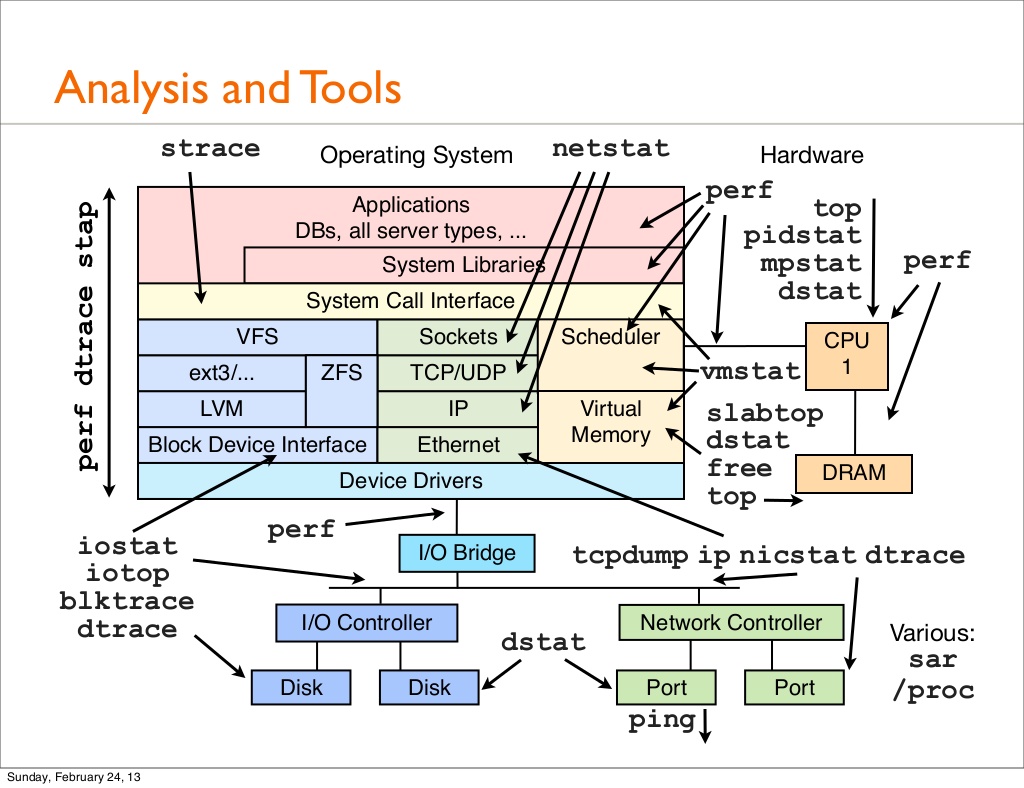
Get that
Linux feeling - on Windows
Linux Foundation
Install CYGWIN64,
users guide
How to install a new feature
- run C:\cygwin\setup-x86_64.exe
- "Install from Internet"
- root directory "c:\cygwin64\"
- local package directory : "c:\cygwin"
- use "System Proxy" settings
- choose download site -
- View := Full ;
- Search := new package name, as "fdisk"
Coreutils
homepage,
I have them at \\w500\C:\Program Files (x86)\GnuWin32\bin>
10 greatest open source software of 2009
- Inkscape ( Vector Graphics Editor )
- 7-Zip ( Archiver )
- VLC ( Media Player )
- VirtualBox ( Virtualization )
- Miro ( Internet TV )
- TrueCrypt ( Disk Encryption )
- Calibre ( eBook Converter and Reader )
- GnuCash ( Financial Management )
- GIMP ( Graphics / Simple Photo Editing )
- Audacity ( Sound Editor / Recorder )
url
Few more :
- Firefox 3.x - nuff said!
- Thunderbird 2.x - Another amazing software from the Mozilla with tons of plug-ins for email client.
- OpenOffice - Great Microsoft Office replacement.
- Pidgin - IM all your friends in one place.
- MPlayer - Now supports most of the Bluray and HD-DVD codecs.
- nmap - The ultimate network exploration and security auditing tool.
VLC problems under Ubuntu
Got some Ubutnu restating when playing a video - solution :
- Tools
- Preferences
- Video
- Output : Automatic -> X11 Video Output (XCB)
How to run a Guindows program under Linux
3 methods (from
here) :
VM : this process involves installing a copy of Windows in a “virtual machine” program
like VirtualBox, VMware, or Linux’s built-in KVM (Kernel-based Virtual Machine) solution.
VB +
wiki,
KVM +
wiki,
VMware +
wiki
w10 on MARS
- mars:\\/home/nicolau/VirtualBox VMs
- /home/nicolau/Downloads/Win10_1909_English_x64.iso
- shared folder : /home/nicolau/sebas/VM_share
Linux on a Mac
FJD 20200110 - url
Linux flatpak
A Flatpak is a technology for distributing and running applications on Linux, designed to work consistently across different distributions.
It packages applications with their dependencies in a "sandbox" environment, promoting both application isolation and cross-distribution compatibility. {Gemini}
Flatpaks are containerized applications.
They require more space because the bring along their own versions of their dependencies instead of relying on system versions.
While a single application will have greater space requirements,
the base images [and potentially overlays] will get shared between them and each successive flatpak will potentially require less overhead.
Pros :
- flatpaks are often more current than their distribution packaged versions and they are somewhat isolated from the base system.
- consistency: applications behave the same way regardless of the Linux distribution.
Cons : they're not managed with the rest of your system packages,
can have slower start times, occasionally have permissions issues, and take up more space.
Docu
Build a Linux fom scratch
/home/sebas/dades/llibres/informatica/Linux From Scratch systemd.pdf
Albert : buildroot.org tool to generate embedded Linux
Books, guides
- The One Page Linux Manual
homepage
and
pdf.
- A practical guide to Linux
Mark G. Sobell
Addison Wesley, 1999 (9th printing)
ISBN 0-201-89549-8
- Red Hat Linux 6 Unleashed
David Pitts and Bill Ball
Sams, 1999
ISBN 0-672-31689-7
-
Linux complete
LDC compiled by Grant Taylor
Sybex, 1999
ISBN 0-7821-2567-0
- Linux Device Drivers
Alessandro Rubini and Jonathan Corbet
O'reilly, 2001
ISBN 0-59600-008-1
Available on-line both in
html
and
pdf
Here's also an image
- Using Samba
Linux Tricks & Tips : numéro spécial Samba
RH manuals
Admin guides
Revistes
Links, URLs
- Linux FAQ's - una bona llista de preguntes "clàssiques".
Home page.
Com quan el Linux et diu
"You dont exist. Go away."
-
How to connect Ubuntu to Internet
- RPM finder - quan hem de buscar a quin RPM pertany una comanda.
Home page.
- Documentació de aplicacions i buscador.
- Kernel
internals
(mirror)
- Busca la resposta als grups de Google
- Busca software per Linux a
FreshMeat.net
i
SourceForge
- Some less frequent Linux commands
- Linux programming tips
- Linux requirements
- Linux admin certification prep
- SuSE 8.1 details
- Sota S/390, amb el SuSE 7.0
- En un Netvista A22p / A30p
- Coses de Lilo
- A lite one
- Imprescindible per a
portàtils
i
portàtils
i
portàtils
- Red Hat
customization guide.
Document molt extens.
- Llista de eines
- Get
Tiny Floppy Linux
- Single
IBM site (links to all IBM Linux sites),
and a IBM's
Howto
-
Linux on a Xbox
or
here
- Linux on a Game Cube
-
Cookbook
and
LDP : The Linux Documentation Project.
Al LDP hi ha un munt de guies :
- User's
- System Admin
- Programmers Guide
Good
LDP
and Programming Doc index ! See "Kernel Internals" doc !
- Linux documentation
- Linux resources on the
web
- Linux
certification prep.
LPI certification process :
level 1 exam details :
exam 101,
exam 102, etc
Also here
- IBM links :
- Real time Linux
- Nessus homepage
- Forensic PC
replication
-
Bluez : linux Bluetooth protocol stack.
- Linux in
business
and for
enterprises
- Linux en Extremadura
- Xavi's Application : "VNCVIEWER corrent al damunt el escritori X"
- Linux find
apps, as nmap, linpopup, etc
- SuperComputer out of a PS/2 uses
Linux
The supercomputing center scientists said they had chosen
the PlayStation 2 because Sony sells a special Linux module
that includes a high-speed network connection and a disk drive.
By contrast, it is almost impossible for researchers to install
the Linux system on Microsoft's Xbox game console.
Using a network of machines is not a new concept in the
supercomputing world.
Linux, which plays a major role in that world, has been used to
assemble high-performance parallel computers built largely
out of commodity hardware components.
These machines are generally called Beowulf clusters.
- Linux common mistakes
- Mallorquí
- EGB Linux links :
- Intranet Forums
mirror
- Intranet Download
FTP3,
expire info
- LTP
homepage - Linux Test Project !
- Linux en
català,
català (feb'07) :
GNU Linux cat.
- Rosetta : command line for
any OS ...
- Guindows-like
desktop
- Techno-Fobia :
BabelLinux :
homepage
- Linux
library.
- Linux
memory model
- Things
I can do on Linux (not on windous)
- BERYL vs Vista desktop
-
ELF format -
EXE format comparison.
Win32 EXE format :
exefmt.exe tool.
-
Reiser
interview
&
wiki.
- Download any
Linux :
ArchLinux, Debian, Fedora, Gentoo, Knoppix, Libranet,
Lycoris, Mandrake, RedHat, slackware, SuSE, TurboLinux, Yellow Dog.
- Dougie Lawson : Linux for S/390. Good links.
- RH updates (internal)
- directori de foros
- cheat sheet
- xorrades de informàtica
- administrar qualsevol Linux - WebMin - super facil
- The Art of Unix Programming by Eric Steven Raymond (pdf)
- install Sublime Text under Ubuntu (stable, not "dev") :
sublimetext
- Ubuntu live with persistent storage,
{RRG, 2021/11}
- gaia sky - un google earth de la via lactea
- bginfo alternatives for Linux
- test Linux distros online - VM's in cloud
- Back to main page
- Site map
- Escriu-me !