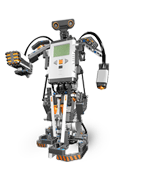
leJOS
RoadMap
Sample and Example projects are at
"\Documents and Settings\<nom>\My Documents\LeJOS NXL Samples" (120 .java files)
and
Sources of leJOS Development kit can be found at
"\Documents and Settings\<nom>\My Documents\LeJOS NXL Dev" (1024 .java files)
Lets read the
tutorial {*****} : will have it in local
leJOS on windows
- install JDK 7u9 from
Oracle - jdk-7u9-windows-i586.exe
- install USB driver Fantom from
Lego : \\PhantonDriver_Download1\autorun.exe
-
install "leJOS_NXJ_0.9.1beta-3_win32_setup.exe" from
SourceForge
Few interesting tools installed (\\leJOS NXJ\bin):
- nxjbrowse.bat
- nxjconsoleviewer.bat -
displays the output from RConsole
- nxjcontrol.bat - {lejos.pc.tools.NXJControl} - replaces nxjbrowse and provides most of the functionality of nxjmonitor, nxjconsoleviewer and nxjdataviewer.
- nxjchartinglogger.bat
- nxjdataviewer.bat -
displays the output from DataLogger.
- nxjflashg.bat
- nxjimage.bat
- nxjmapcommand.bat
- nxjmonitor.bat - {lejos.pc.tools.NXJMonitor} - the program being monitored should run the LCP(BT)Responder thread and can output trace messages using LCP.messageWrite on message box 0
-
run "NXT Flash" to install leJOS on the NXT brick and to configure windows environment (next step)
- set windows envir
NXJ_HOME=C:\Program Files\leJOS NXJ
LEJOS_NXT_JAVA_HOME=C:\Program Files\Java\jdk1.7.0_09
PATH=%PATH%;C:\Program Files\leJOS NXJ\bin;
-
test
installation :
{T400 \\LEGO\Java\Hola\}
- create "HolaMundo.java"
\\LEGO\Java\Hola> type HolaMundo.java
import lejos.nxt.Button ;
public class HolaMundo {
public static void main (String[] args) {
System.out.println ( "Hola Sebas i resta del mon." ) ;
Button.waitForAnyPress() ;
} ;
} ;
- compile "nxjc HolaMundo.java"
- link "nxjlink -o HolaMundo.nxj HolaMundo"
- transfer and run the program on NXT :
\\LEGO\Java\Hola> call nxjupload -r HolaMundo.nxj
Found NXT: NXT 00165304A0DE
leJOS NXJ> Upload successful in 1078 milliseconds
Other (very interesting)
tools :
- nxjpcc - compile a PC API program for your pc
- nxjpc - run a PC API program on your pc
Atencio al detall :
- install
eclipse (eclipse-java-juno-SR1-win32.zip) -
eclipse.ini values :
-Dhttp.proxyHost='myproxyhost'
-Dhttp.proxyPort='myproxyport'
-Dhttp.proxyUser='myproxyuser'
-Dhttp.proxyPassword='myproxypwd'
and verify "manual" method is in use.
- install eclipse
plugin :
- start eclipse (version 4.2, Juno, I guess)
- if Proxy Authentication is required, do
- window -> preferences -> general -> network connections
- select "Active provider := Manual" ;
- on proxy entry "Schema = HTTP" (guifi.net), click "edit" and supply proxy host and port (10.139.130.34:3128), username and password
- click "Help" + "Install New Software" + "work with := http://lejos.sourceforge.net/tools/eclipse/plugin/nxj/"
- from "Available software", select "leJOS NXJ plugin"
- download the unsigned plugin and restart eclipse : now "leJOS NXJ" menu entry is beside "Run" menu.
- also, under "Help" and "Help Contents" you can find leJOS NXJ help - it is a good idea to read the help page to familiarize yourself with the plugin.
- configure Preferences under "Window" -> "Preferences" -> "leJOS NXJ" - it is a good idea to check the "Verbose" option.
Decide if you want "run program after upload".
- to upload the leJOS NXJ firmware to the NXT brick, click "leJOX NXT" and then "Upload Firmware" or click on the leJOS button on the toolbar.
That will start the NXJFlash utility.
- you can display "Available Software Sites" under "windows -> preferences -> Install/Update".
There, select "leJOS NXJ" and click "Reload" button on the right
- create a new leJOS NXJ project using the plugin :
- go the "File" menu and select "New" and then "Project...""
- unfold the LeJOS category and select "LeJOS NXT Project"
- enter the project name and click Finish
- right click the src folder and select "New" and then "Class" in the context menu
- enter a package name and the name of the class (HelloWorld_NXT)
Typically, the package name consist of a DNS domain name in reverse order (com.mydomain)
- once you click Finish, the editor for the class will open. Now you can start programming "HelloWorld_NXT.java"
- when you are ready to upload your program to the brick, right-click on the class which contains the main method
Select "Run As -> LeJOS NXT Program" (not Run As -> Java Application)
- two files have been created in the project root directory
The nxj file is the one being upload to the NXT brick
The nxd is for debugging purposes
- if you selected the "Run program after upload" option, the program will start running on your NXT when it has finished uploaing
- create a PC project
- go the "File" menu and select "New" and then "Project...""
- unfold the LeJOS category and select "LeJOS PC Project"
- enter the project name and click Finish
- right click the src folder and select "New" and then "Class" in the context menu
- enter a package name and the name of the class (HelloWorld_PC)
- once you click Finish, the editor for the class will open. Now you can start programming "HelloWorld_NXT.java"
- the program will print "Hello World!" locall on the PC. Then it will try to connect to any NXT and will start the Motor connected to Port A
- when you are ready to upload your program to the brick, right-click on the class which contains the main method
Select "Run As -> Java Application"
- you will see output on the local console in Eclipse.
Note the line after the "Hello World!" which indicates that the program connected to a NXT brick.
- editing
Run Configurations
- importing the
samples and examples into Eclipse :
- click File -> Import
- unfold the General category and select "leJOS samples and project templates".
- clik Next, and chose which projects to import (all)
- after clicking Finish, the imported projects will appear in the main window
Compte : at T400 we get the error
The selected wizard could not be started.
Reason: plugin "org.lejos.nxt.ldt" was unable to instate class "org.lejos.nxt.ldt.wizard.SampleImport"
Nassos : no contesta el
forum - passo a esborrar el eclipse vell i posar el nou - fixed with "Juno"
- using the NXT samples project
Unfold the samples project, and right-click the sample you want to start.
You must select class which contains the main method.
If you don't know, right-click the package instead.
Select "Run As" -> "LeJOS NXT Program" and the sample will be linked and uploaded to the NXT brick.
Linking ...
Program has been linked successfully
Uploading ...
BlueCove version 2.1.0 on widcomm
leJOS NXJ> Error: Exception connecting to NXT.
leJOS NXJ> Caused by lejos.pc.comm.NXTCommException: Open of NXT failed.
leJOS NXJ> at lejos.pc.comm.NXTCommBluecove.open(NXTCommBluecove.java:136)
leJOS NXJ> Caused by javax.bluetooth.BluetoothStateException: Bluetooth Device is not ready
leJOS NXJ> at com.intel.bluetooth.BluetoothStackWIDCOMM.verifyDeviceReady(BluetoothStackWIDCOMM.java:197)
No NXT found - is it switched on and plugged in (for USB)?
leJOS NXJ> Failed to connect to any NXT
BlueCove stack shutdown completed
uploading the program failed with exit status 1
- using the PC samples project
Unfold the pcsamples project, and right-click the sample you want to start.
You must select class which contains the "main" method.
If you don't know, right-click the package instead.
Select "Run As" -> "Java Application" and the sample will be started.
Hello World!
BlueCove version 2.1.0 on widcomm
Failed to open connection to the NXT
BlueCove stack shutdown completed
- Using the example projects
The example projects are a good example of how to create an Eclipse project for leJOS
that also includes an Ant build file.
org.lejos.pcexample is an example of a project for PC-side programs that remote control the NXT. {****}
HelloWorld.java only ???
In order to try the Ant script from within Eclipse, right-click on build.xml and select "RunAs" -> "Ant Build".
In case of the example project, you should see the verbose output from the linker in the Eclipse console window
and the binary will be uploaded to the NXT and run.
- setting up the leJOS GUI Tools
leJOS NXJ comes with a set of GUI tools that can be using for flashing the firmware, exploring files on the NXT, monitoring and debugging programs on the NXT, downloading data logs, etc.
It is useful to be able to run these tools within Eclipse, and to do this you need to set them up as external tools.
To create external tools, click on the down arrow next to the "Run External Tools" icon on the toolbar
and select "External Tools Configuration" / "Open External Tools Dialog"
Then select "Program" and right-click on it to get the "New" configuration menu.
Set its name to "NXJ Flash" as example.
Fill "Location" using "Browse File System" to find the bin directory of where you installed leJOS NXJ
and select \\leJOS NXJ\bin\nxjflashg.bat.
Other GUI tools you should set up include:
- nxjbrowse - an Explorer for NXJ files
- nxjconsoleviewer - GUI viewer for RConsole debug output
- nxjmonitor - remote monitoring of programs running on the NXT
- nxjdataviewer - GUI tool to download data logs from NXT
- nxjcontrol - a GUI tool that combines the function of all of the above tool, and adds a few more functions.
leJOS (click NXT, not RCX),
tutorial,
win
Problem :
\\LEGO\Java\Hola> call nxjupload -r HolaMundo.nxj
Found NXT: Unknown 00165304A0DE
leJOS NXJ> Failed to connect to the specified NXT
leJOS NXJ> Failed to connect to any NXT
No NXT found - is it switched on and plugged in (for USB)?
Ask
Forum - restart NXT and PC and/or disconnect other apps using USB
Executing out of eclipse
In order to run application that run on the PC,
add all jars in the subdirectory lib/pc to your classpath.
Nothing more is required to compile/run a program that uses on the PC.
\\leJOS NXJ\bin> call nxjmonitor.bat
Java C:\Program Files\Java\jdk1.7.0_09\bin\java.exe
NXJ home C:\Program Files\leJOS NXJ\bin\\..
Command name nxjmonitor
Classpath
C:\Program Files\leJOS NXJ\lib\pc\charting.jar;
C:\Program Files\leJOS NXJ\lib\pc\jtools.jar;
C:\Program Files\leJOS NXJ\lib\pc\pccomm.jar;
C:\Program Files\leJOS NXJ\lib\pc\pctools.jar;
C:\Program Files\leJOS NXJ\lib\pc\3rdparty\bcel.jar;
C:\Program Files\leJOS NXJ\lib\pc\3rdparty\bluecove-gpl.jar;
C:\Program Files\leJOS NXJ\lib\pc\3rdparty\bluecove.jar;
C:\Program Files\leJOS NXJ\lib\pc\3rdparty\commons-cli.jar;
C:\Program Files\leJOS NXJ\lib\pc\3rdparty\jcommon.jar;
C:\Program Files\leJOS NXJ\lib\pc\3rdparty\jfreechart.jar;
C:\Program Files\leJOS NXJ\lib\pc\3rdparty\stax-api-1.0.1.jar
Running lejos.pc.tools.NXJMonitor
"%JAVA%" "-Dnxj.home=%NXJ_HOME%" "-DCOMMAND_NAME=%NXJ_COMMAND%" -classpath "%NXJ_CP_PC%" lejos.pc.tools.NXJMonitor %*
Found NXT: NXT 00165304A0DE
Puc fer UPLOAD via BlueTooth
\\T60-s2\leJOS\rmt> call nxjupload -r RemoteNXTsag.nxj
leJOS NXJ> Searching for any NXT using Bluetooth inquiry
BlueCove version 2.1.0 on winsock
Found: NXT
leJOS NXJ> Name 0 = NXT
leJOS NXJ> Address 0 = 00165304A0DE
leJOS NXJ> Upload successful in 8313 milliseconds
BlueCove stack shutdown completed
Fi
Press any key to continue . . .
nxjlink
C:\> nxjlink -?
usage: nxjlink [options] main-class [more classes]
options:
-a,--all do not filter classes
-bp,--bootclasspath <classpath> where to find leJOS classes
-cp,--classpath <classpath> where to find user's classes
-dm,--disablememcompact disable memory compaction
-ea,--enableassert enable assertions
-ec,--enablechecks enable run time checks
-g,--debug include debug monitor
-gr,--remotedebug include remote debug monitor
-h,--help show this help
-o,--output <path to file> dump binary to file
-od,--outputdebug <path to file> dump debug info to file
-v,--verbose print class and signature information
-wo,--writeorder <write order> endianness (BE or LE)
leJOS on linux
- install JDK 7u9 from
Oracle -
jdk-7u9-linux-x64.tar.gz
- install USB driver - either
libusb-0.1 or libusb-compat
A better solution is to use udev rules.
How to do this may vary with different Linux systems.
To use udev rules, set up a file such as /etc/udev/rules.d/70-lego.rules and populate it with the following lines:
# Lego NXT brick in normal mode
SUBSYSTEM=="usb", DRIVER=="usb", ATTRS{idVendor}=="0694", ATTRS{idProduct}=="0002", GROUP="lego", MODE="0660"
# Lego NXT brick in firmware update mode (Atmel SAM-BA mode)
SUBSYSTEM=="usb", DRIVER=="usb", ATTRS{idVendor}=="03eb", ATTRS{idProduct}=="6124", GROUP="lego", MODE="0660"
These rules rely on your username being in the lego usergroup.
You may have to create this usergroup via sudo groupadd lego
and then add your username to the group via sudo gpasswd -a <username> lego.
You can also modify the file to your requirements.
On recent Linux system, the rules are reloaded automatically by udev.
The rules can be reloaded manually using the command sudo udevadm control --reload-rules.
- install
leJOS using tar.gz
- setup linux envir
NXJ_HOME=/opt/leJOS_NXJ
LEJOS_NXT_JAVA_HOME=/opt/sun-jdk-1.6.0.30 or /usr/lib/jvm/java-6-sun-1.6.0.06
PATH=$PATH:/opt/leJOS_NXJ/bin:
- build java native library :
cd $NXL_HOME/build
ant
- flash the firmware - nxjflash ("g" stands for GUI)
- test the installation using "HolaMundo.java"
Note that at the time of writing, the LEGO firmware has serious problems with talking to a computer running Linux via USB.
Therefore it is recommened to manually put the NXT brick in firmware update mode as described above.
The leJOS firmware does not have any problems of that kind.
url
LCD
As a text display, the NXT LCD screen is 16 characters wide and 8 characters deep.
As a graphics display, the NXT LCD screen is 100 pixels wide and 64 pixels deep -
x (horitzontal) ranges from 0 to 99, and y (vertical) from 0 to 63.
To draw lines or rectangles, use
graphics class API
LCD.clear () ;
LCD.drawString ( "connected", 0, 0 ) ;
LCD.drawInt ( DB.getBTSignalLevel (), 0, 1 ) ;
LCD.refresh () ;
drawInt
static void drawInt ( int i, int x, int y ) = display an int on the LCD at specified x,y co-ordinate.
static void drawInt ( int i, int places, int x, int y ) = also, but with leading spaces to occupy at least the number of characters specified by the places parameter.
Sensors
url
UltraSonic sensor
import lejos.nxt.* ;
public class SonicTest {
public static void main( String[] args ) throws Exception {
UltrasonicSensor sonic = new UltrasonicSensor ( SensorPort.S1 ) ; // S1 = port labeled "1" on NXT [1..4]
while ( ! Button.ESCAPE.isDown() ) {
LCD.clear () ;
LCD.drawString ( sonic.getVendorID(), 0, 0 ) ;
LCD.drawString ( sonic.getProductID(), 0, 1 ) ;
LCD.drawString ( sonic.getVersion(), 0, 2 ) ;
LCD.drawInt ( sonic.getDistance(), 0, 3 ) ;
} ; // while
} : // main
} ; // class
leJOS communications
Com es passa la informació del PC al Lego ?
LEGO defines a protocol called the LEGO MINDSTORMS NXT Communications Protocol (LCP) which is used to send commands to the standard LEGO firmware.
The specification is available in the Bluetooth Development Kit.
Communications,
MemTools
(LCP) Lego Command Protocol
class definition :
messageWrite ( int mailbox, String msg ) = write a message to a remote inbox
Code
LCPResponder :
import lejos.nxt.comm.* ; // usb & bt
// Start LCP Responders on Bluetooth and USB
LCPResponder btThread = new LCPResponder ( Bluetooth.getConnector() ) ;
btThread.setDaemon ( true ) ;
btThread.start () ;
LCPResponder usbThread = new LCPResponder ( USB.getConnector() ) ;
usbThread.setDaemon ( true ) ;
usbThread.start () ;
LCP.messageWrite ( 0, "v 1.1 MonitorTest start." ) ;
NXT monitoring using leJOS tools
You can monitor a leJOS program over a Bluetooth connection while it is running by starting the LCPBTResponder thread and running the NXJ Monitor tool on the PC.
NXJ Monitor lets you see the values of sensors, and the values of motor tachometers, in near real-time, while your program executes.
It also lets you program displaying tracing messages to indicate what it is doing. These are displayed on the NXJ Monitor screen.
The program being monitored should include the following code in its start-up sequence:
LCP(BT)Responder lcpThread = new LCP(BT)Responder();
lcpThread.setDaemon(true);
lcpThread.start();
url
NXT tools and their code
En el fitxers .java trobem:
- LeJOS NXJ Development Kit Sources\NXJMonitor.java - monitors sensors and motors of NXT using LCP.
- LeJOS NXJ Development Kit Sources\NXTCommand.java - sends LCP requests to the NXT and receives replies.
Implements getBatteryLevel(), "Get input values for a specific NXT sensor port",
"Retrieves the current output state for a port", "Retrieves tacho count",
- LeJOS NXJ Development Kit Sources\RemoteNXT.java - provides an API similar to the leJOS API
for accessing motors, sensors etc on a remote NXT accessed over Bluetooth using LCP.
Implements getBrickName(), getBluetoothAddress(), getFlashMemory(), getFirmwareVersion(),
Pending to find/use :
int getSignalStrength ( byte handle ), in [0..255] ;
Crec que les classes que em convenen son:
NXT runs my code
See the MonitorTest sample : \\leJOS NXJ samples\samples\src\org\lejos\sample\monitortest\MonitorTest.java
My code, available to download : \\LEGO\Java\Monitor\MonitorTest.java @ cmi\nxt\, 3.715 bytes.
MemoryTest
package org.lejos.sample.memorytest;
import lejos.nxt.LCD;
/**
* Shows how leJOS free RAM reduces as String objects are created.
* Now that leJOS NXJ has a garbage collector, it shows the garbage collector kicking in and the memory increasing again.
* @author Lawrie Griffiths
*/
public class MemoryTest
{
public static void main ( String [] arg ) throws InterruptedException
{
do
{
new String("Some more text");
LCD.clear();
LCD.drawInt( (int)( Runtime.getRuntime().freeMemory() ), 0, 0 ) ;
LCD.refresh();
Thread.sleep(10);
} while (true) ;
} ; // main
} ; // class
PC-NXJ runs my code
From
PL book
- LeJOS PC API is designed for Oracle / Sun Java classes.jar libraries.
- Subset of autonomous packages, similar programing and behaviour.
- Firmware acts as communication broker between PC and NXT brick (using LCP).
- Main algorithm is executed on the PC using PC Java virtual machine (JRE) (Windows/Linux/Mac OS).
- Works with almost any firmware that supports LCP (in theory).
Packages:
- lejos.nxt genuine NXT sensors, servos.
- lejos.nxt.addon - 3rd party sensors, motors, multiplexers and so on.
- lejos.nxt.remote NXT2NXT communication over Bluetooth protocol (managed from PC through other brick).
- lejos.pc.comm Bluetooth and USB communication interface
- lejos.util (partially different from autonomous implementation)
- lejos.geom
leJOS & Android
url
Mind
ADT - android developer tools :
plugin for Eclipse provides a professional-grade development environment for building Android apps.
It's a full Java IDE with advanced features to help you build, test, debug, and package your Android apps.
leJOS books
-
Bon
index
-
Juan Antonio Breña Moral excelent book, 250 pages.
Eclipse configuration well described, as my eclipse version {leJOS-eBook.pdf, : \\tine\cmi\nxt\}
-
Java-leJOS-multithreading.pdf : \\tine\cmi\nxt\
-
http://www.piotrczekalski.pl :
PL book
leJOS NXJ
API documentation {***}
&
leJOS NXJ
PC-API documentation {*****}
SAG projects 4 leJOS
-
pc samples
online
-
Lets send from NXT (messageWrite) to PC (messageRead) using one mailbox.
Interesting sample :
\\LeJOS NXJ Development Kit Sources\pccomms\src\lejos\nxt\inbox.java
No. It is "the message class used to send messages between NXT bricks"
How to use "messageWrite()" from NXT : "MonitorTest.java".
How to use "messageRead()" from PC : "NXJMonitor.java".
-
A
\\LeJOS NXJ Development Kit Sources\classes\src\lejos\nxt\remote\RemoteNXT.java
hi ha exemples de com llegir dades de un NXT remot, com
getBrickName(), getBluetoothAddress(), getFlashMemory(), getFirmwareVersion(), getProtocolVersion(), getCurrentProgramName()
No ens interessa : es per anar de un NXT a un altre NXT !
-
operacions interessants :
- getTachoCount() -
motors
- boolean isMoving()
- int getSpeed() - returns the current speed setting
- int getActualSpeed() - returns the actual speed of the motor
- boolean isStalled()
- void getAcceleration() - returns the current acceleration value for the motor
- int getPower() - returns the current power setting in the range of 0 to 100
- int getVoltageMilliVolt() -
sensors
- boolean isDown() - test if a button is pressed -
sensors
- get battery level -
LCP
- get firmware version -
NXT command
Access a remote NXT from a PC using BT or USB
Ideas :
- \\pcsamples\SensorTest.java
- \\pcsamples\SocketServer.java
- Jose Pereda's
sample - uses JSON, RESTful, Glassfich server and JavaFX UI {*****}
- Almir Kahrimanovic's nxt project
It uses :
- gui.java
- eclipse
- leJOS
- iCommand
v 0.7 - iCommand is a Java API which is used to program or control the NXT brick over a Bluetooth connection.
-
BlueCove - a Java library for Bluetooth (JSR-82 implementation)
-
pcapi :
If you use the pcapi no program is needed on the nxt because it sends so called direct commands to the nxt.
On the nxt could run the lego firmware and it should work.
Its pretty easy to use the pcapi: you must only include the classes.jar(?) from lejos-folder/lib/pc.
Then you can write for example: Motor.A.rotate();
01 import lejos.nxt.Motor ;
02 import lejos.nxt.Battery ; //
api
03 import lejos.nxt.NXT ; //
api
04 /*
05 * Das Programm startet den Motor A vom PC aus
06 *
07 * by backsite.wordpress.com
08 *
09 */
10
11 public class NXTmotorFWD {
12
13 public static void main ( String [] args ) {
14 Motor.A.forward();
15 int iVolt = Battery.getVoltageMilliVolt() ;
16 System.out.println ( "Voltatge = " + iVolt ) ;
17
18 } ;
19
20 } ;
Aquest home apunta a "\\pcsamples\SensorTest.java" :
use the standard lejos scripts nxjpcc and nxjpc to compile and run the samples
Resultat :
\\LEGO\Java\direct-command> call nxjpcc NXTmotorFWD.java
\\LEGO\Java\direct-command> call nxjpc NXTmotorFWD
Run (NXTmotorFWD) on BT if there is no USB ...
Hola Sebas i resta del mon.
Found NXT: NXT 00165304A0DE
Voltatge = 7519
I sense USB, via BlueTooth:
\\LEGO\Java\direct-command> call nxjpcc NXTmotorFWD.java
\\LEGO\Java\direct-command> call nxjpc NXTmotorFWD
Run (NXTmotorFWD) on BT if there is no USB ...
Hola Sebas i resta del mon.
BlueCove version 2.1.0 on widcomm
Voltatge = 7353
BlueCove stack shutdown completed
Compile and run NXJControl
\\leJOS\LeJOS NXJ Development Kit Sources>cd .\lejos\pc\tools
call nxjpcc -Xlint NXJControl.java
call nxjpc lejos.pc.tools.NXJControl
Controlling the RCX from a Web Page
This section describes a very cool way
to interact with the RCX brick using a Java Server Page (JSP).
In the previous section we accessed the RCX across a network,
but the user needed to run the ExplorerCommand class.
Now we will create a Web page that allows anyone with a browser to access the RCX.
The basic architecture consists of three components:
a client Web browser, a Web server, and the RCX brick
(Figure 11-10).
We will need to create an HTML page for the client browser,
JSP code for the server,
and leJOS Java for the RCX brick.
The JSP is actually HTML code and Java code all in one file,
so there are actually only two bodies of code we will write for this project.
This setup could be useful for running an experiment
with groups of people who might want to monitor
(or even interact with) the experiment.
Imagine a scenario in which a classroom of psychology students
is performing an experiment with a lab rat.
The behavior of rats is typically conditioned
using a Skinner box-a cage containing switches for the rats to push,
and food pellets that are dished out
to give the animals positive reinforcement.
Often the boxes are used to train the animals to perform novel actions,
such as play tic-tac-toe or count objects.
Using the RCX, it would be very easy for anyone
to build a complex Skinner box.
A Web cam (or LEGO cam) could even provide a visual presence for viewers.
Students could surf to the Web
page at any time and look at how the experiment is going,
or even interact directly with the animal in the Skinner box.
Touch sensors could be used to receive input from the animal,
and motors, lights, or sound could be used to interact with the animal.
Or, you could turn the tables and have an RCX robot
with a neural net run around the Skinner box.
There are endless possibilities.
Installing a Web Server
All Web pages are hosted by Web servers,
which are just normal computers.
The Web server itself must be connected to the IR tower,
so you cannot use a third-party Web service to host your Web page.
Fortunately there are some free, easy-to-use Web servers available online.
Setting up and using the Web server is not going to be a difficult ordeal;
in fact, it's about 10 times easier
than setting up and using a word processor.
You can use any Web server on the market
that allows Java Server pages,
but in this example we use an excellent server package
called Resin by Caucho Technology.
NOTE -
This server software is free for noncommercial use only.
- Go to the Resin download site at
http://www.caucho.com/download
- Download Resin 2.x for the appropriate operating system
(Windows or UNIX).
The basic Resin package is fine and you do not require Resin-CMP.
- Extract the files to an appropriate directory, such as Program Files.
There is no installation program.
- We are now going to alter the server configuration slightly.
Resin serves pages to port 8080 by default,
but the standard for HTML pages is port 80.
Open the resin.conf file in the conf directory using a text editor.
- Scroll down in the file until you see the setting:
<http port='8080'/>
Modify this to:
<http port='80'/>
Now save the file and close it.
- That's it!
Resin is now installed and ready to go.
Run httpd.exe,
located in the bin directory
(or standalone.exe if you don't want the Java helper window)
and the server will start serving Web pages.
- To test the server,
open your browser and go to the following address:
http://localhost
(alternately, you can try http://127.0.0.1, or your IP address).
A default Web page should come up with Resin information.
Any Web pages that are placed in the doc directory
will be accessible from your server.
Minimize the Resin server window,
but leave it running because we will use it for some projects.
NOTE -
Now that you have a Web server set up
you can convert the previous Explorer project
into a Java Applet and include it on a Web page.
The applet cannot be hosted by a third-party server
because network communications would not be allowed
by the Java security model,
but as long as the Explorer Server is running
at the same IP address as the Web page, it will work fine.
First, use the following code for the applet:
import java.applet.Applet;
import java.awt.*;
public class ExplorerApplet extends Applet {
public void init() {
this.add(new ExplorerCommand("209.202.24.208"));
this.resize(400,300);
this.setLayout(new BorderLayout());
}
}
Next, type up the following HTML page:
<html>
<head>
<title>Explorer Command Center</title>
</head>
<body>
<applet
code=ExplorerApplet.class
width=500
height=800 >
Your browser is not Java-enabled.
</applet>
</body>
</html>
Save this file as explorer.html in the doc directory or Resin.
Finally, copy ExplorerApplet.class, ExplorerCommand.class,
and ExplorerCommand$ControlListener.class to the doc directory.
Run Resin and minimize it, then run ExplorerServer.class
to start the RCX server (from its normal directory).
Upload RCXExplorer.class to the RCX,
place it in front of the IR tower,
and press the Run button.
Now browse to the following address
and you will see this displayed
as an applet:
http://localhost/explorer.html
A Simple Project
Now that the server is up and running
we can create an RCX project using the Web.
This is just a fun example used to demonstrate
the ability to read sensors and control motors.
This RCX application simulates the game of Russian Roulette,
except instead of spinning the bullet chamber
the motor spins an arm in front of a light sensor.
If the arm stops in front of the light sensor
then the player will lose.
For this project,
code will need to be running on the RCX brick as well as on a JSP page,
which will be executed
every time a user interacts with the JSP page.
The code on the RCX side contains no concepts
that haven't been covered already:
1. import java.io.*;
2. import josx.platform.rcx.comm.*;
3. import josx.platform.rcx.*;
4.
5. public class Roulette implements SensorConstants {
6.
7. private DataOutputStream out;
8. private InputStream in;
9.
10. public Roulette() {
11. RCXDataPort port = new RCXDataPort();
12. out = new DataOutputStream(port.getOutputStream());
13. // No Data Stream needed b/c only byte values read:
14. in = port.getInputStream();
15. Sensor.S1.setTypeAndMode(SENSOR_TYPE_LIGHT, SENSOR_MODE_RAW);
16. Sensor.S1.activate();
17. }
18.
19. public static void main(String args[]) {
20. Roulette roulette = new Roulette();
21. while(true)
22. roulette.play();
23. }
24.
25. /** This method reads a value from the IR tower, rotates
26. * the arm for the specified time, then returns the light
27. * reading to the IR tower. */
28. public void play() {
29. try {
30. int spinTime = in.read();
31.
32. spinArm(spinTime);
33. int sensorValue = sensorValue = Sensor.S1.readValue();
34. LCD.showNumber(sensorValue);
35. out.writeInt(sensorValue);
36. out.flush();
37. } catch (IOException e) {
38. LCD.showNumber(1111);
39. }
40. }
41. /** Spins the arm the desired time. */
42. public static void spinArm(int seconds) {
43. Motor.A.forward();
44. try {
45. Thread.sleep(seconds * 1000);
46. } catch (InterruptedException e) { }
47. Motor.A.stop();
48. try { //Delay to make sure arm is fully stopped:
49. Thread.sleep(100);
50. } catch (InterruptedException e) { }
51. }
52. }
As you can see, this code simply reads a value from the IR port,
spins the motor for a period of time,
then reads the light sensor value and returns it to the IR port.
The JSP portion of the code interacts with the RCX bean,
so let's explore this API.
url